
Onboard a new client
Add a new client to STACKED cloud by creating a session and connecting their LinkedIn account. Each session represents a LinkedIn account that can run outreach independently.
1. Add a new session
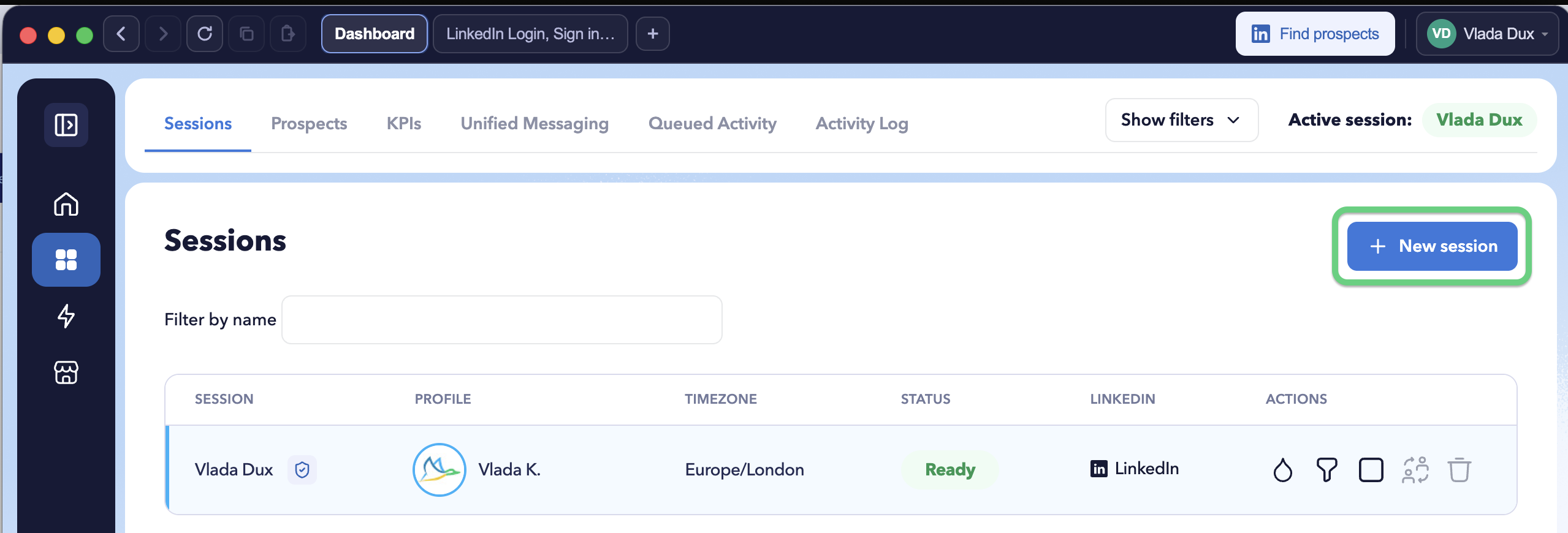
Open the Sessions tab in the STACKED admin portal and click + New session.
The session wizard will guide you through three steps: Session details, Connect LinkedIn, and Launch Cloud.
2. Enter the client details
Enter the first name and last name of the LinkedIn account holder, then click Continue.

Using the LinkedIn account holder’s name makes it easier to identify and manage the correct session when working with multiple clients.
3. Connect the client’s LinkedIn account
Click Open LinkedIn. STACKED will open LinkedIn in a new tab.
If another LinkedIn account is already signed in, sign out first, then log in using the LinkedIn account you want to connect to this session.

Once you’ve successfully signed in, return to the STACKED admin portal.
4. Confirm the LinkedIn account
STACKED will detect the LinkedIn account currently signed in and display the account name.
Check that this is the correct client account and click Connect.

If the wrong account is displayed, click Not this account and sign in with the correct LinkedIn account instead.
5. Launch the session
Once the account is connected, STACKED will automatically begin launching the cloud session.
This usually takes 1–2 minutes. Keep the setup window open while the session is being prepared.

6. Finish the setup
When you see Session is live, the client’s LinkedIn account has been successfully connected, and the session is ready.
Click Done to return to your Sessions panel, or Set up another session if you want to onboard another client.

The new session will now appear in your Sessions list and can be used to manage the client’s LinkedIn outreach from STACKED cloud.