Review activity logs across sessions
The Activity Log tab in the STACKED Admin Dashboard gives administrators a detailed record of automation actions processed across team member or client sessions.
Use the Activity Log to review completed and failed actions, investigate individual activities, and rerun actions when necessary.
Filter the activity log
Filters in the top panel control the data displayed across the Admin Dashboard.
You can select one session, multiple sessions, or all sessions. You can also select campaigns associated with those sessions and choose the reporting period.
Use these filters to focus the Activity Log on the sessions, campaigns, and time period you want to review.

Review completed and failed actions
The Activity Log shows actions that STACKED has already processed.
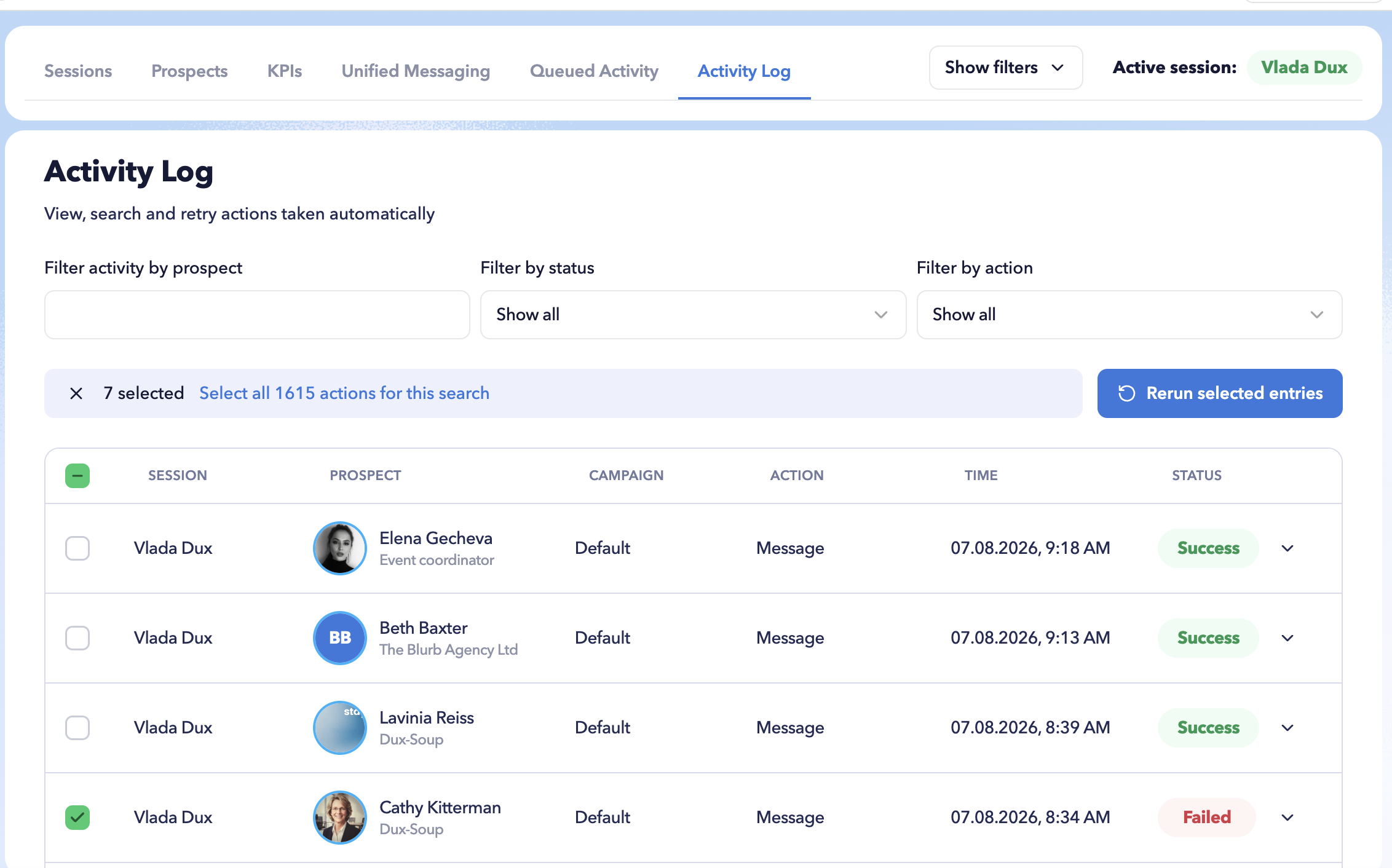
For each activity, you can see the:
- Session where the action was processed
- Prospect associated with the action
- Campaign
- Action performed
- Time the action was processed
- Status, such as Success or Failed
Click the arrow next to an entry to expand it and view additional information about the activity.
Find specific activity
Use Filter activity by prospect to search for activity associated with a particular prospect.
You can also narrow the results using:
- Filter by status – for example, to focus on failed actions.
- Filter by action – to review a particular type of automation activity.
These filters can help you investigate an issue without searching through the entire activity history.

Rerun actions
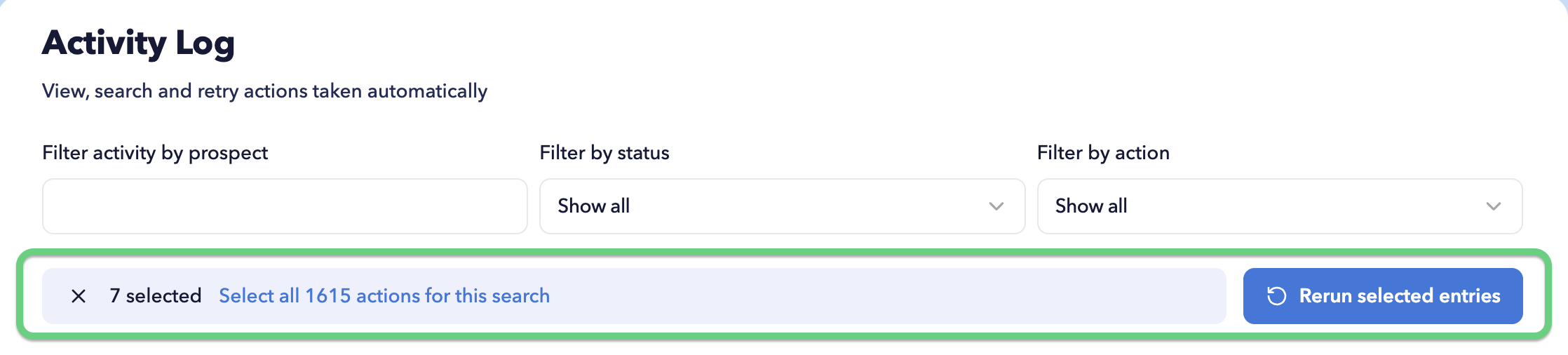
Select one or more entries and click Rerun selected entries to queue those actions to run again.
You can also use Select all actions for this search when you want to select all entries matching your current filters.
This is particularly useful when reviewing failed actions that you want STACKED to attempt again.