
How do I choose when STACKED runs automation?
The Planner controls the days and hours when STACKED is allowed to process your LinkedIn automation.
Use it to create an automation schedule that fits around your normal LinkedIn activity—for example, running STACKED during selected working hours and giving automation regular periods of rest.
Set your automation schedule
Go to Settings → Planner.
- Click your STACKED profile icon in the bottom-left corner and select Settings.
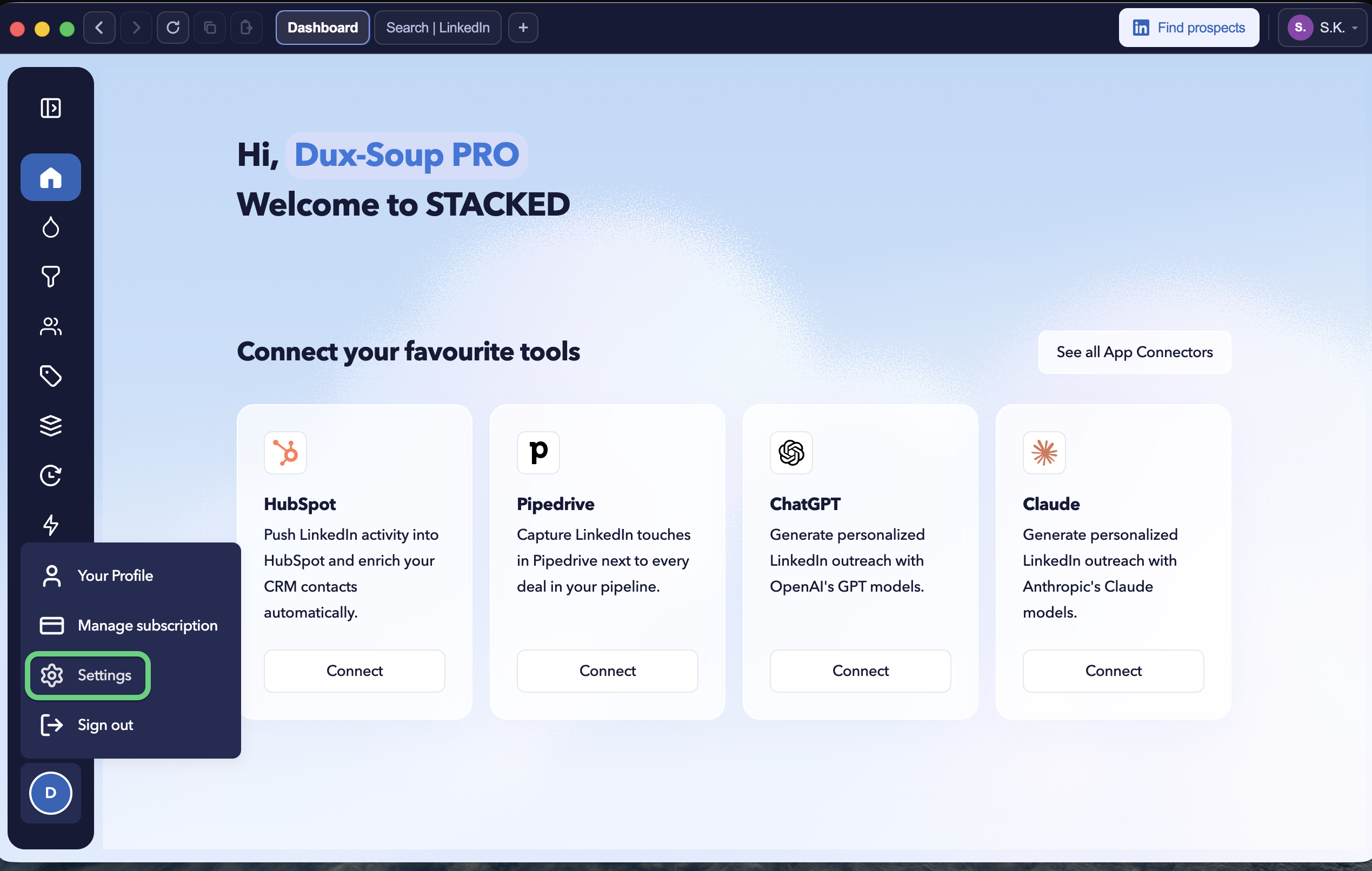
- Then select the Planner tab.
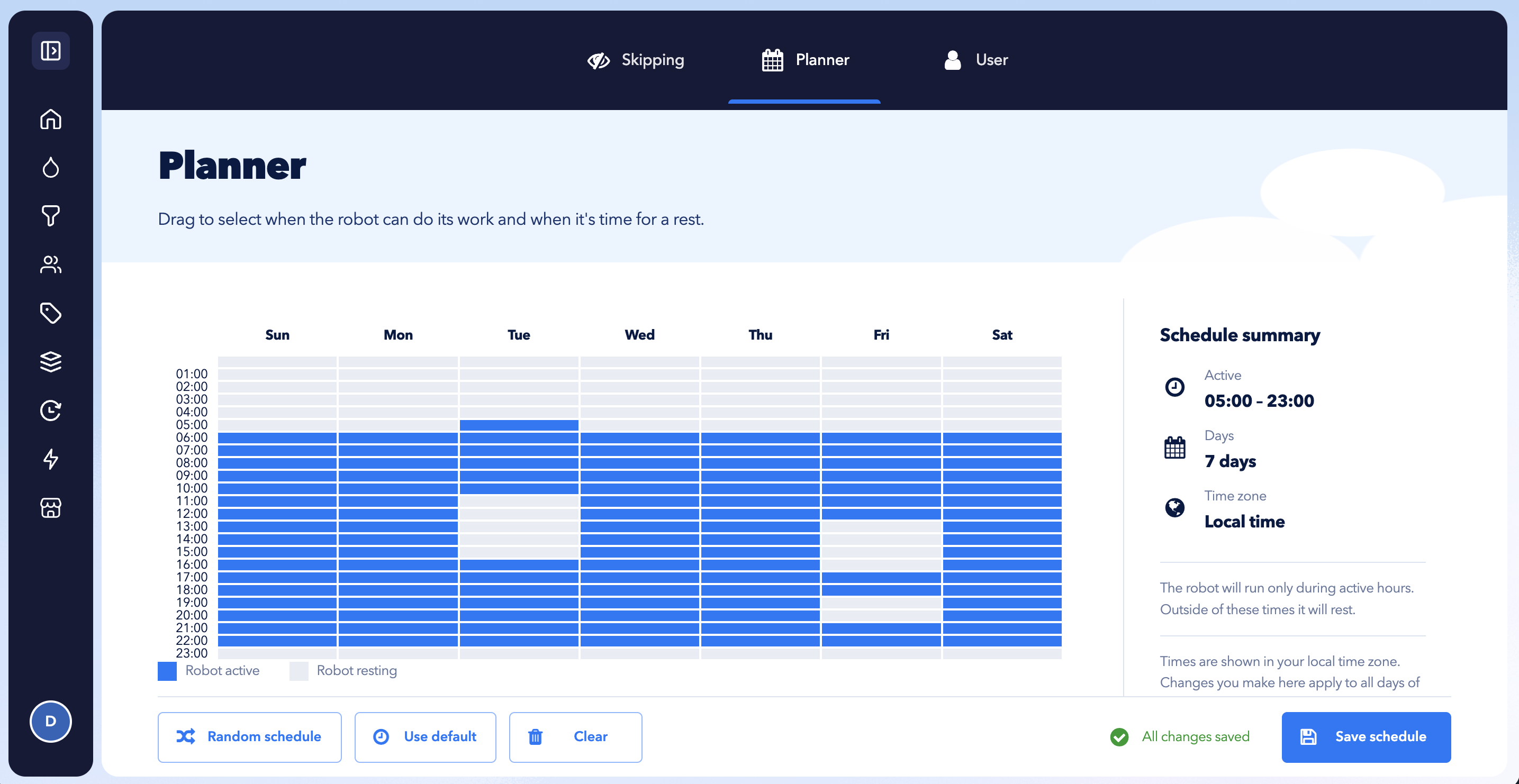
The Planner provides:
- Random schedule – creates a varied automation schedule.
- Use default – restores the recommended default schedule.
- Clear – removes the currently selected active hours.
- After making changes, click Save schedule to apply them.
The weekly calendar shows when STACKED is:
- Active – STACKED can process automation.
- Resting – automation won’t be processed.
Select the hours you want STACKED to be active, then click Save schedule.
Your schedule uses your local time zone and applies across the days shown in the Planner.
Why should I use the Planner?
The Planner gives you more control over when automated LinkedIn activity takes place.
For example, you can use it to:
- Run automation only during the hours you choose.
- Keep automation separate from periods when you normally use LinkedIn manually.
- Give your automation regular breaks.
- Keep selected days free from automated activity.
- Enrol and review prospects before allowing automation to begin.