
How to start and manage your STACKED cloud session
With STACKED powered by Dux-Soup, your LinkedIn session can run in the cloud, allowing your automation to continue without keeping your computer open.
When you first purchase STACKED cloud, you’ll need to start your cloud session from the STACKED app.
After that, you can use the Cloud Session controls to stop, restart, or update the LinkedIn session running in the cloud.
This guide applies to individual STACKED cloud plans only. If you’re on a post-paid multi-seat plan, cloud sessions are managed from the Sessions tab in your Admin dashboard, where you’ll find controls for each session.
Start your cloud session for the first time
Before starting, make sure you’re logged in to the correct LinkedIn account in STACKED.
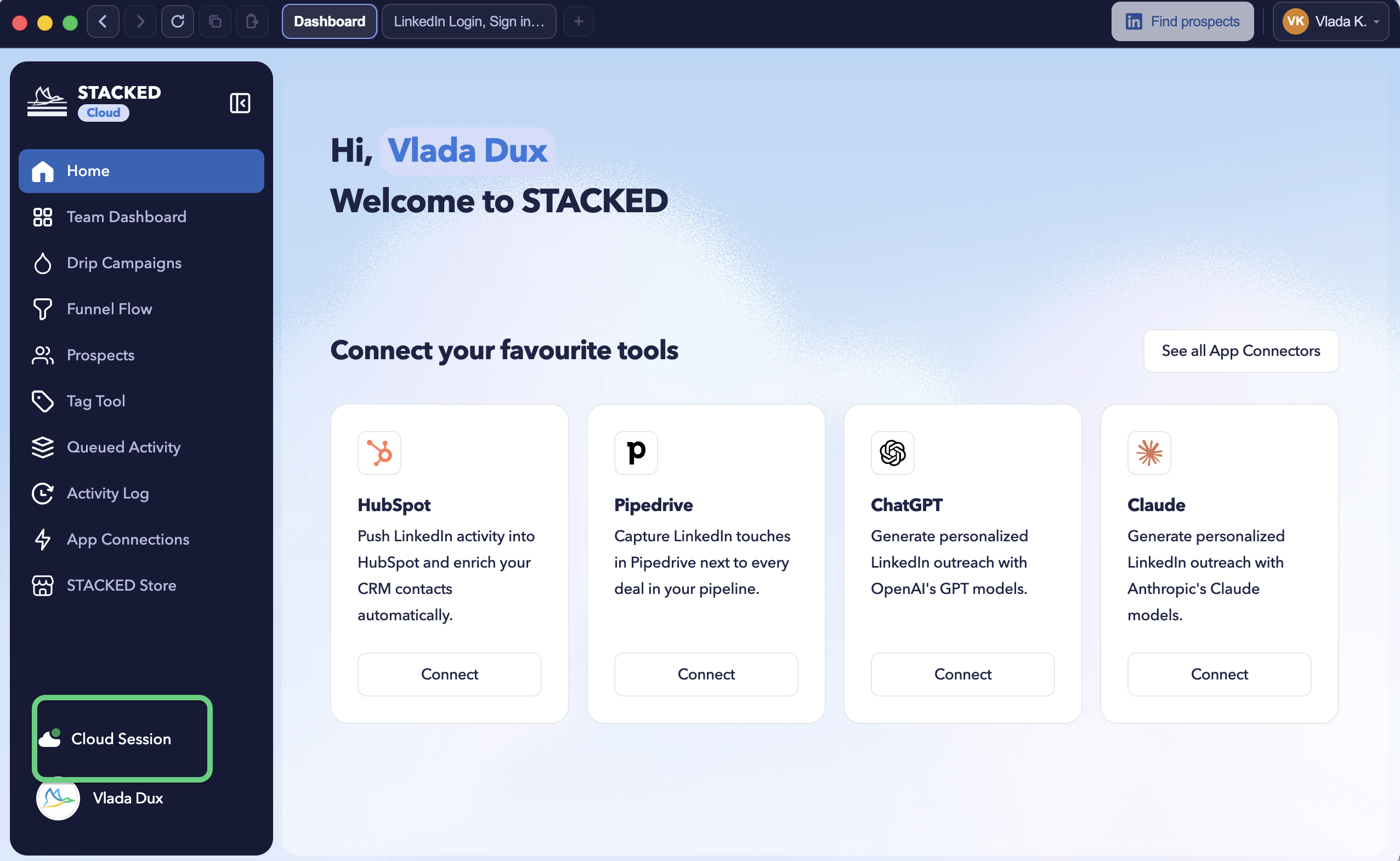
Then, click Cloud Session in the bottom-left corner.
Click Start Session.
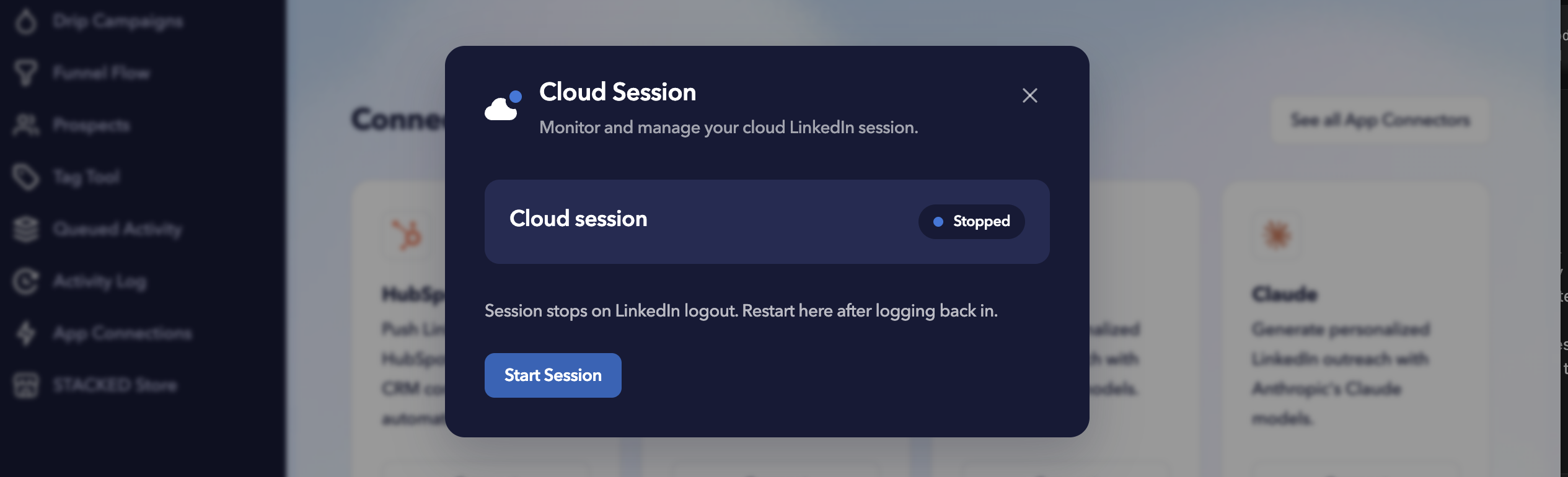
STACKED will copy your current local LinkedIn session to the cloud and start your cloud session.
Once the status changes to Ready, your cloud session is active and ready to run your automation.
When starting your cloud session for the first time, make sure the LinkedIn account currently open in STACKED is the account you want to automate in the cloud.
Stop your cloud session
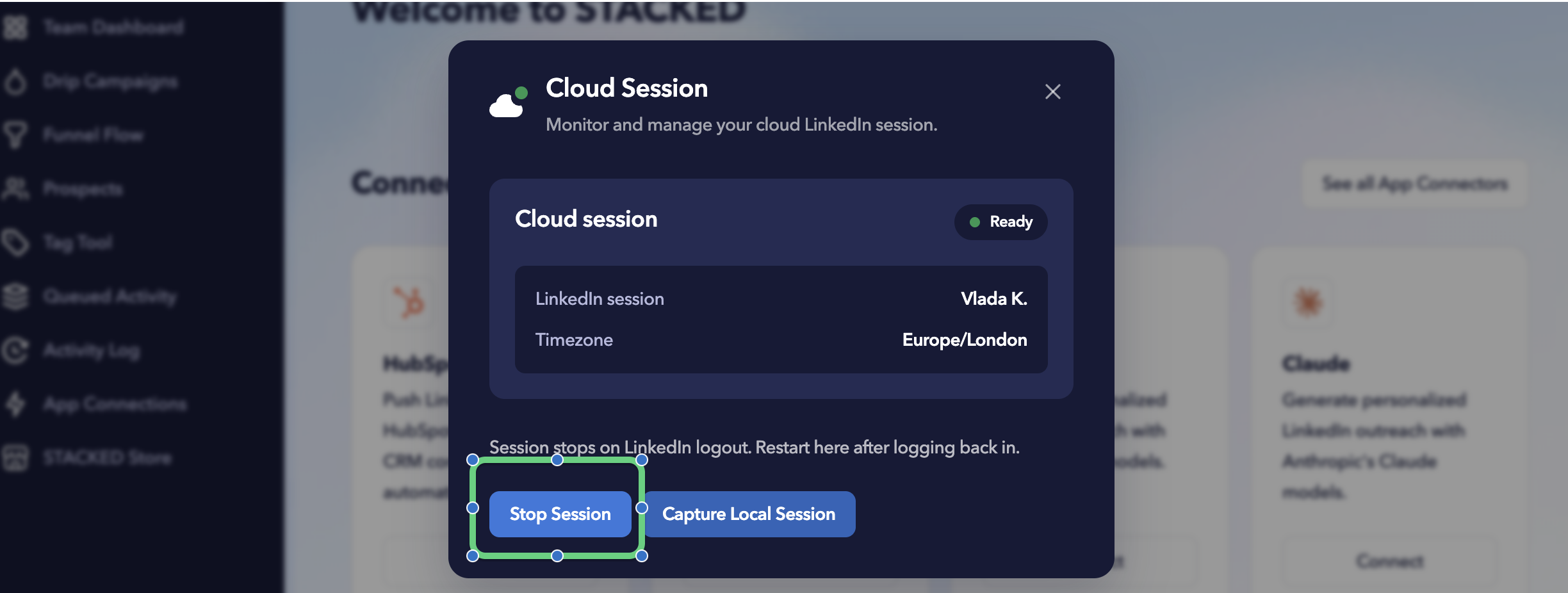
To temporarily stop your cloud session, open Cloud Session and click Stop Session.
Stopping the session stops all STACKED automation running in the cloud. The status will change to Stopped.
When you’re ready to use cloud automation again, click Start Session.
Update your cloud LinkedIn session
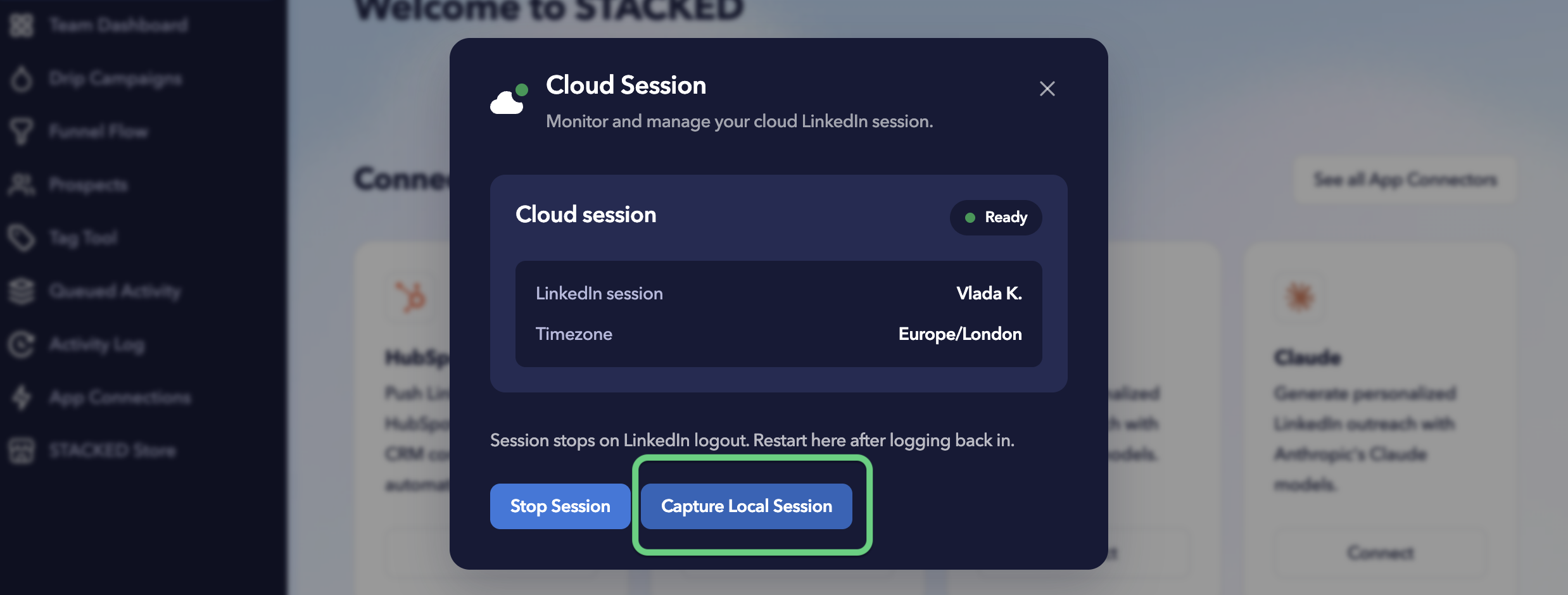
If you have logged in to LinkedIn again locally, or need to update the LinkedIn session currently used in the cloud, click Capture Local Session.
This replaces the LinkedIn session stored in the cloud with the LinkedIn session you’re currently logged in to through STACKED.
Make sure the correct LinkedIn account is open locally before capturing the session.
If your LinkedIn session is logged out, your cloud session will stop. Log back in through the STACKED app and use the Start Session option.
What do the cloud session controls do?
| Control | What it does |
|---|---|
| Start Session | Starts your cloud session using the LinkedIn session from the STACKED app. |
| Stop Session | Stops the cloud session and all automation currently running in the cloud. |
| Capture Local Session | Updates the cloud with the LinkedIn session you’re currently logged in to through the STACKED app. |
You’ll receive an email notification whenever your cloud session status changes.