
Manage multiple LinkedIn sessions
If you’re on a post-paid STACKED cloud Postpaid plan, you can switch between your cloud sessions directly from the Sessions panel.
View your LinkedIn sessions
To access the Sessions tab:
- 1 Open the desktop app.
- 2 Click Dashboard in the sidebar.
- 3 Select the Sessions tab.
- 1 Open your Profile .
- 2 Click the Dashboard icon in the sidebar.
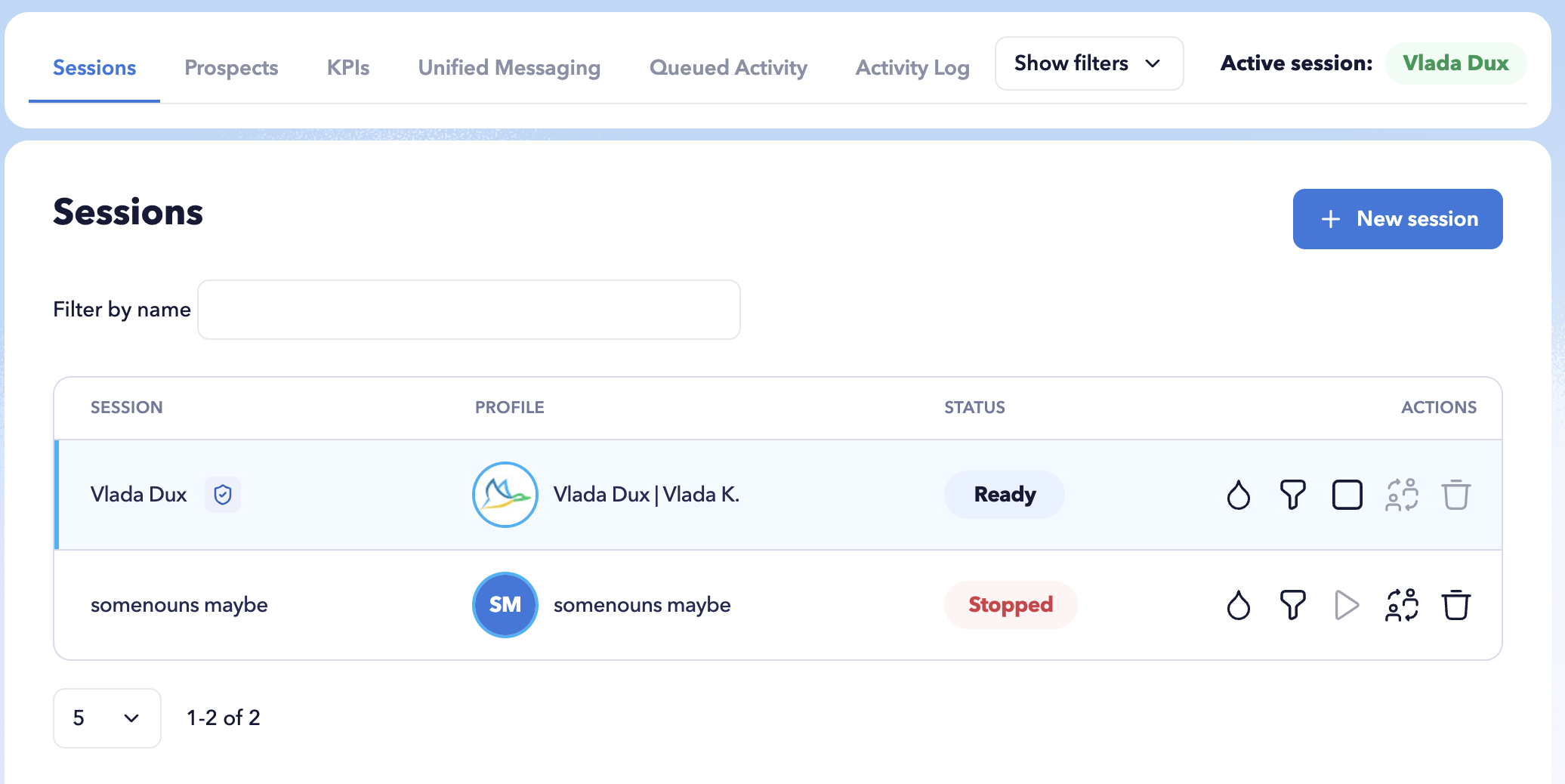
Each row represents a LinkedIn session managed through your account. The Sessions table displays information including:
- Session – the session name used to identify the session.
- Profile – the profile's name associated with the session.
- Timezone – the timezone configured for the session (cloud plans only).
- Status – the current automation status for cloud sessions (available in cloud plans only).
- Actions – controls available for managing the individual session.
Use the icons in the Actions column to manage a specific team member or client session.
Depending on your plan, administrators can:
- Start or stop a session running on STACKED cloud.
- Switch to a cloud client session.
- Deactivate a session.
Start or stop the session
The Status column and Start/Stop controls are available for sessions running on STACKED cloud.
Use the Start/Stop control in the Actions column to start or stop automation for an individual cloud session.
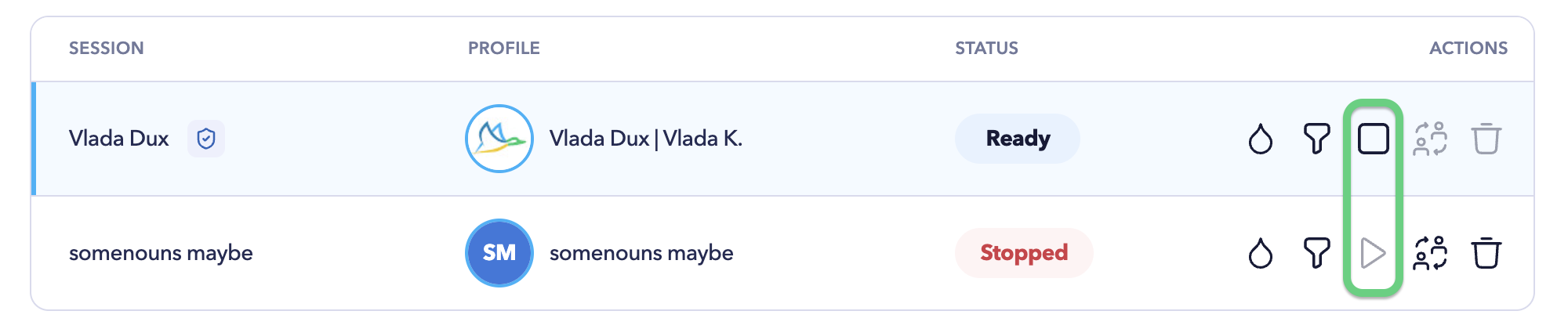
In STACKED local, automation runs from the user’s computer. These sessions cannot be started or stopped this way.
The Status column shows the current status of each cloud session.
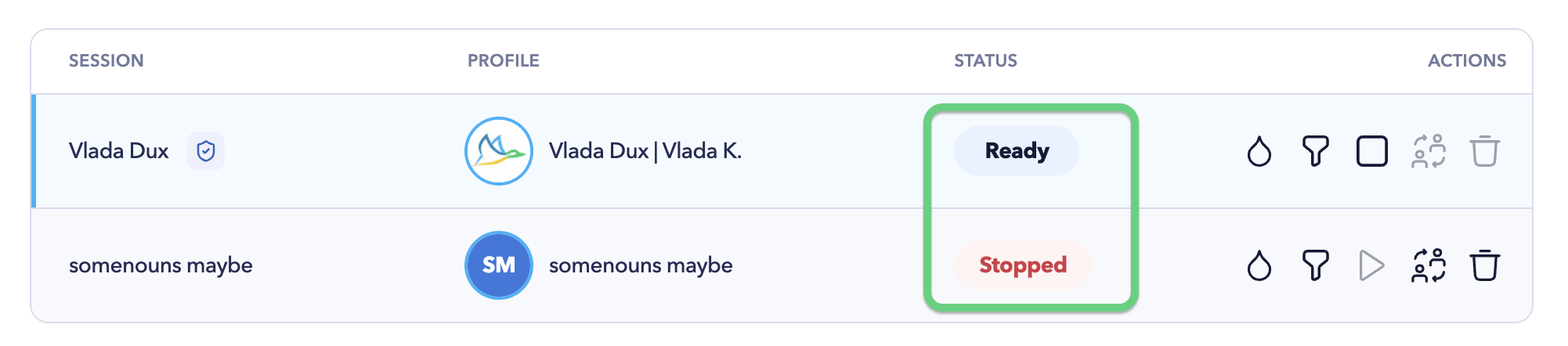
The Status column shows the current state of the session:
- Ready – the cloud session is ready for automation.
- Stopped – the cloud session is not currently running.
Switch to a session
Click the Switch session icon to access the selected cloud client session.
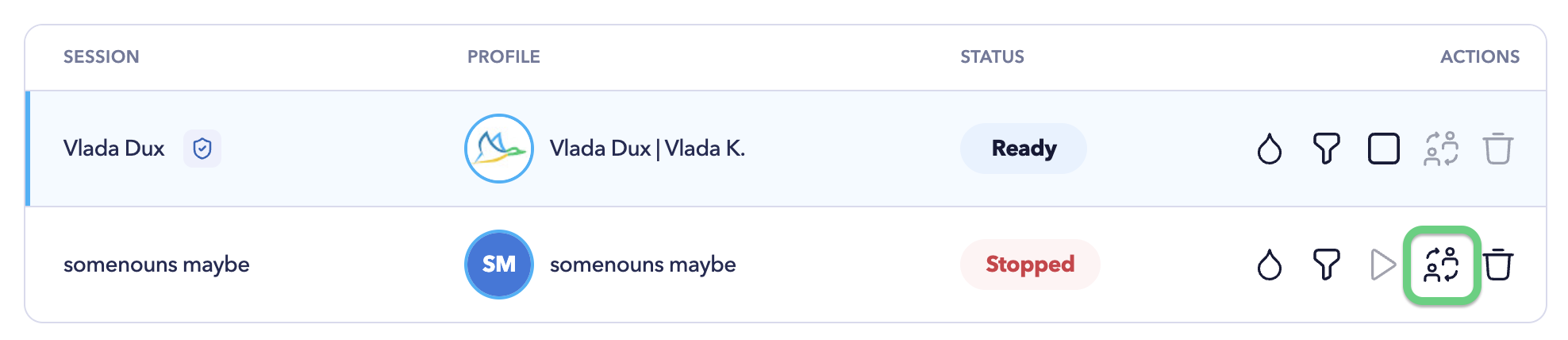
The Active session indicator at the top of the dashboard shows which session you’re currently accessing.
This allows administrators to move between client sessions and manage their LinkedIn activity without signing in through separate browsers.
Remove a session
Click the Bin icon to deactivate a session when it is no longer required.
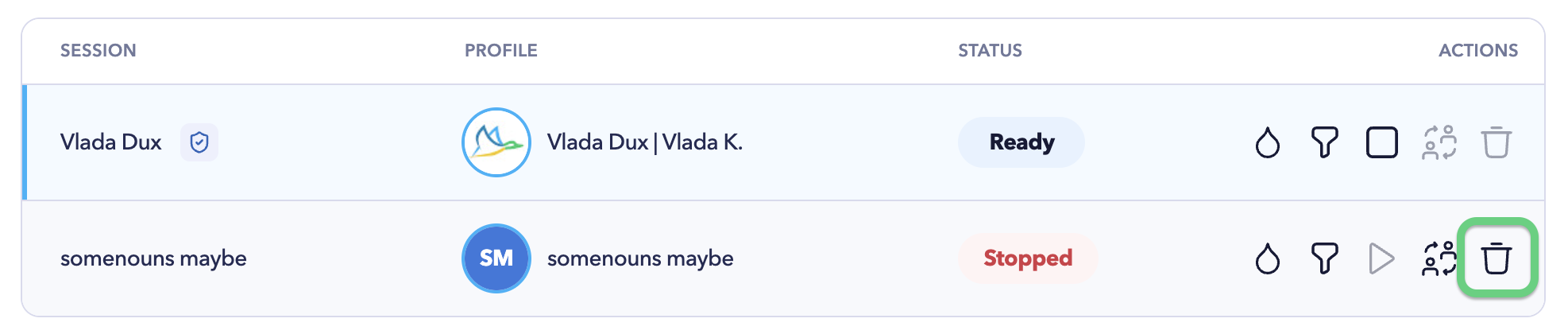
The active cloud session cannot be deactivated. Please switch to a different session to remove the other one.
What happens to the seat depends on your multi-seat billing option:
* Fixed seats (pre-paid) – the available seat can be reassigned by inviting a new user.
* Flexible seats (post-paid) – add a new session when you need to onboard another user or client.
Learn more: See Invite users or add client sessions and Multi-seat plans & pricing.
Rename a session
To rename a session, click the vertical ellipsis (⋮) next to the session you want to rename, then select Edit session.
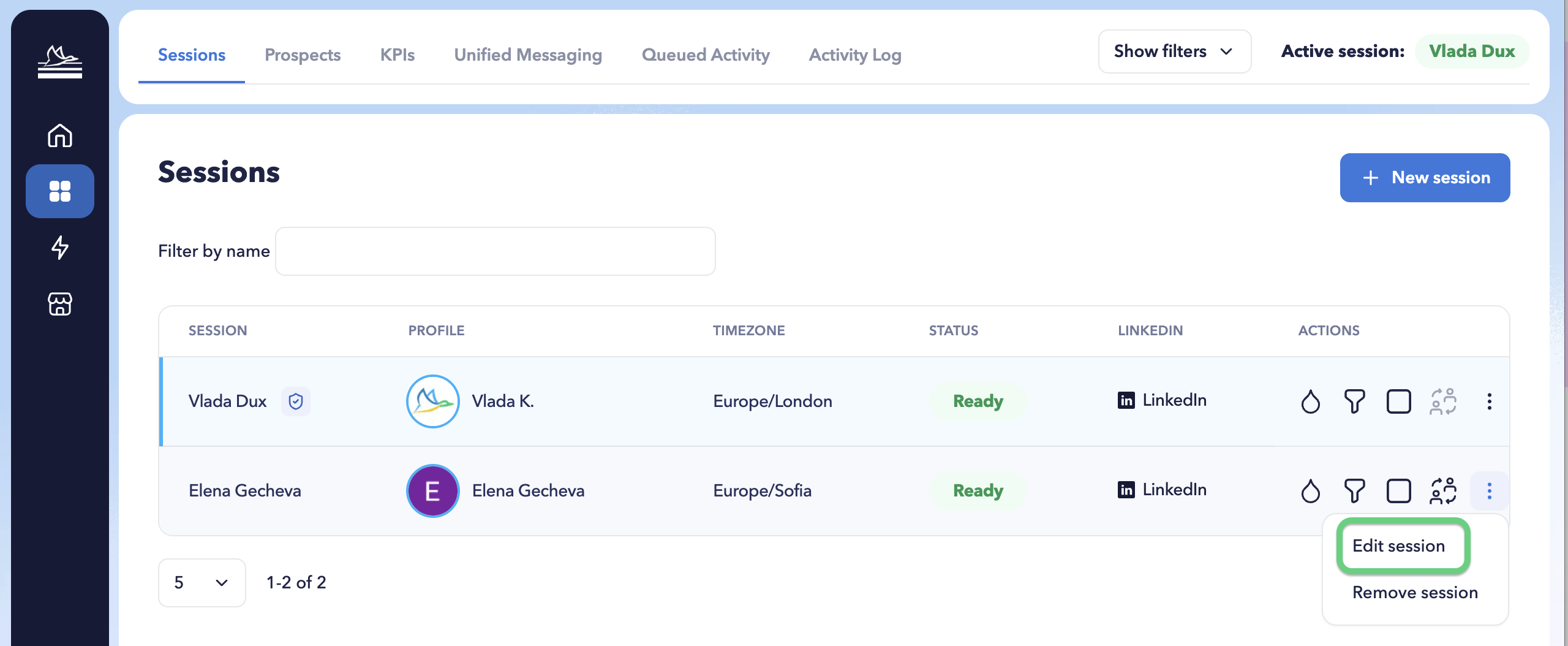
You cannot rename the active session. Switch to a different session before editing it.
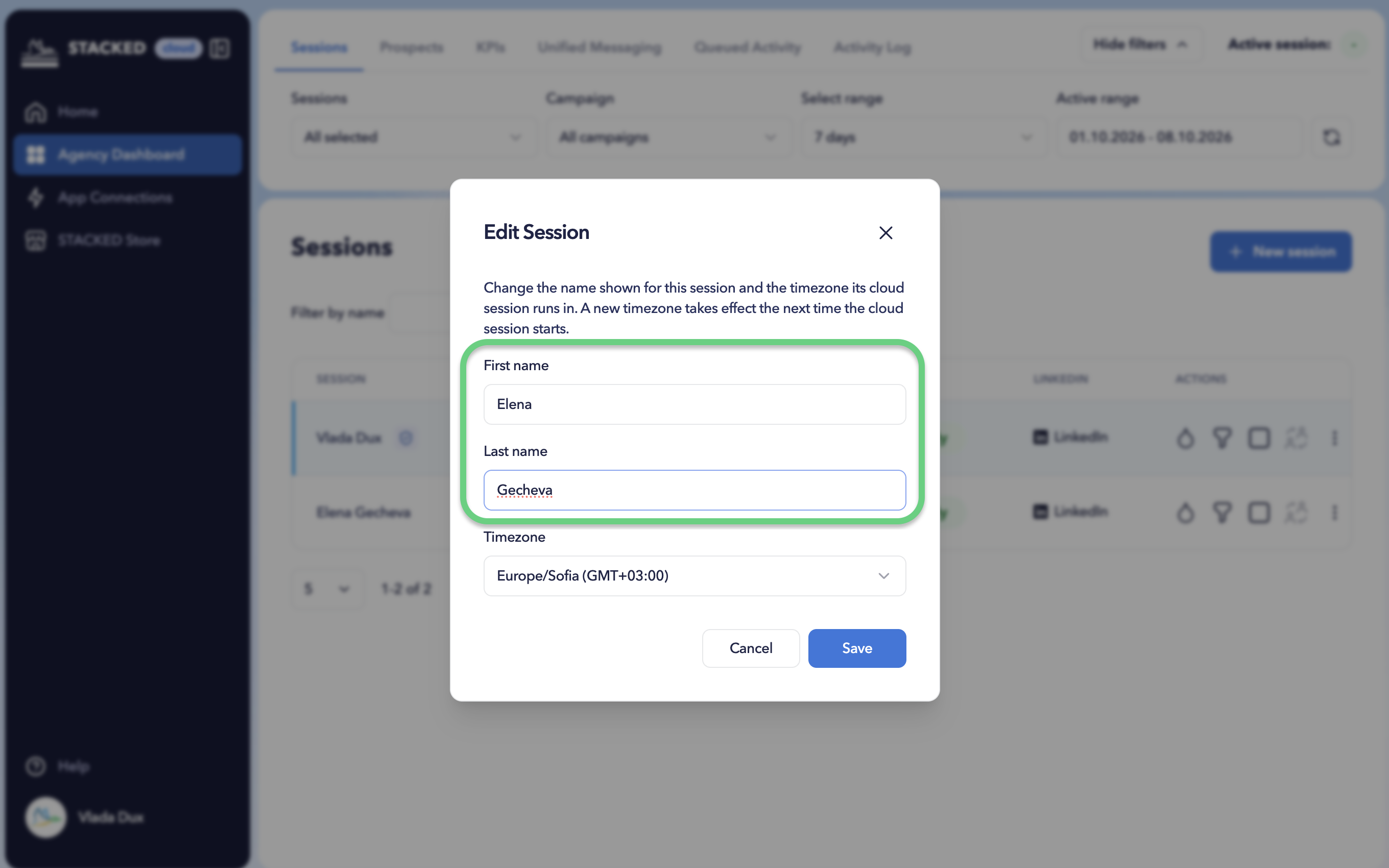
In the dialog, enter the new session name and click Save.
Change the cloud timezone
To change the cloud time zone, click the vertical ellipsis (⋮) next to the session you want to update, then select Edit session.
In the dialog, select the required time zone and click Save.
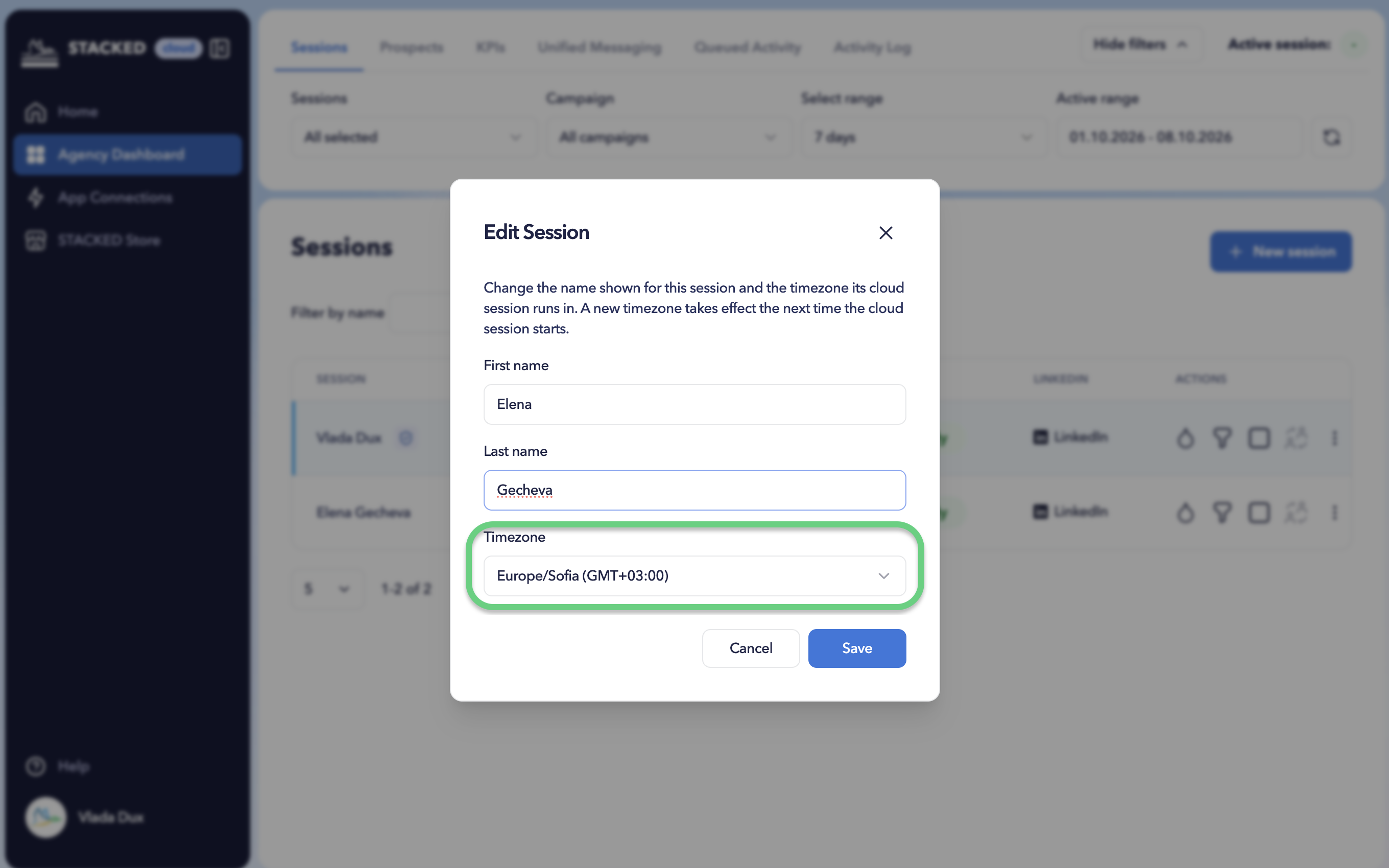
STACKED supports time zones from the IANA Time Zone Database (TZ database).
Dashboard filters
Filters in the top panel control the data displayed across the admin Dashboard.
You can select:
- One session
- Multiple sessions
- All sessions
You can also select campaigns associated with those sessions and choose the reporting period.