Get started with the Dux-Soup desktop app
Dux-Soup is now available as a desktop app.

To get started, follow these steps:
- 1
Choose the correct build for your Mac:
- Apple Silicon (M1/M2/M3/M4 Macs)Download .dmg
- Intel MacsDownload .dmg
- 2Open the downloaded .dmg file.
- 3Drag Dux-Soup into the Applications folder.
- 4Launch Dux-Soup from Applications.
- 5Sign in with your Dux-Soup account.
- 1
Download the installer:
- WindowsDownload .exe
- 2Run the downloaded .exe file.
- 3Follow the setup wizard to complete installation.
- 4Launch Dux-Soup and sign in with your account.
Safe & secure: All downloads are verified and scanned for malware.
Turbo users are required to disable the extension to avoid potential issues at chrome://extensions/.
Once installed, two tabs will open automatically: the first will prompt you to sign in to your Dux-Soup account using Google, and the second will prompt you to sign in to LinkedIn.
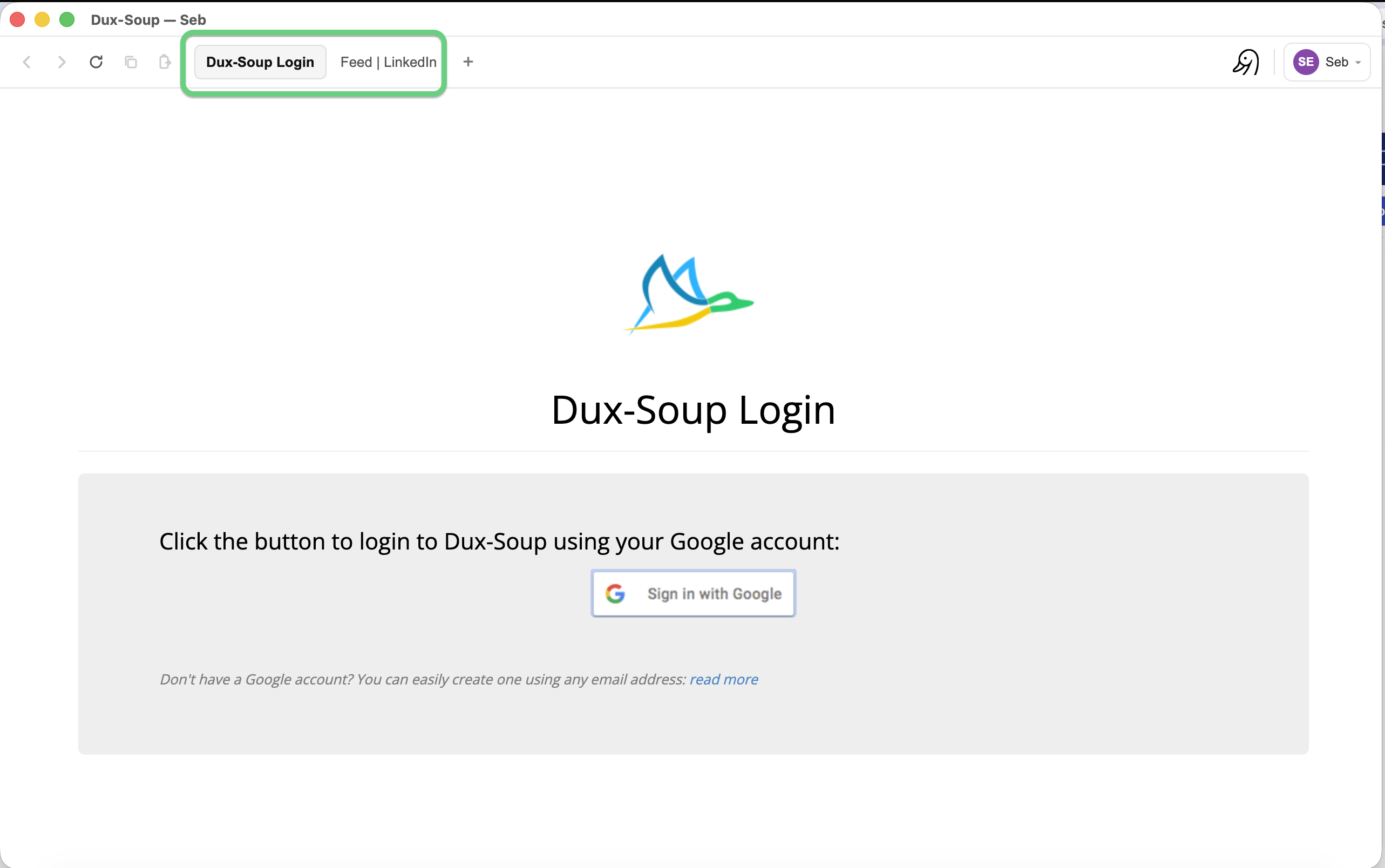
Once you've signed in to both, you're ready to start using Dux-Soup as usual.
Your Dux-Soup icon - used to enroll LinkedIn profiles in drip campaigns - is located in the top-right corner of the application.
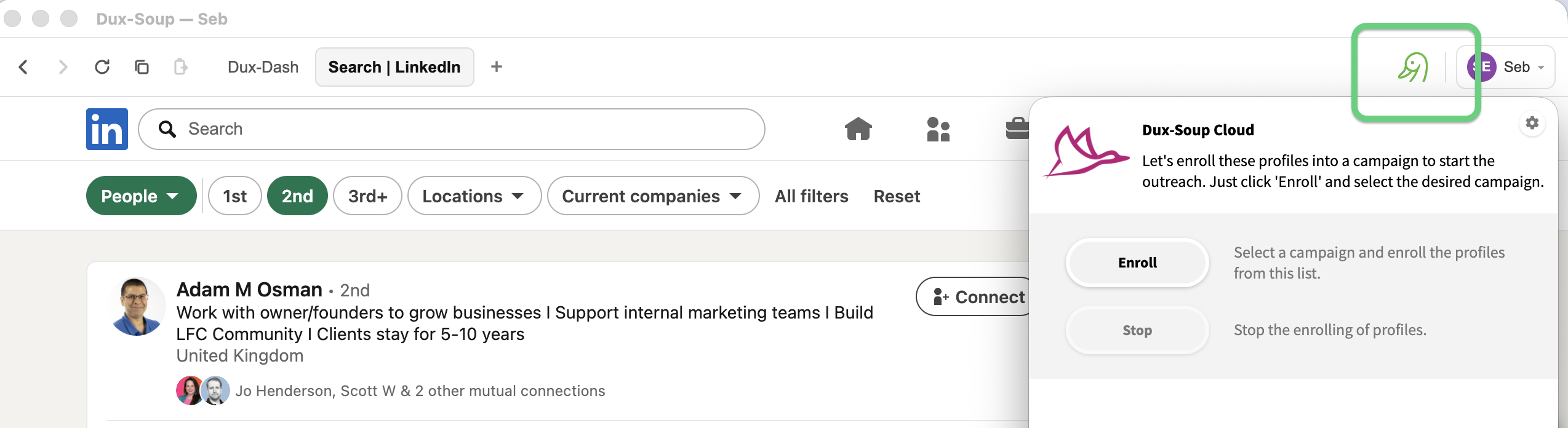
Learn how to get started with drip campaigns here.
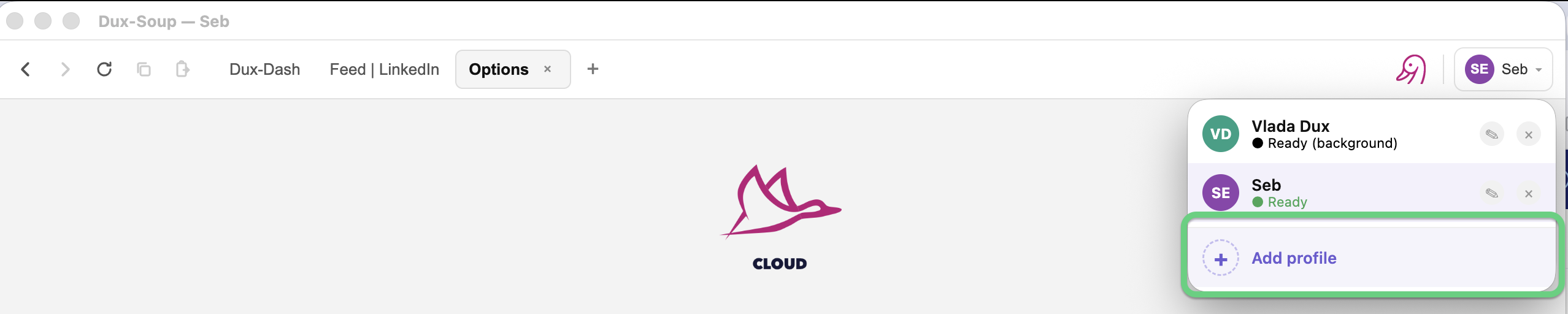
To add another Dux-Soup account to the desktop app, click your name and select Add profile, then sign in to your second Dux-Soup account with Google.