
New Dux-Dash experience for Agency & Team plans (Beta)
The new Dux-Dash introduces redesigned Team and Agency Dashboards for managing Dux-Soup users, LinkedIn sessions, campaigns, prospects, messaging, and activity from one central workspace.
The new experience is currently in Beta and is completely optional. You can try it at any time and switch back to the previous Dux-Dash whenever you prefer.
Try the new Dux-Dash
How you enable the new experience depends on whether you use Dux-Dash in your browser or through the Dux-Soup desktop app.
In your browser
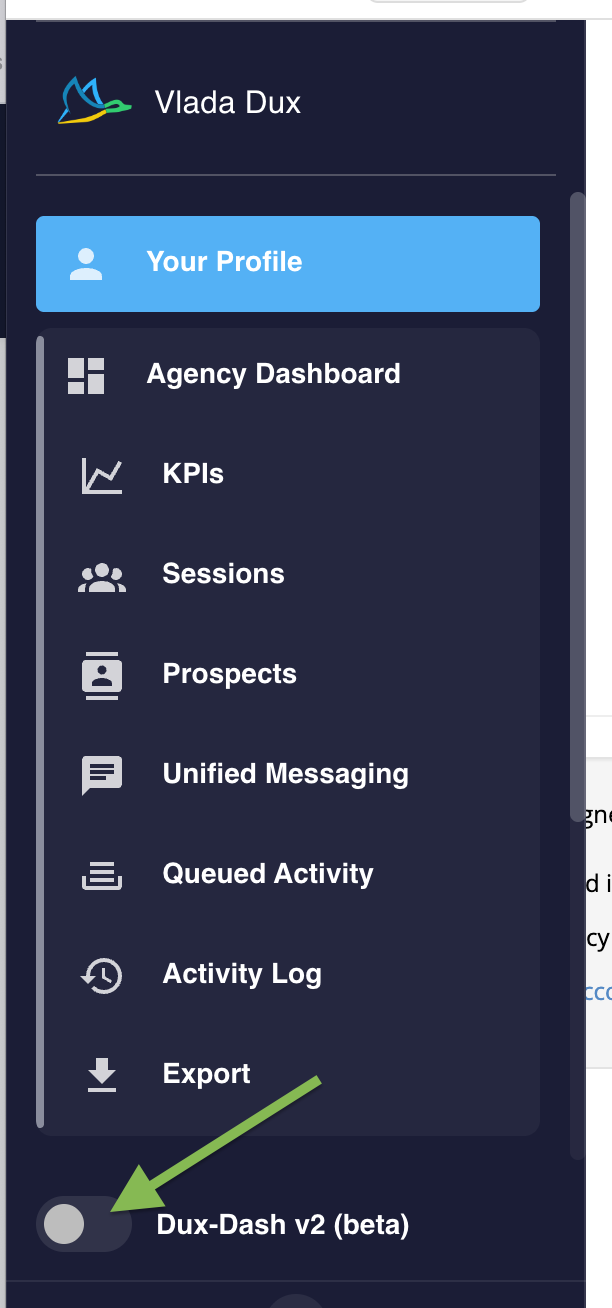
Open Dux-Dash Beta to display the new Dux-Dash toggle.
Enable the toggle to switch to the new experience. Dux-Soup will store your preference in a browser cookie, so the new Dux-Dash remains active when you return.
To switch back, turn the toggle off. Once you return to the previous Dux-Dash, the Beta toggle will no longer be displayed. You can use the Beta link above again whenever you want to bring it back.
In the desktop app
The Dux-Dash toggle is always available. The desktop app defaults to the previous Dux-Dash (v1), and you can use the toggle to switch between the two experiences.
Sessions
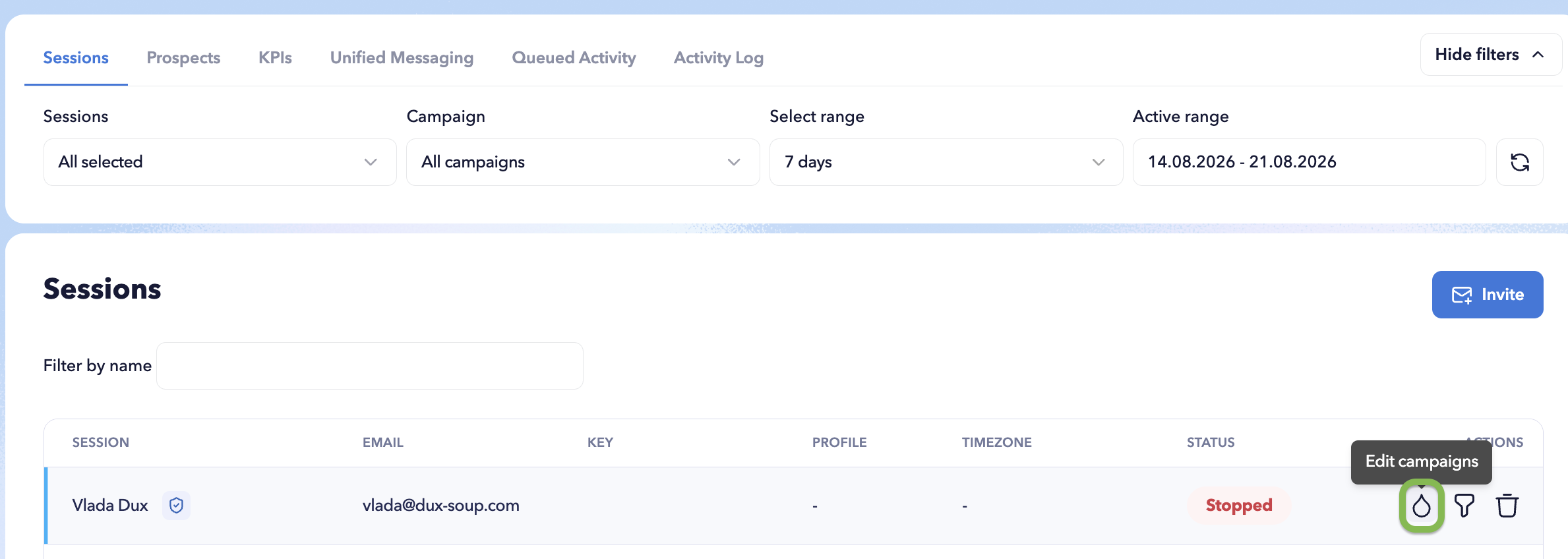
The Sessions panel gives administrators a central view of the Dux-Soup sessions connected to their Team or Agency account.
From here, you can:
- Add new client sessions (Agency plans) or invite team members (Team plans)
- View the status of each session (Agency plans), as well as stop or start it.
- Open the campaigns associated with a specific session or team member.
- Open Funnel Flow for a specific session or team member.
Create campaigns for a specific user
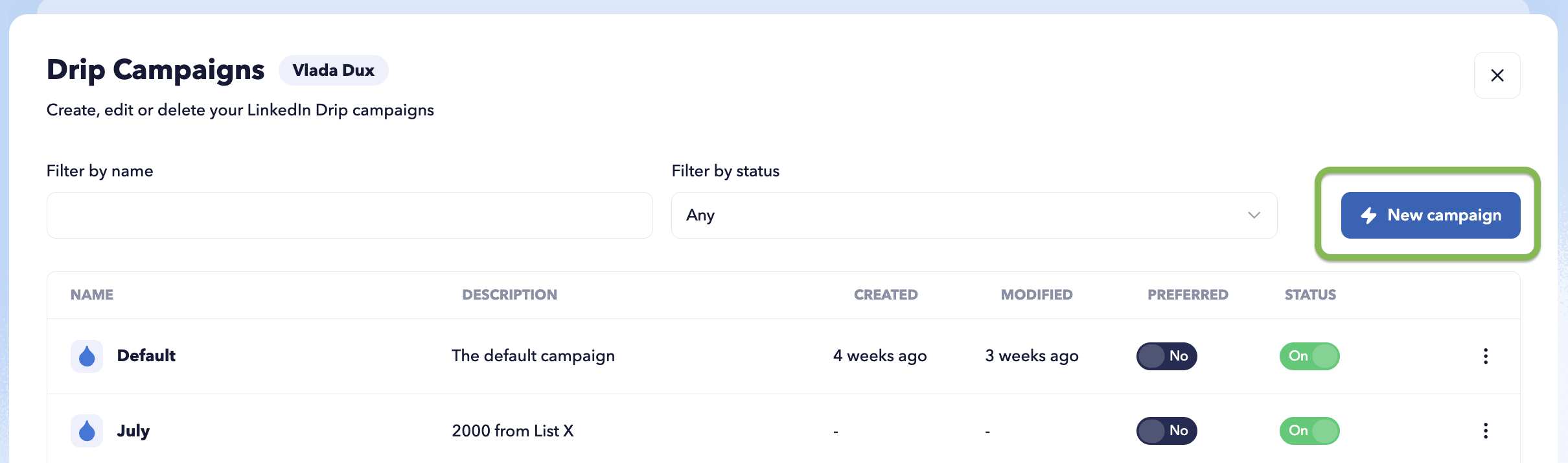
Administrators can create and manage Drip Campaigns for individual users or client sessions directly from the Dashboard.
Select the relevant session and click Drip Campaigns (droplet icon) to view that user’s existing campaigns or create a new campaign on their behalf.
To create a campaign, click the New Campaign button.
The campaign editor will open. Select the action that starts your sequence, write your message template, then add the next action. Continue adding actions to build your campaign sequence.
Once your sequence is ready, name the campaign, select the necessary campaign settings and filters, and click Save.
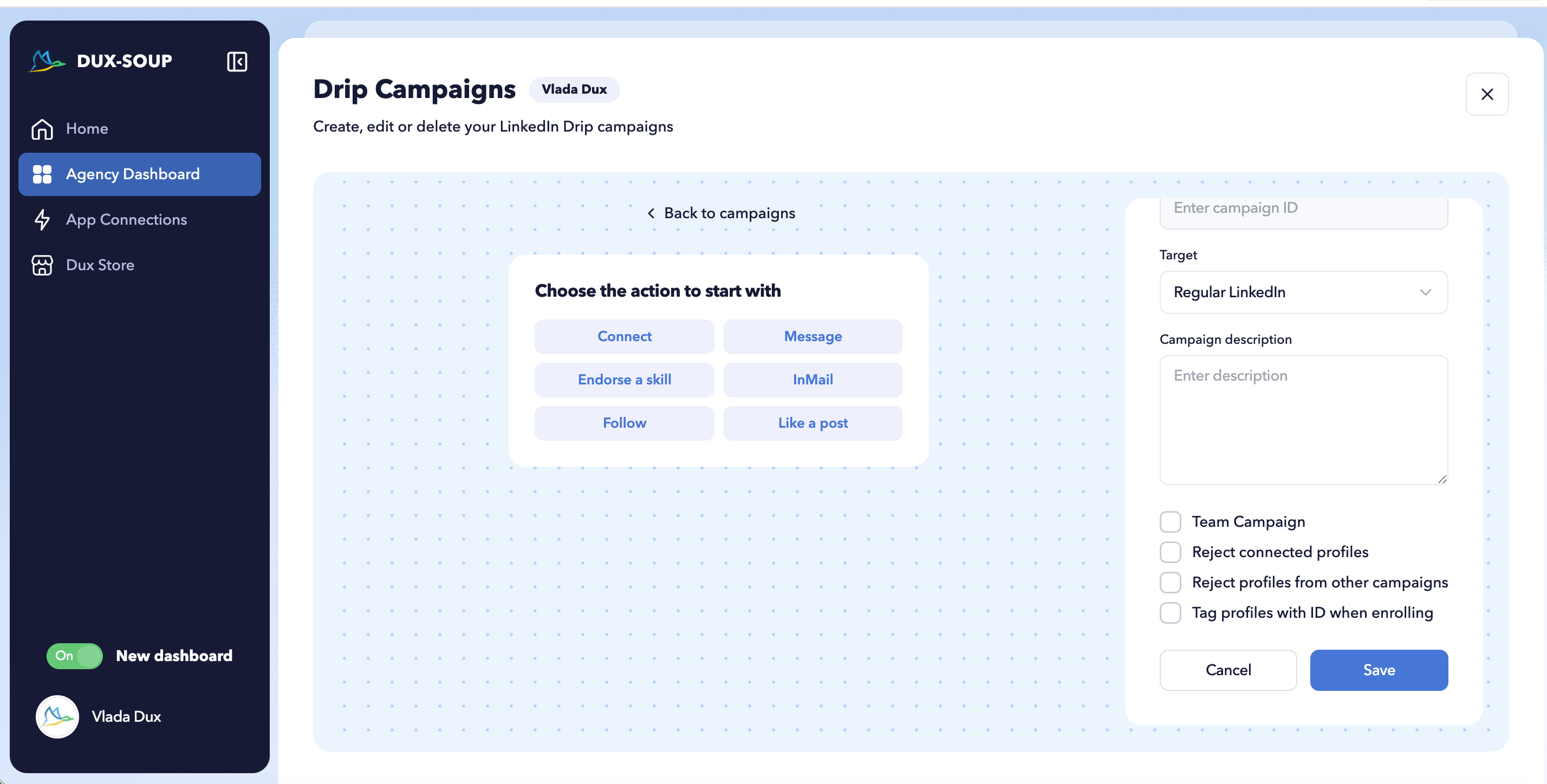
This allows campaigns across multiple LinkedIn accounts to be managed centrally while keeping each campaign associated with the correct Dux-Soup session.
View a specific user’s Funnel
Open Funnel Flow from a user’s session to see the performance and progress of their campaigns.
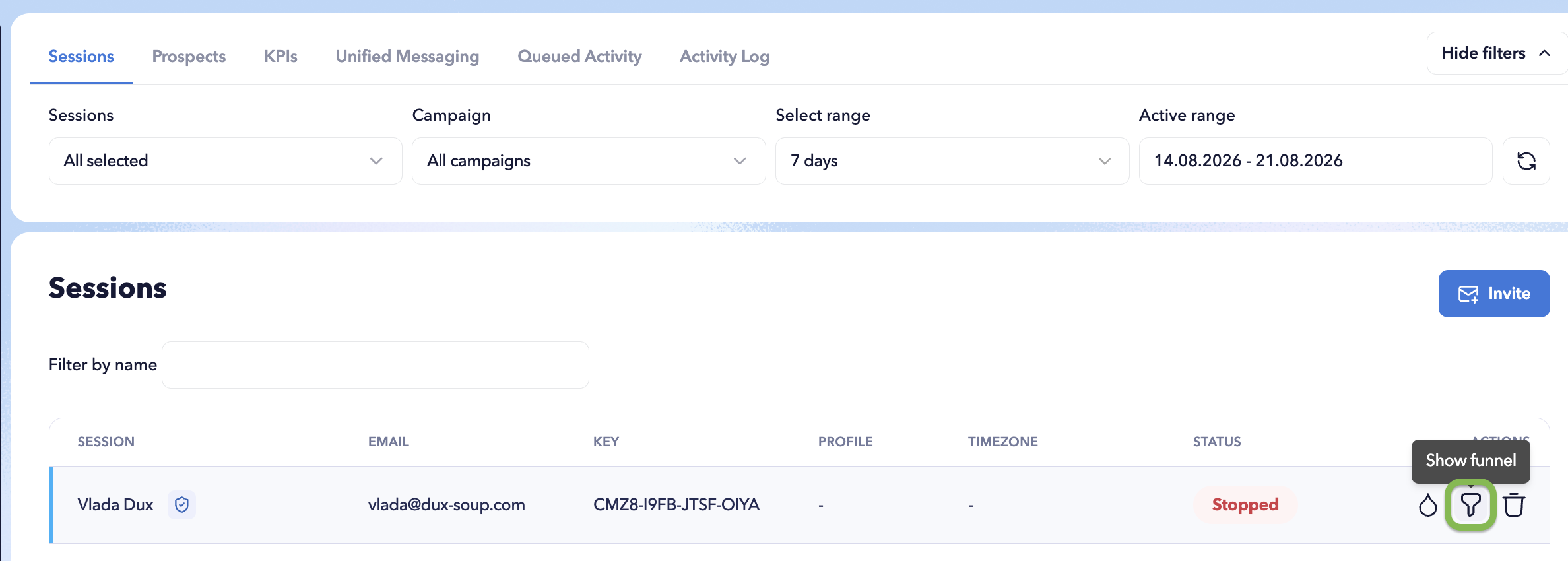
The Funnel provides an overview of prospect activity and campaign results for that specific user, allowing you to move from team or agency-level reporting to individual campaign performance.
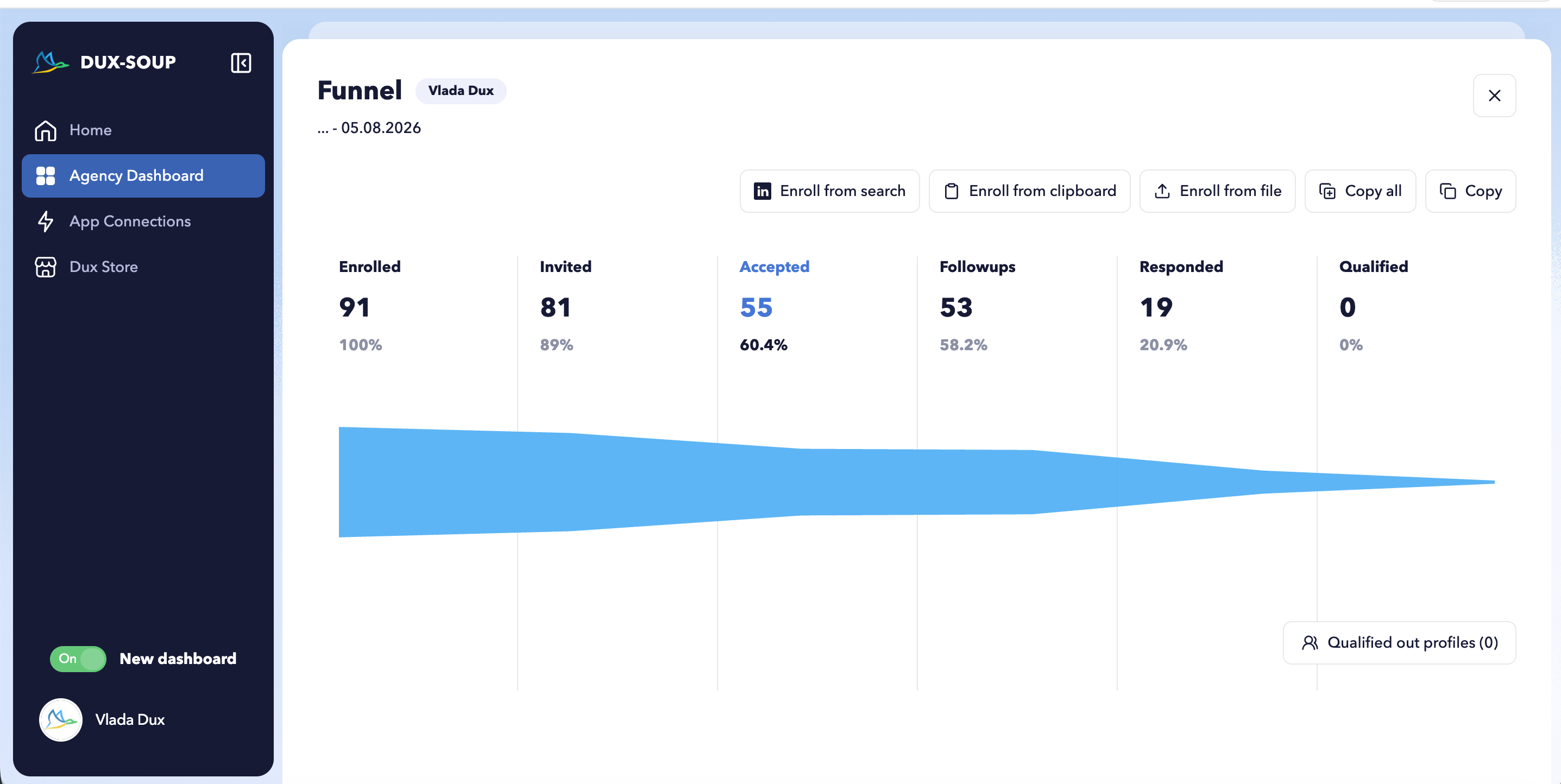
Within the Funnel panel, you can enroll profiles using a CSV file, enroll them from a LinkedIn search URL or clipboard, and export campaign data for further analysis.
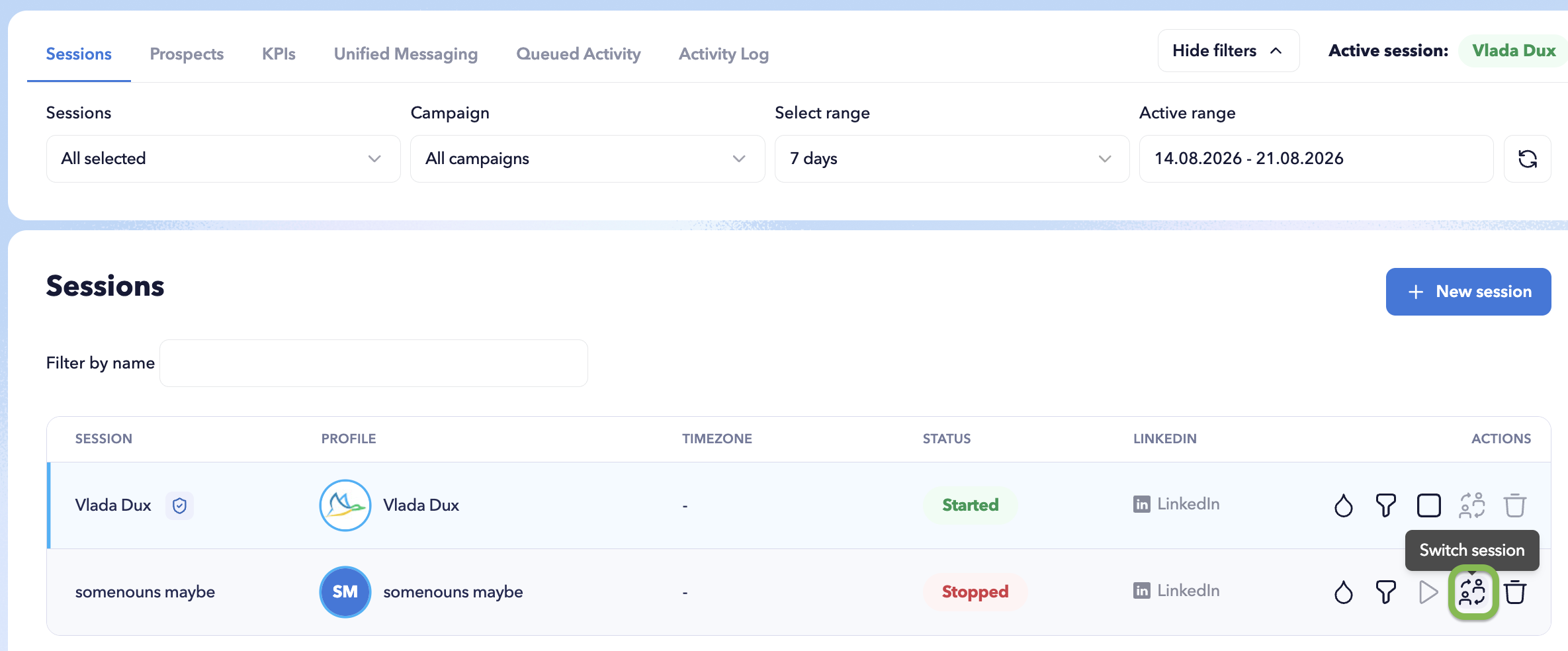
Switch between client sessions
For Agency administrators, use the Switch icon to switch between client sessions.
Prospects
The Prospects panel provides a consolidated view of prospects managed across your selected team members or client sessions.
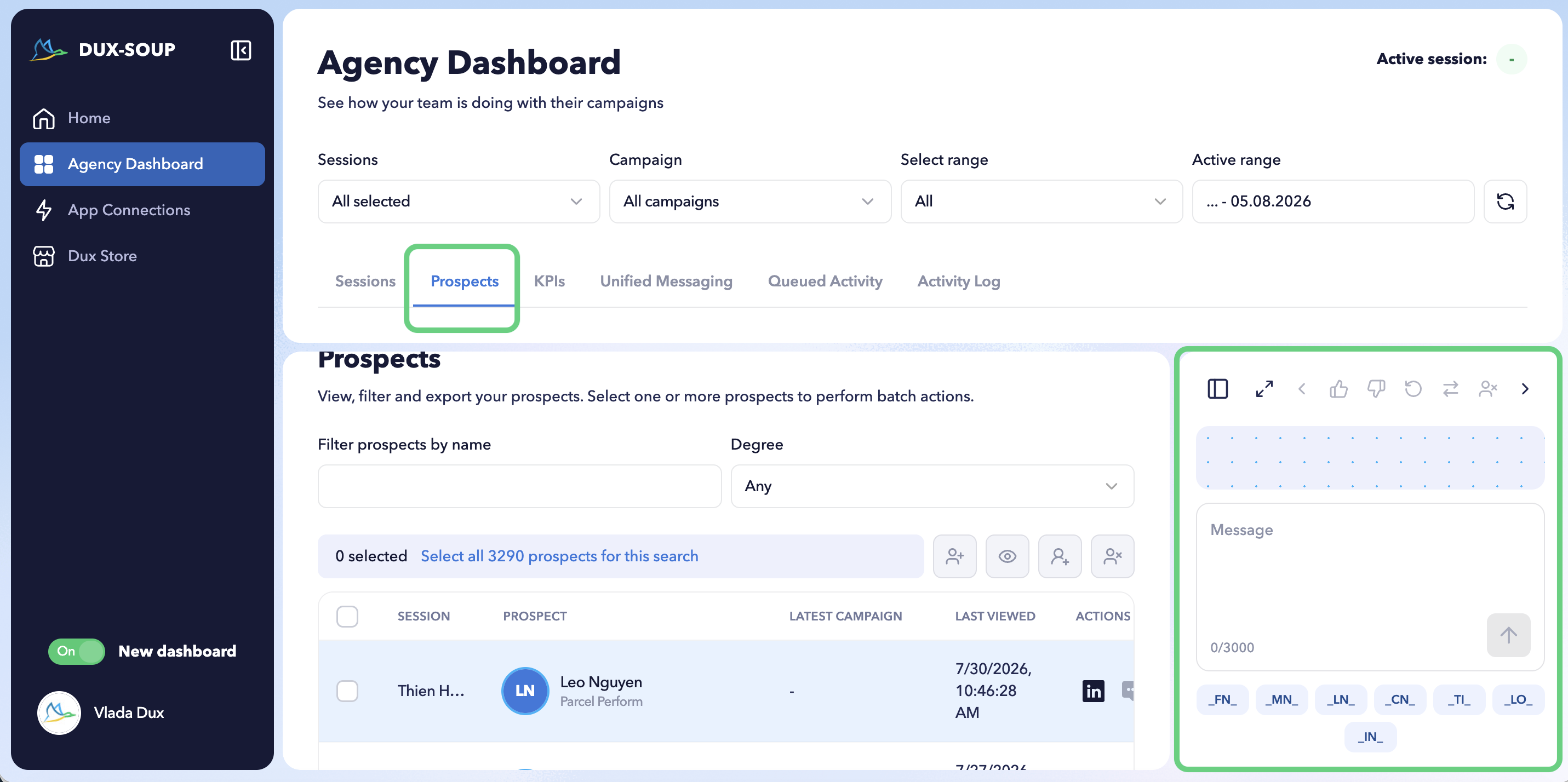
Use it to find and review prospects, see their associated campaign and session information, and send messages directly from the Dashboard.
KPIs
The KPIs panel provides a high-level overview of lead generation activity and performance across your team.
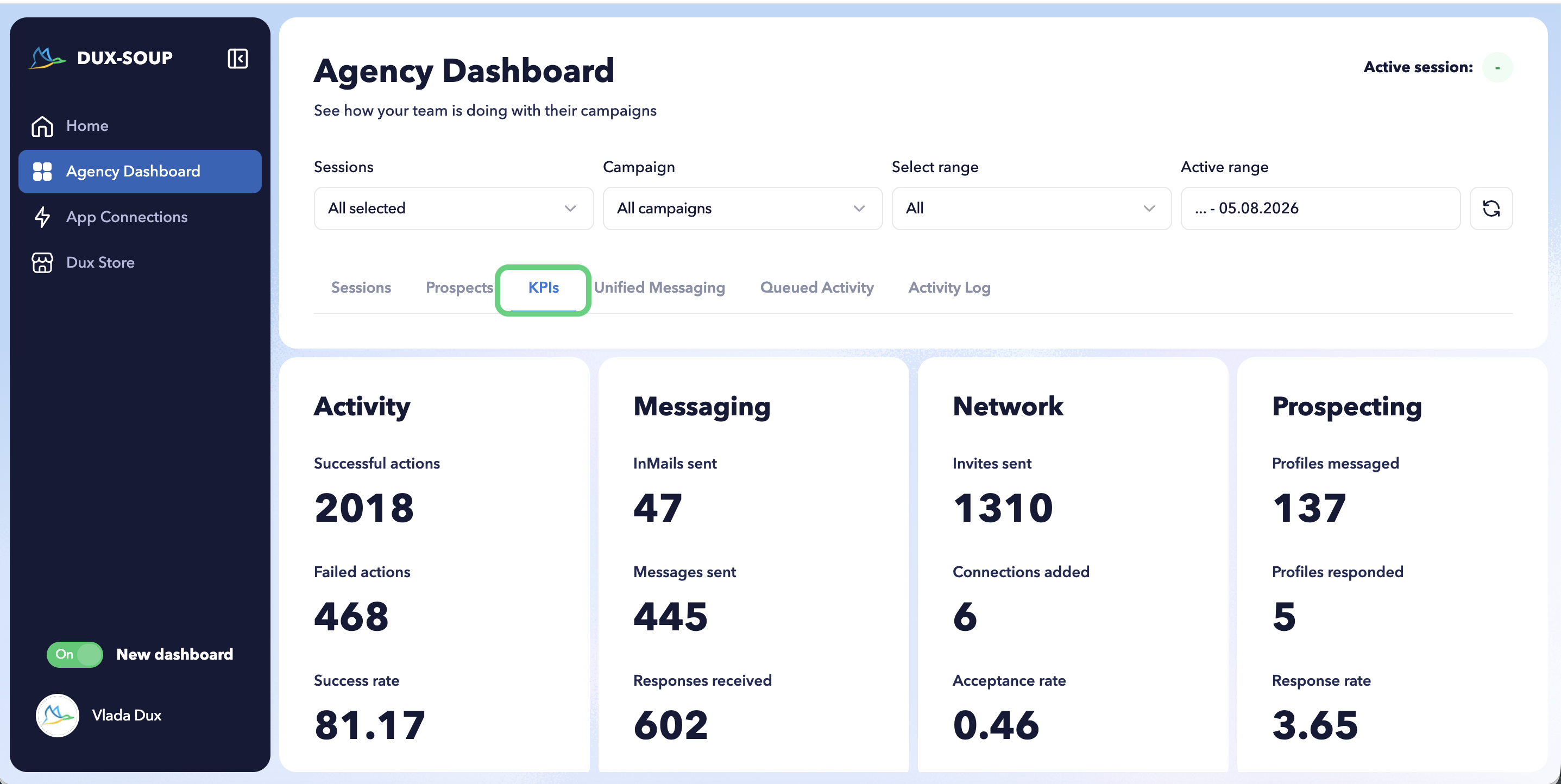
Use the KPI view to compare activity across selected sessions and understand how your team’s LinkedIn outreach is performing without reviewing each user individually.
Unified Messaging
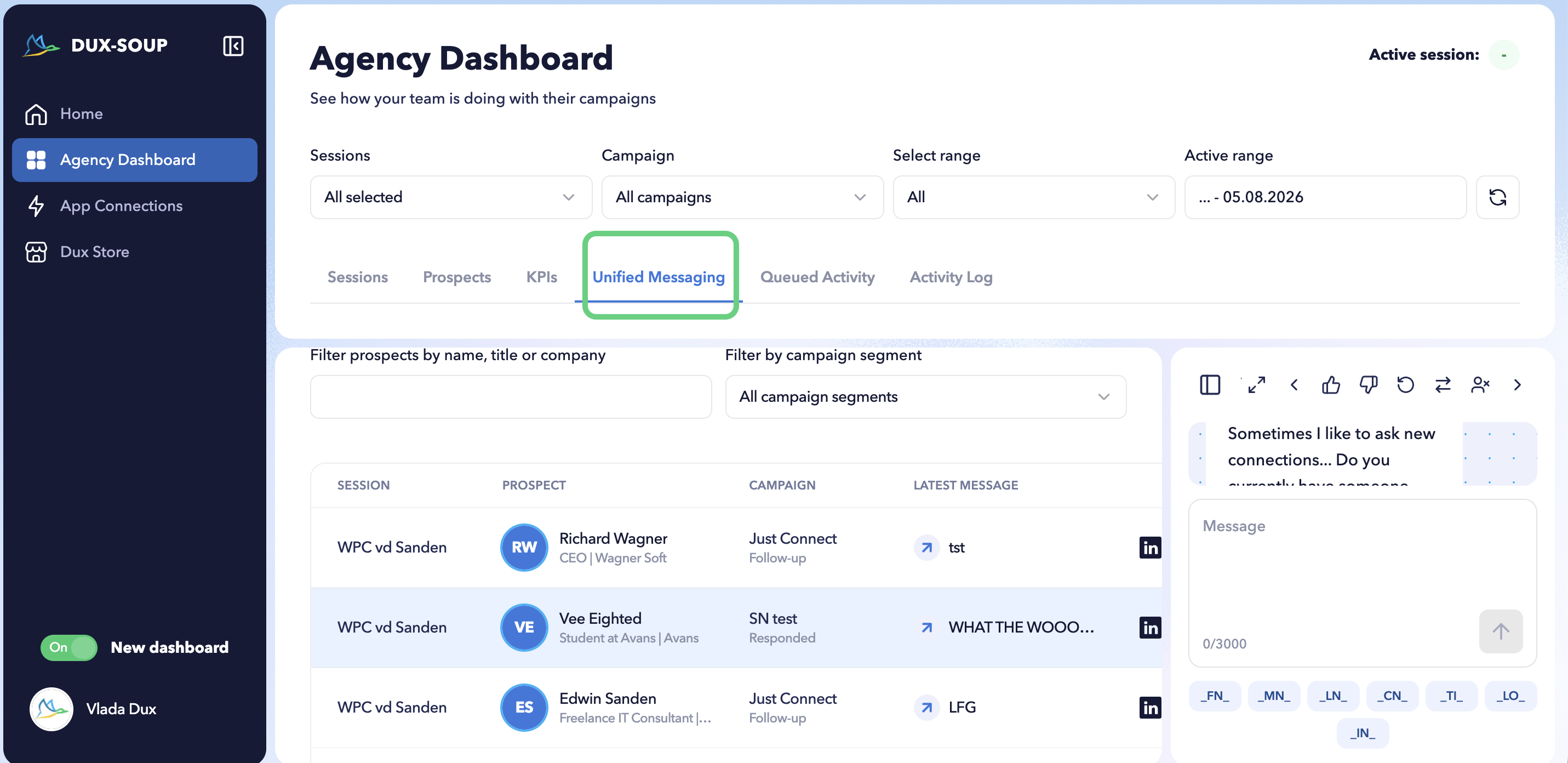
Unified Messaging brings LinkedIn conversations from selected team members into one central inbox.
You can review conversations across multiple Dux-Soup sessions and respond without switching between individual LinkedIn accounts or Dux-Soup sessions.
Each conversation brings together messages from the standard LinkedIn Inbox and Sales Navigator Inbox, giving your team one place to manage prospect conversations across connected sessions.
Queued Activity
The Queued Activity panel shows Dux-Soup actions that are scheduled and waiting to be performed across selected team members and campaigns.
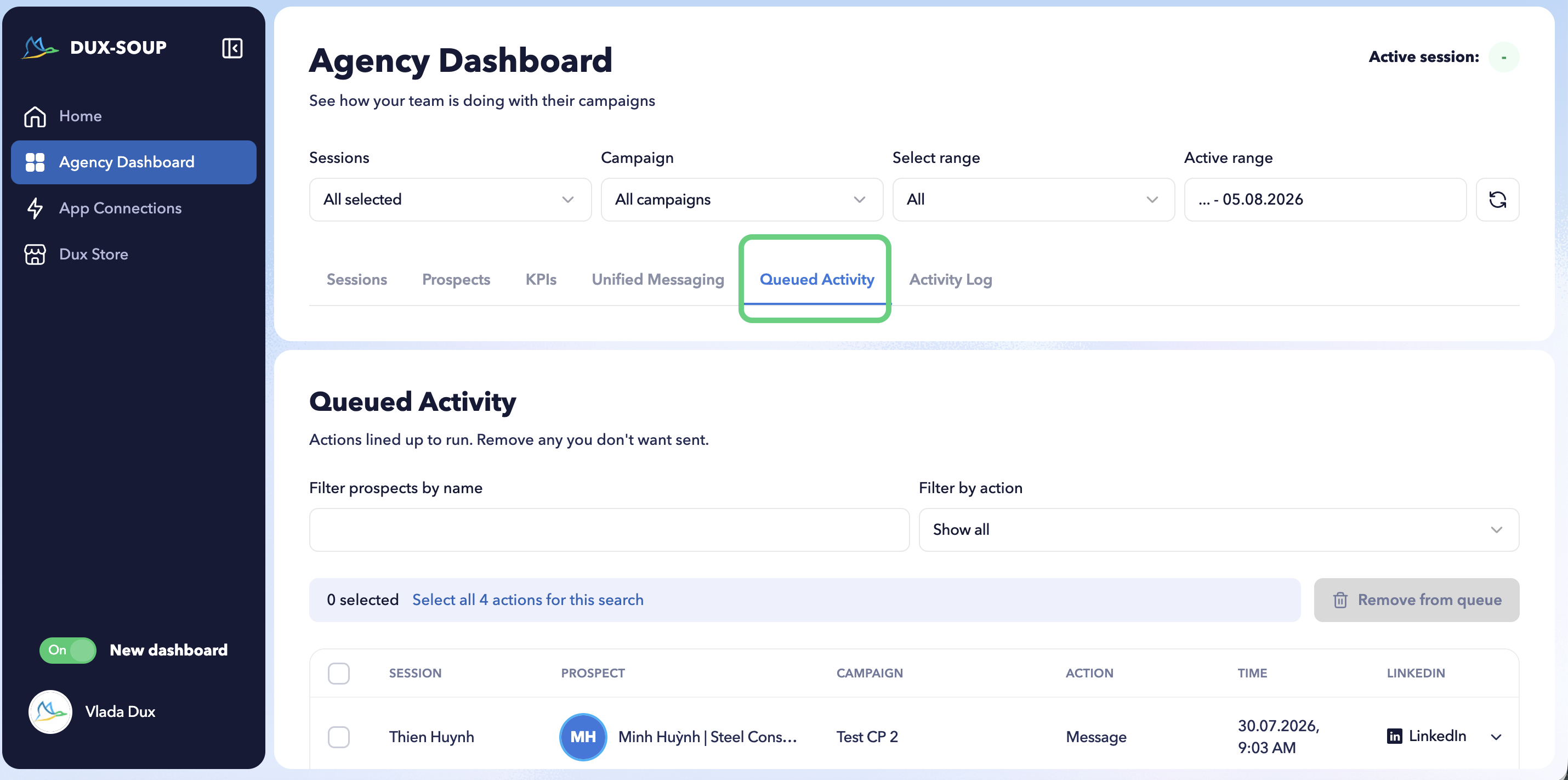
Use it to see what automation activity is coming up and review queued actions across your team from one place.
Activity Log
The Activity Log shows actions Dux-Soup has already performed across your team or client sessions.
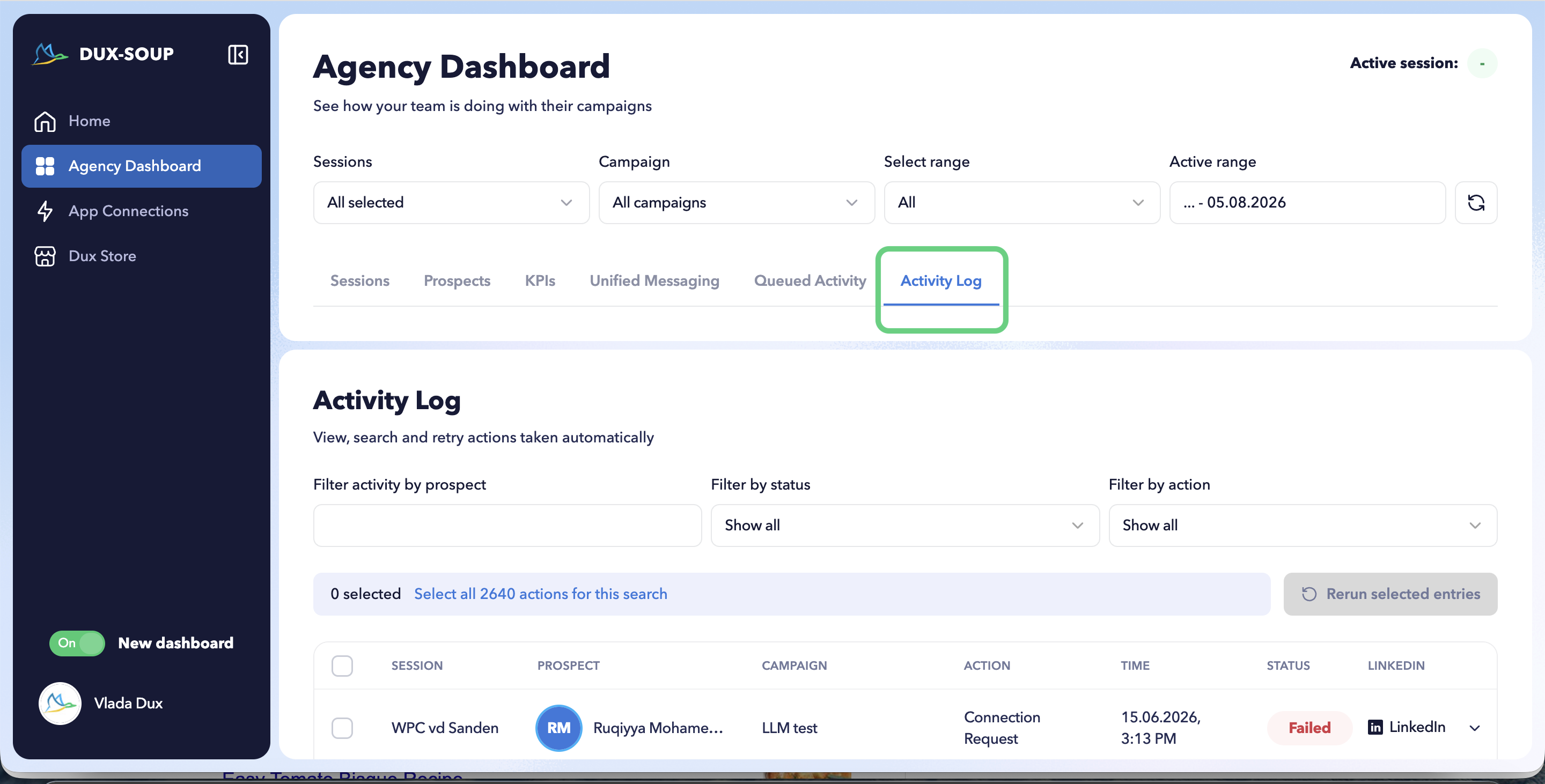
Use it to review completed automation activity and see which actions were performed for individual sessions and campaigns.
Switch back at any time
The new Dux-Dash is still in Beta, so using it is optional.
If you would like to use the previous Dux-Dash while the new experience is still under development, you can switch the Beta toggle off. You may switch back to the new experience at any time that works for you.