
Send STACKED leads to your CRM with n8n
Difficulty: Advanced (API + n8n)
This guide shows how to capture LinkedIn profile data from STACKED using a webhook and send it into your CRM automatically via n8n.
What You’ll Need
- A paid STACKED account
- n8n (self-hosted or cloud)
- CRM with API access
Step 1: Create the n8n webhook
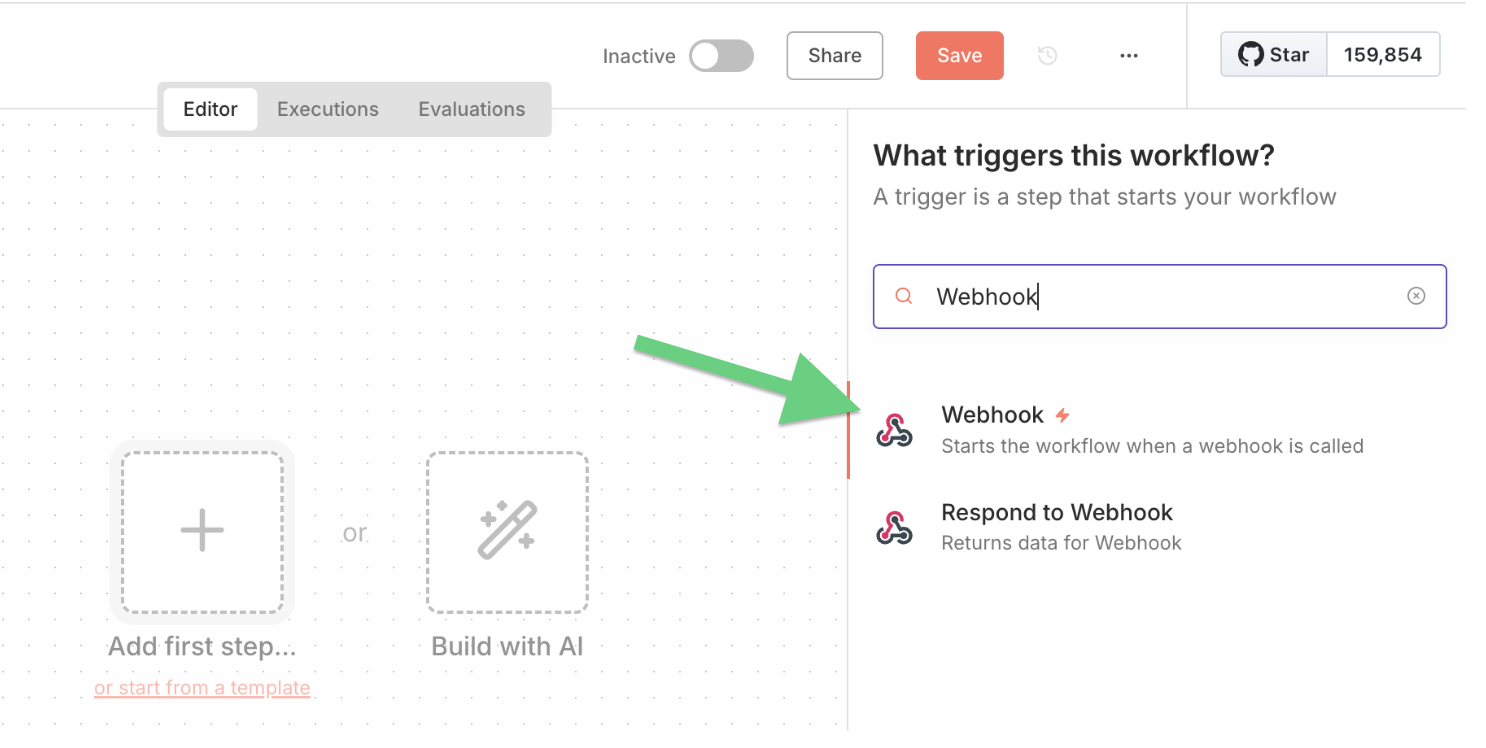
Add a Webhook Trigger node.
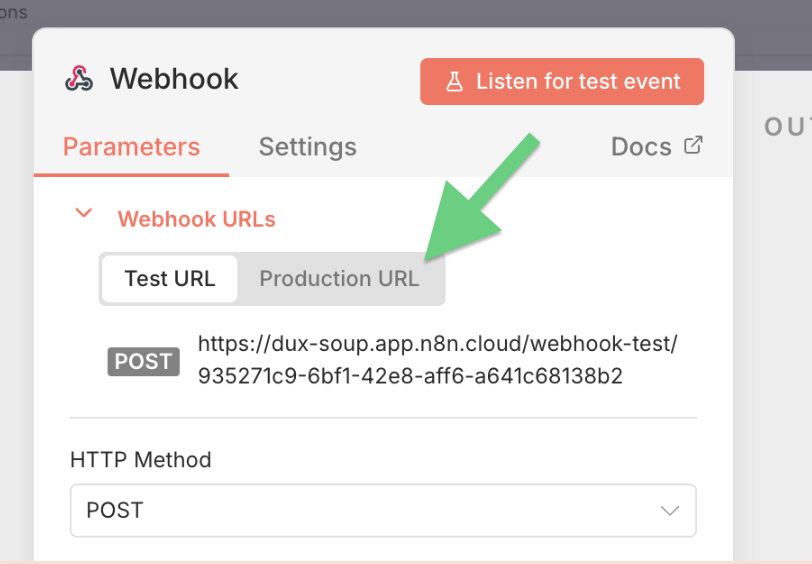
Copy the webhook.
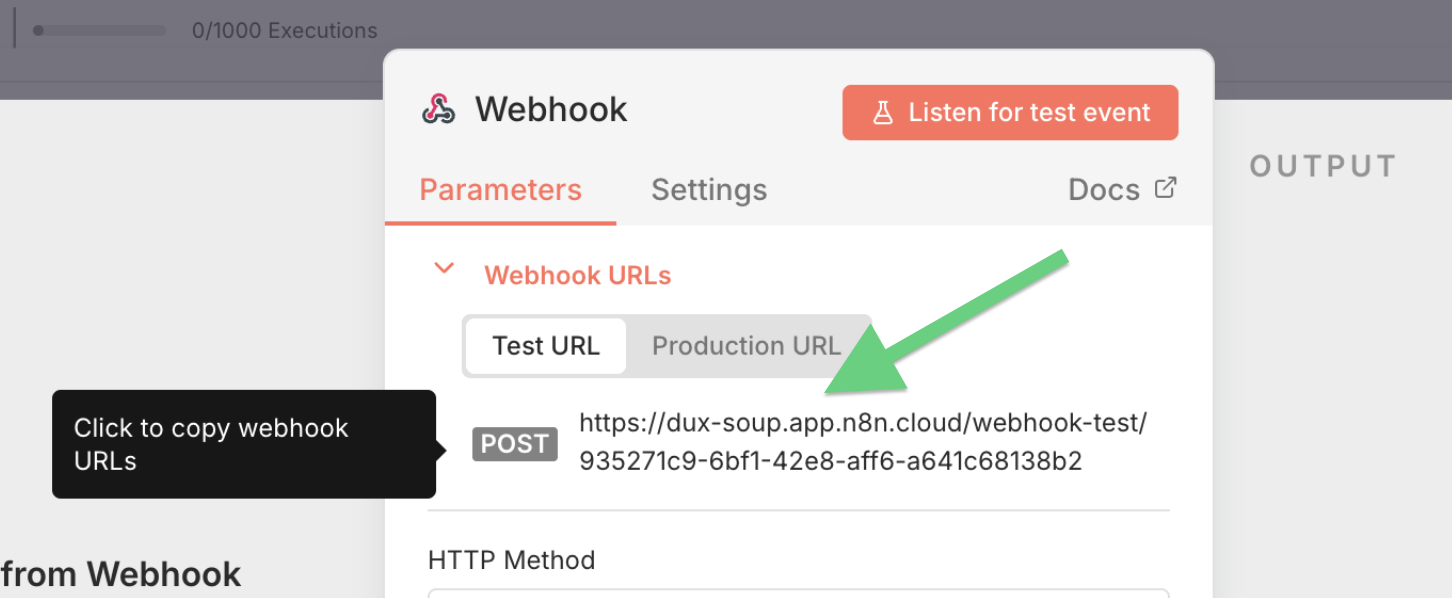
The HTTP method must be specified as POST.
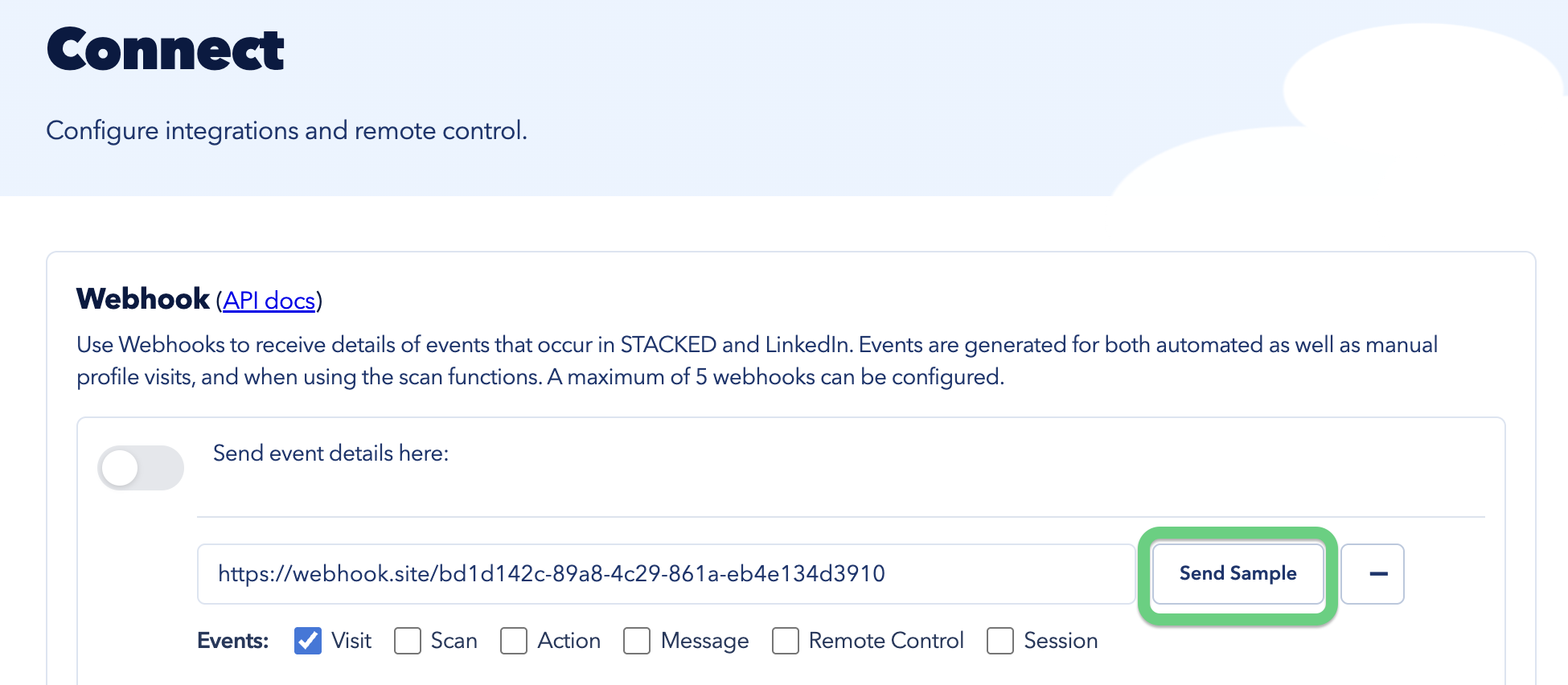
Paste it into STACKED → Settings → Connect → Webhook URL and enable the Visit event.
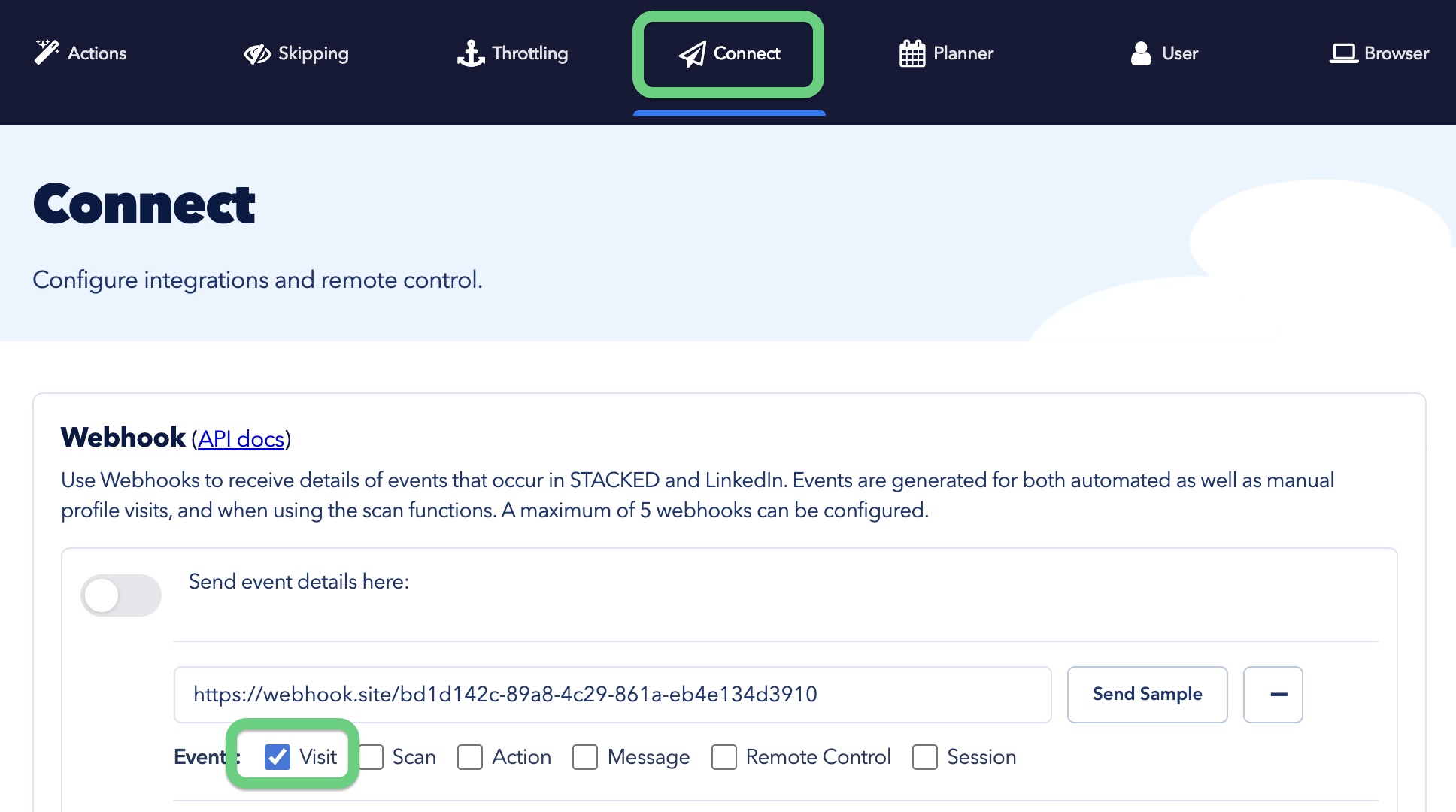
The Connect tab is located within STACKED expert interface.
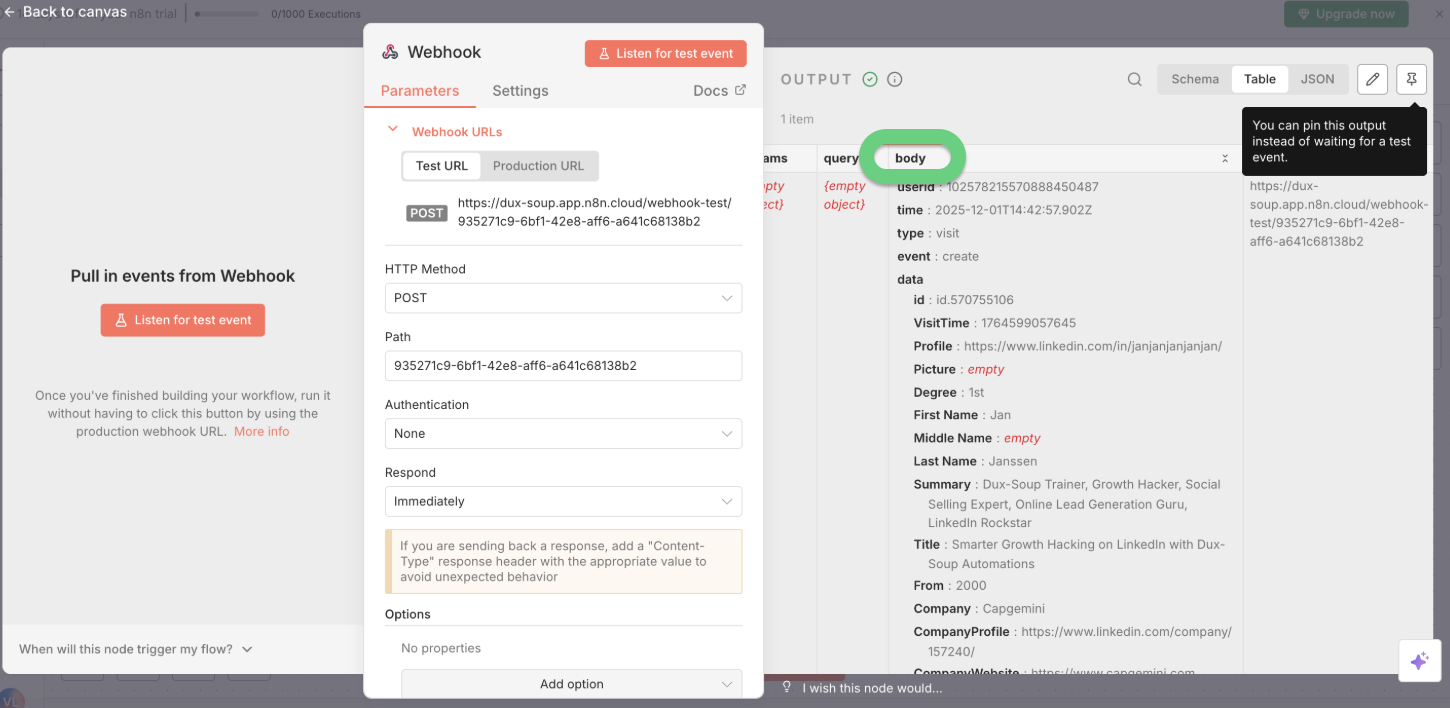
Click on 'Listen for test event'.
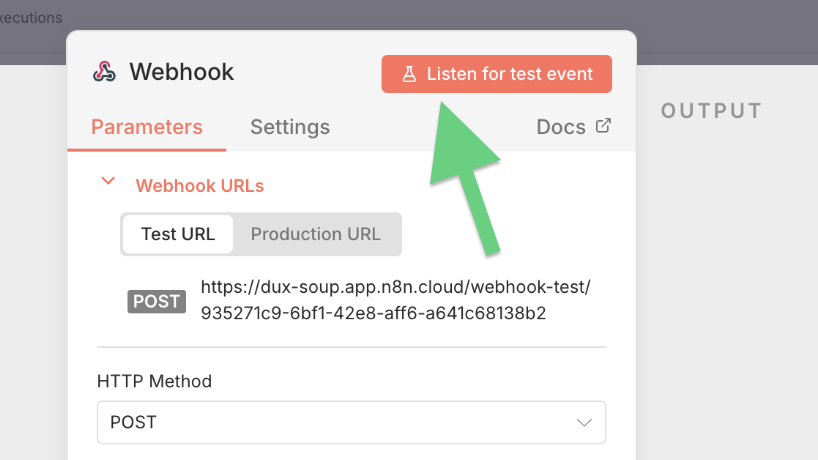
Send a sample of a visit event (Settings → Connect).
Switch to a production webhook after testing.
The STACKED data is located in the body section.
Step 2: Create or update the lead in your CRM
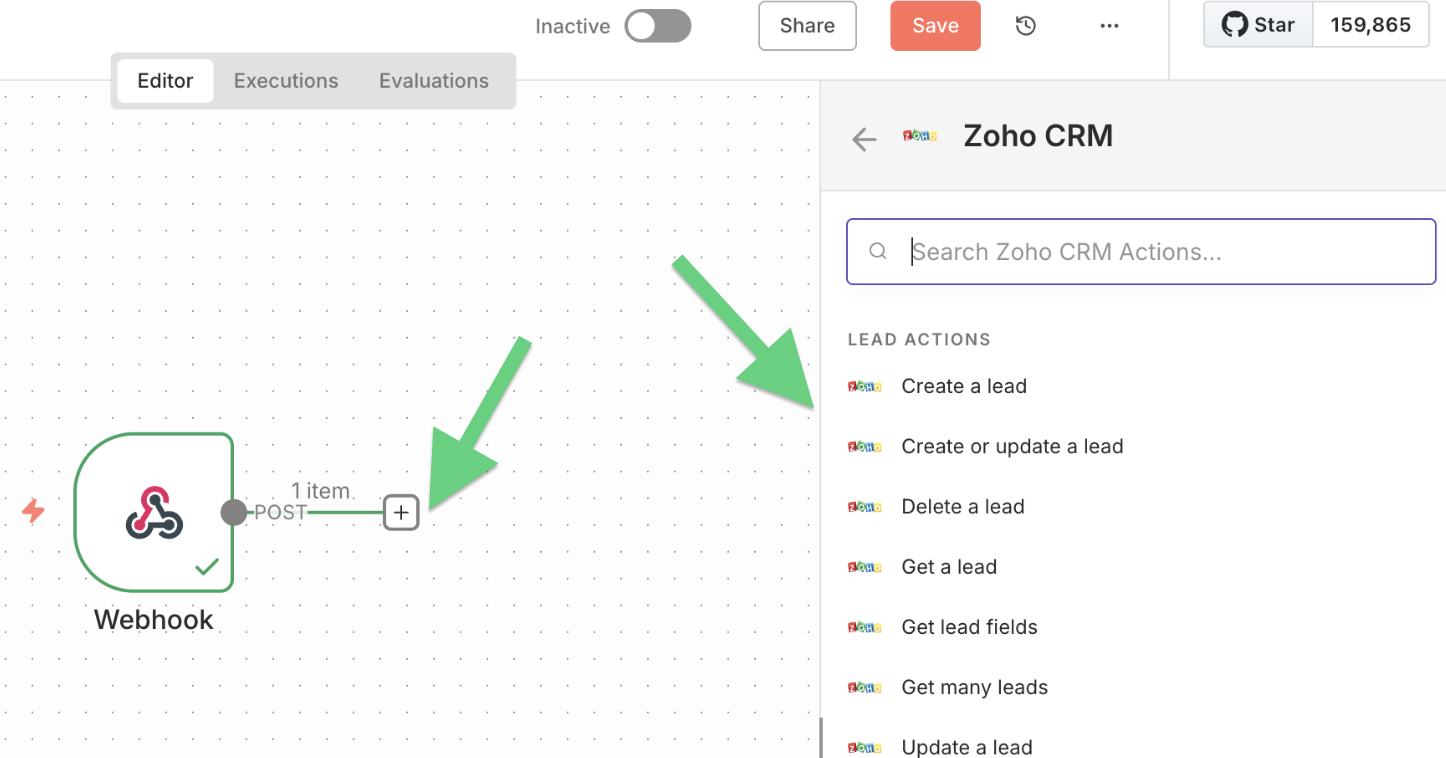
Choose the CRM node and set up Credentials to connect to CRM. In this example, we use Zoho CRM:
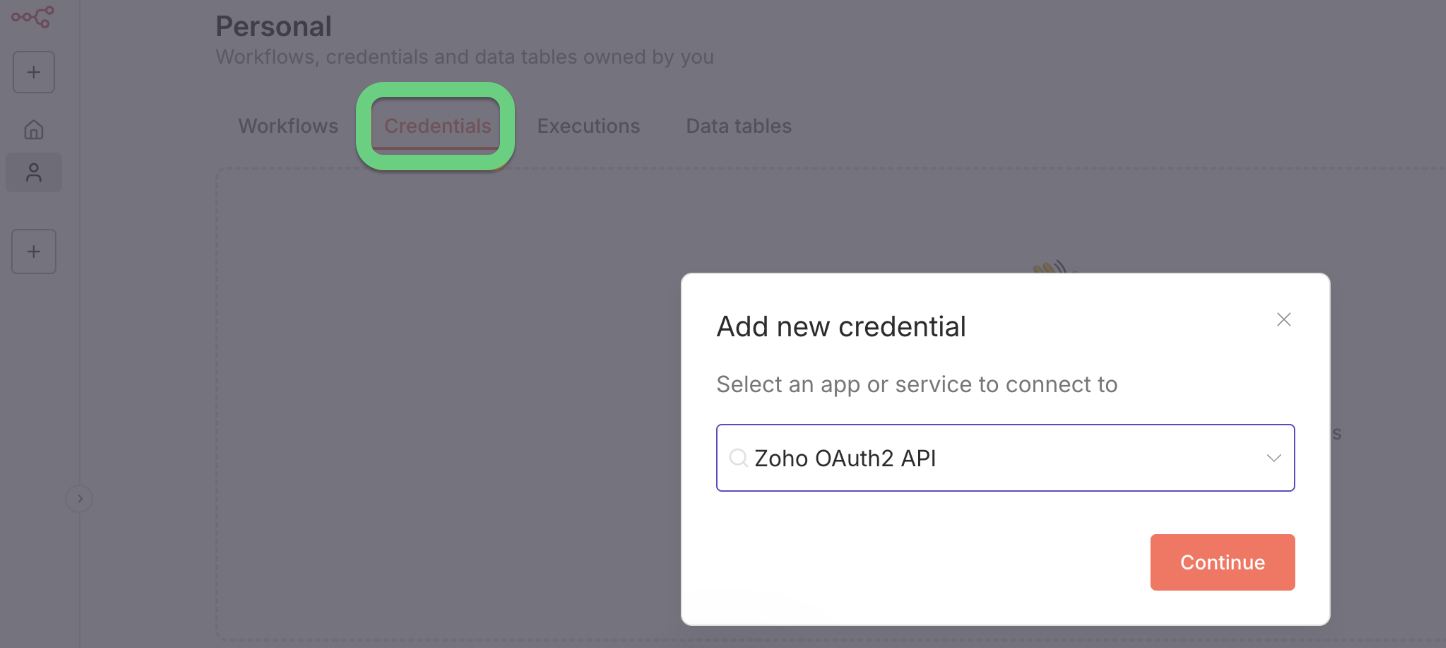
Add Zoho CRM to your n8n workflow → Create or update a lead
Drag the input field and match it to:
- Company
- First Name
- Last Name
- Industry, etc.
Suggested custom fields include: LinkedIn Profile URL, LinkedIn ID, LinkedIn Degree, and LinkedIn Title.
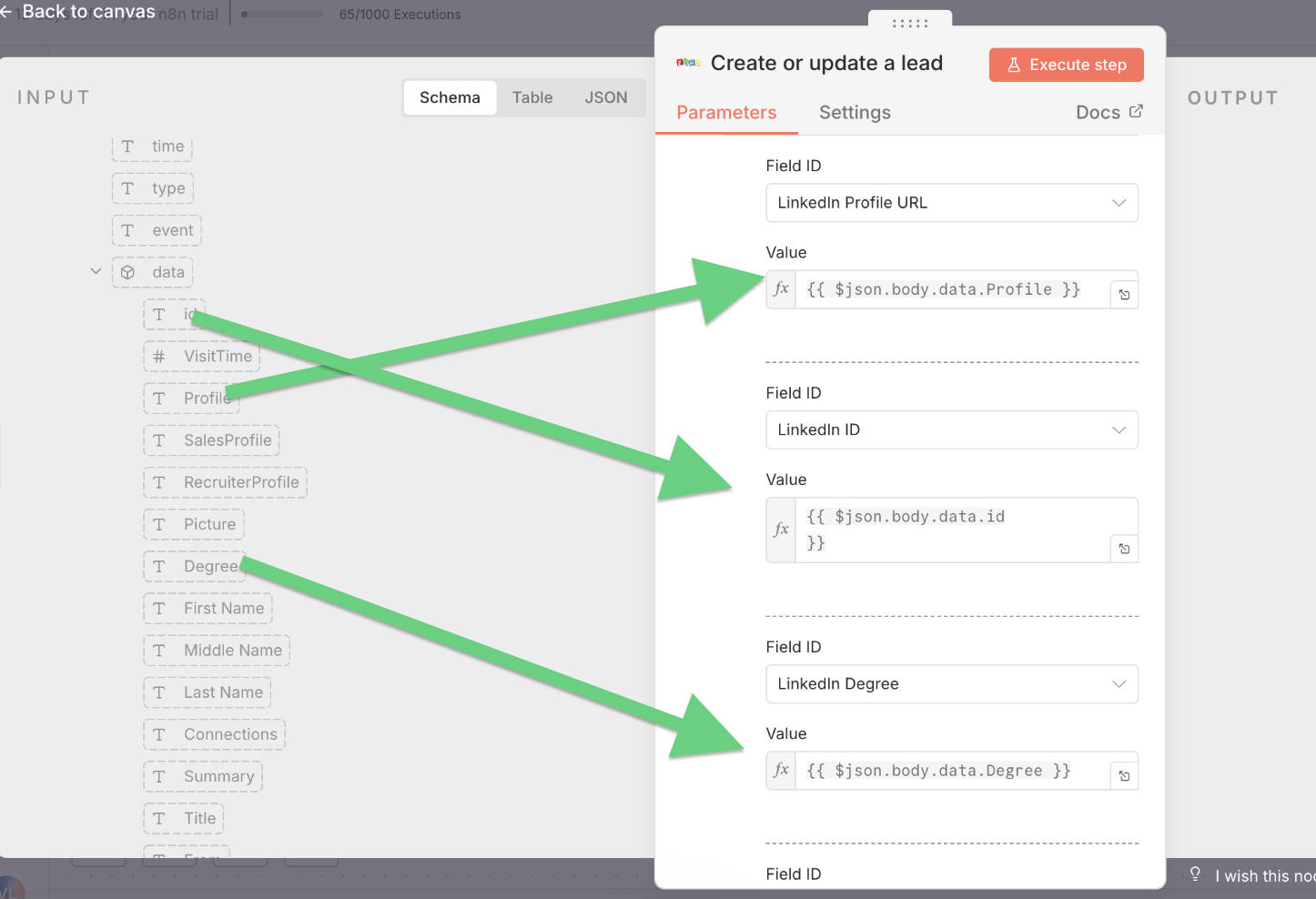
This example is broadly applicable to most CRM systems.
Final Workflow Diagram

Result
The successful record in CRM is confirmed on the right side:

You can now check your CRM lead records:

You can enable the Duplicate Check Preference option in the Zoho CRM to prevent duplicate lead records by following these steps:
- Go to Setup.
- Select Customisation.
- Choose Modules and Fields.
- Click on Leads and select Layout name (Standard by default)
- Locate the LinkedIn ID field you set in the previous steps and click on 'Edit Properties'.
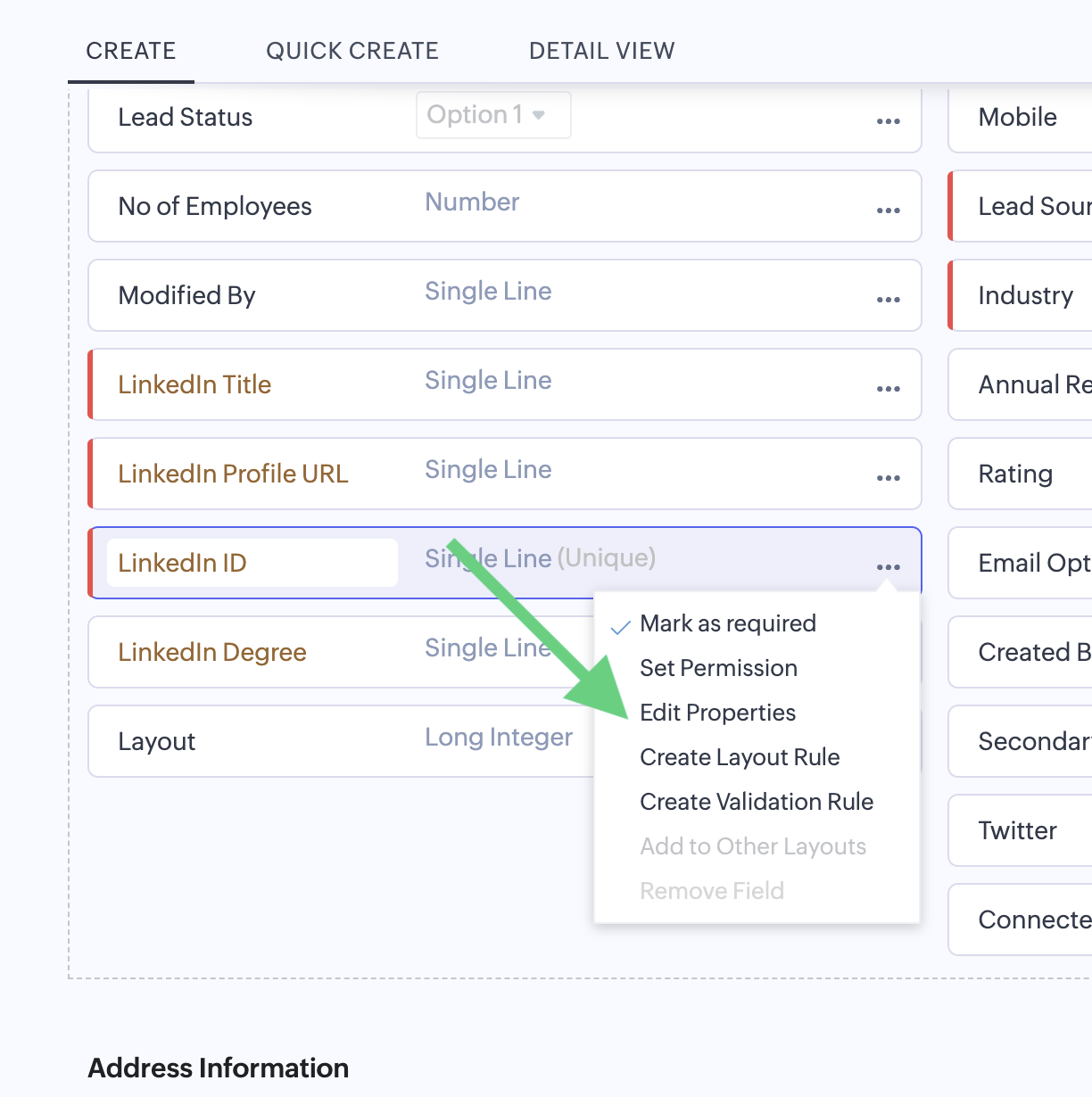
- Mark it as 'Do not allow duplicate values'.

- Go back to Modules and Fields and click on the 3 dots next to the Leads module.
- Enable the Duplicate Check Preference option.

- Select 'Converted Leads' and save changes.
