
Add prospects to a campaign
Once you’ve created a drip campaign, the next step is to add LinkedIn profiles.
STACKED offers several ways to enrol prospects depending on where your prospect data comes from. You can add profiles directly from LinkedIn, upload a file, paste profile URLs, use a LinkedIn search URL, or manually select individual prospects.
Add prospects from LinkedIn search results
Manually select profiles from LinkedIn
Add prospects using a LinkedIn Search URL
Add prospects from LinkedIn search results
The fastest way to start a campaign is by enrolling prospects directly from LinkedIn People Search, Sales Navigator, or Recruiter.
Best for:
- Large prospect lists
- Bulk enrollment
- Starting a new campaign
Steps:
- Open LinkedIn People Search, Sales Navigator Lead Search, or Candidate Pool in Recruiter
- Apply LinkedIn filters to define your target audience.
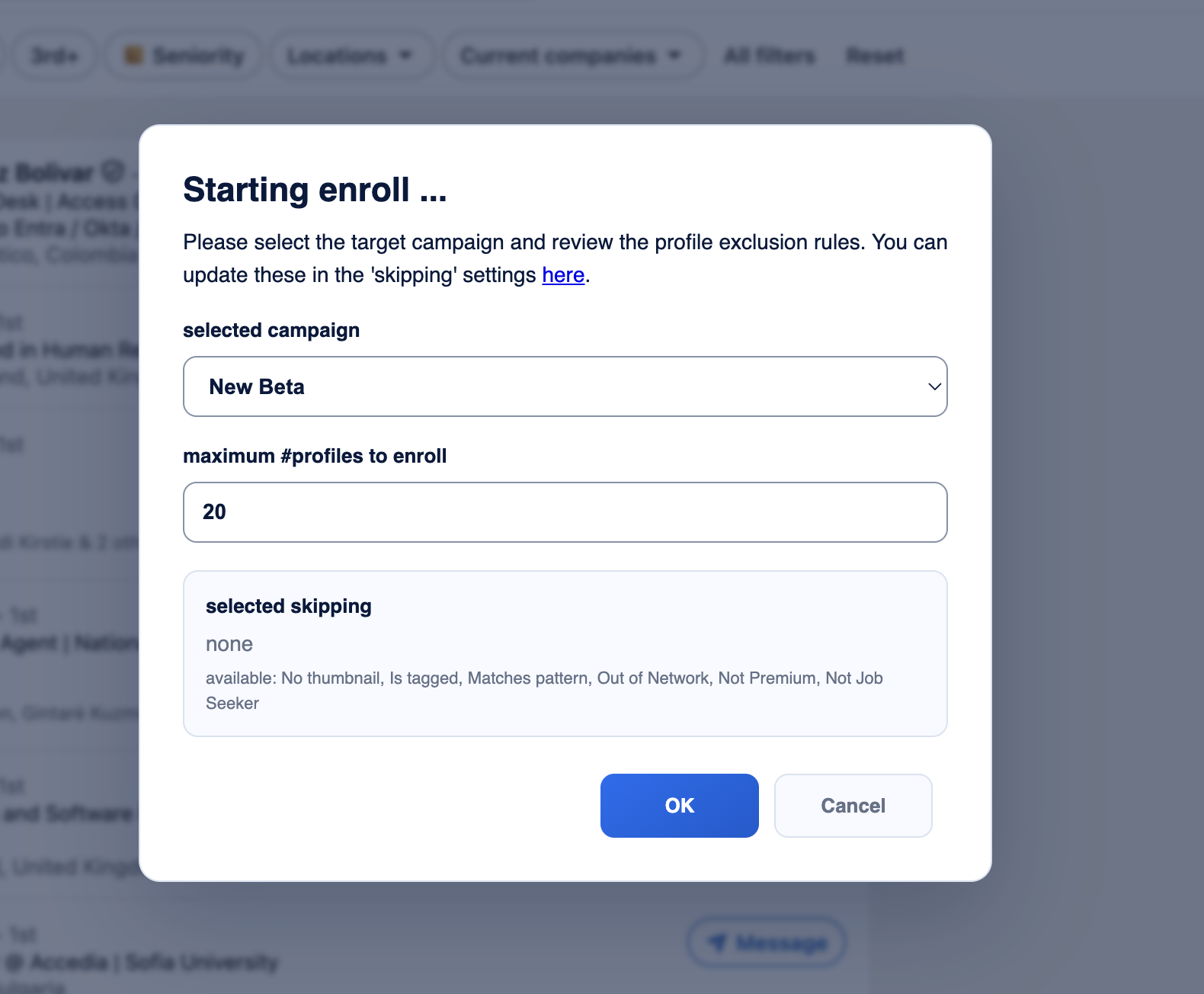
- Click the Enroll prospects button at the top-right of the app.
- Select the drip campaign.
- Specify the maximum number of profiles to enrol.
- Click OK.
Manually select profiles from LinkedIn
If you only want to add selected prospects, use the Tools widget while browsing LinkedIn.
Best for:
- High-value prospects
- Manual qualification
- Small campaigns
Steps:
- Open LinkedIn People Search or an individual profile.
- Wait for the Tools widget to appear on the right-hand side.
- Choose the campaign.
- Click the Enroll selected button.
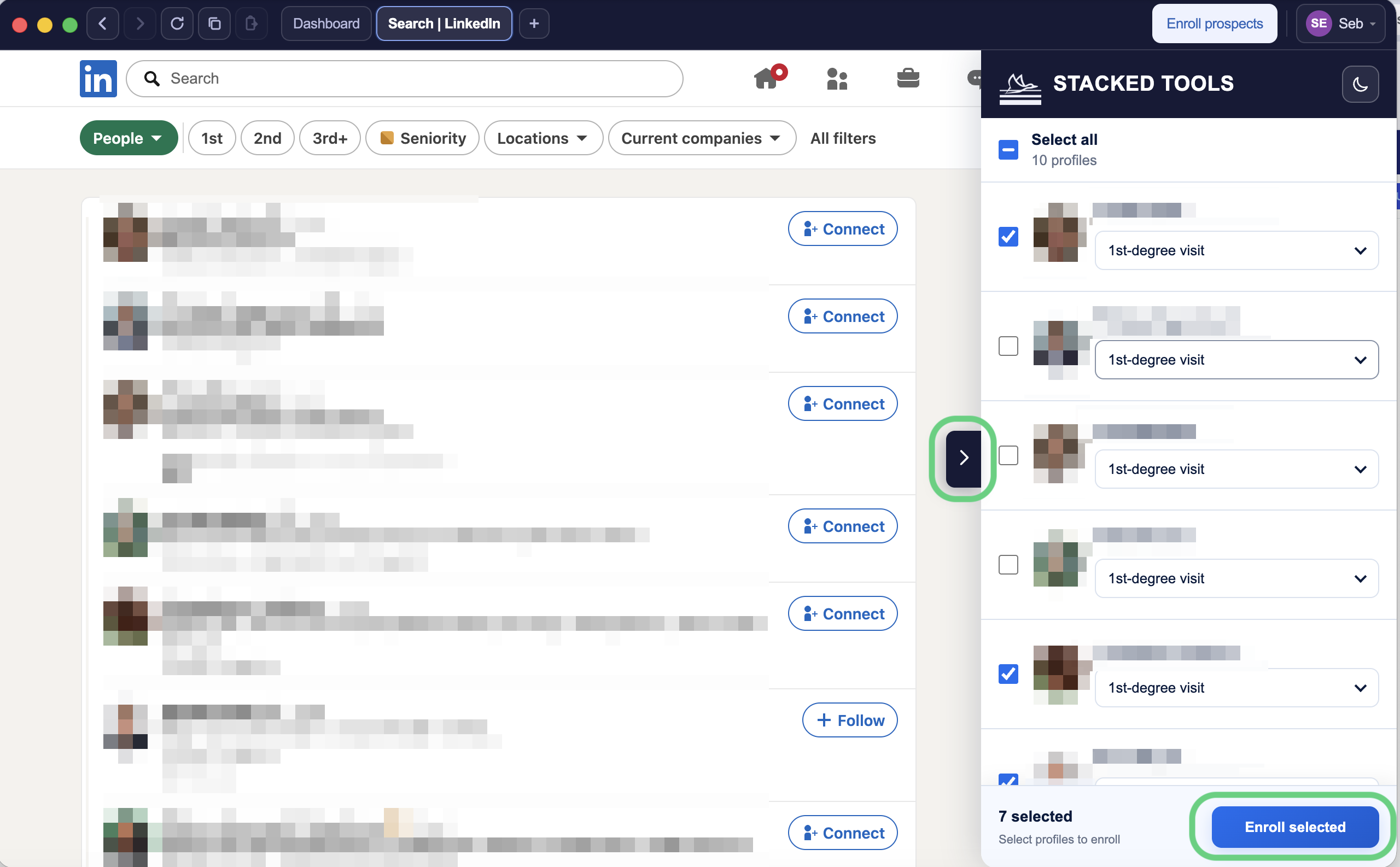
Existing 1st-degree connections skip connection requests and other pre-connect actions..
Upload a CSV or text file
If you already have a list of LinkedIn profiles, you can import them directly into a campaign.
Supported formats
- Text file (.txt)
- One LinkedIn profile URL per line.
or
- CSV
- Required columns:
- id
- Profile
- Degree
- Required columns:
Every profile must contain a full LinkedIn URL. E.g. https://www.linkedin.com/in/john-smith/
Steps:
- 1 Open the STACKED application.
- 2 Select the STACKED tab.
- 3 Click Funnel Flow.
- 4 Open Funnel Flow and select the Funnel page.
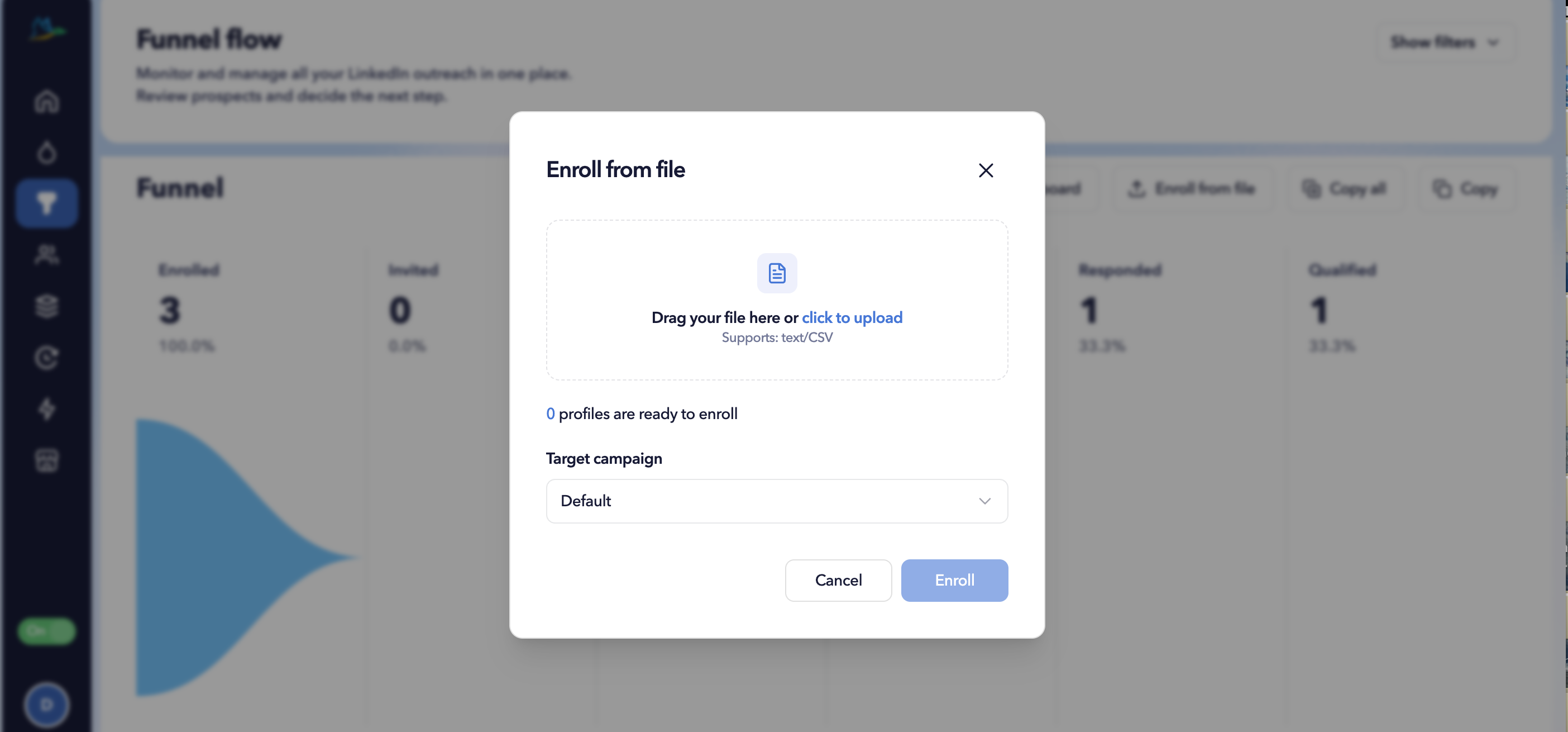
- 5 Click Enroll from File.
- 6 Select your CSV or TXT file.
- 7 Choose the campaign.
- 8 Click Enroll.
- 1 Open the STACKED Dashboard .
- 2 Click Funnel Flow.
- 3 Open Funnel Flow and select the Funnel page.
- 4 Click Enroll from File.
- 5 Select your CSV or TXT file.
- 6 Choose the campaign.
- 7 Click Enroll.
| Status | Meaning |
|---|---|
| ✅ Success | Profiles enrolled immediately. |
| 🕓 Scheduled | Enrol action queued before campaign actions. |
| ❌ Failed | Profile couldn’t be enrolled. Review the reason shown in the report. |
Add prospects using a LinkedIn Search URL
Instead of enrolling profiles immediately, you can enrol directly from a LinkedIn search URL.
This is particularly advantageous when you regularly run the same LinkedIn search.
Steps:
- 1 Create a LinkedIn search.
- 2 Apply your search filters.
- 3 Copy the search URL.
- 4 Open the STACKED application.
- 5 Click Funnel Flow.
- 6 Open Funnel Flow and select the Funnel page.
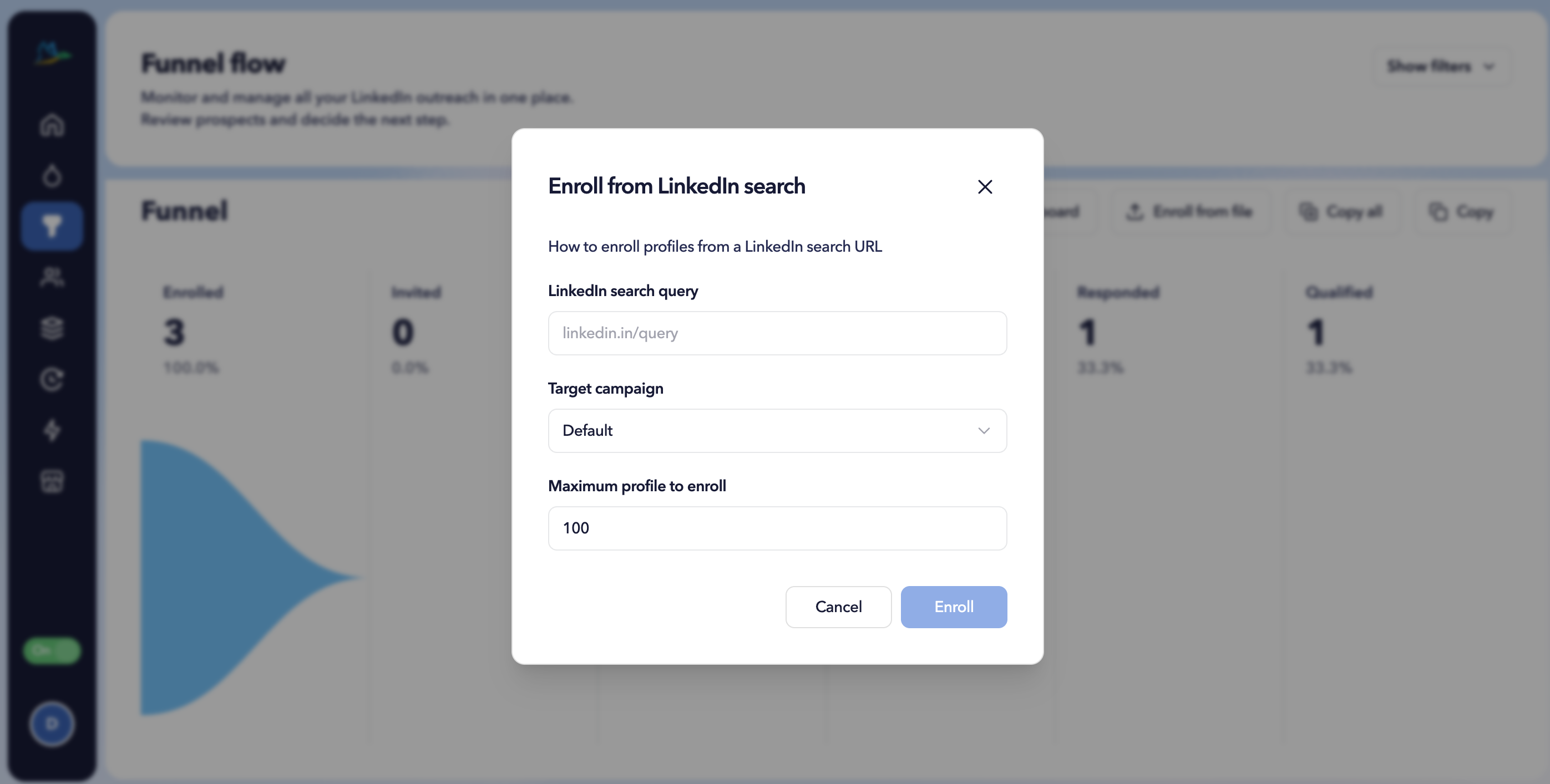
- 7 Click Enroll from Search.
- 8 Paste the LinkedIn search URL.
- 9 Select the campaign.
- 10 Choose the maximum number of profiles.
- 11 Click Start Enroll.
- 1 Create a LinkedIn search.
- 2 Apply your search filters.
- 3 Copy the search URL.
- 4 Open the STACKED Dashboard .
- 5 Open Funnel Flow and select the Funnel page.
- 6 Click Enroll from Search.
- 7 Paste the LinkedIn search URL.
- 8 Select the campaign.
- 9 Choose the maximum number of profiles.
- 10 Click Start Enroll.
How it works
- Profiles are processed progressively.
- Processing stops once the enrolment limit is reached or once the Search has no more profiles in it.
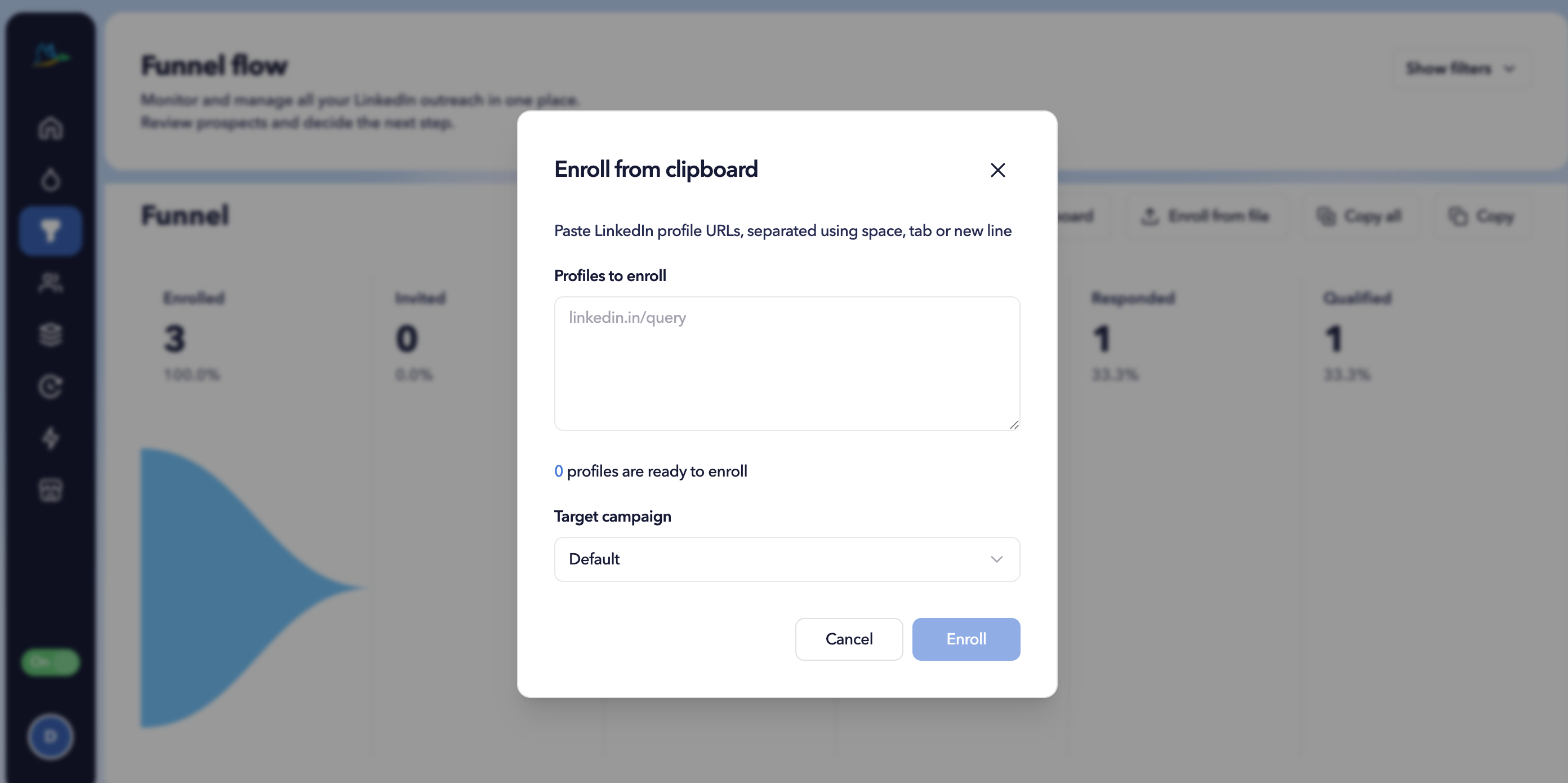
Paste LinkedIn profile URLs from the clipboard
You can also paste LinkedIn profile URLs copied from another application.
Supported sources include:
- Google Sheets
- Excel
- Notepad
- Existing drip campaigns
Steps
- 1 Copy one or more LinkedIn profile URLs.
- 2 Open the STACKED application.
- 3 Click Funnel Flow.
- 4 Open Funnel Flow and select the Funnel page.
- 5 Click Enroll from Clipboard.
- 6 Paste the URLs.
- 7 Select the campaign.
- 8 Click Enroll.
- 1 Copy one or more LinkedIn profile URLs.
- 2 Open the STACKED Dashboard .
- 3 Open Funnel Flow and select the Funnel page.
- 4 Click Enroll from Clipboard.
- 5 Paste the URLs.
- 6 Select the campaign.
- 7 Click Enroll.
Copy profiles between campaigns
You can also copy prospects directly from another campaign.
Steps:
- 1 Open the STACKED application.
- 2 Click Funnel Flow.
- 3 Click Copy All, or click Copy on a specific Funnel stage to select just that stage.
- 4 Click Enroll from Clipboard.
- 5 Select the campaign.
- 6 Click Enroll.
- 1 Open the STACKED Dashboard .
- 2 Open Funnel Flow and select the Funnel page.
- 3 Click Copy All, or click Copy on a specific Funnel stage to select just that stage.
- 4 Click Enroll from Clipboard.
- 5 Select the campaign.
- 6 Click Enroll.
