
Manage prospects across sessions
The Prospects tab in the STACKED Admin Dashboard gives administrators a consolidated view of LinkedIn prospects across team member and client sessions.
Instead of opening each session individually, you can view prospects from one, multiple, or all sessions in one place, review their latest campaign progress, and perform prospect actions directly from the Admin Dashboard.
The Prospects panel shows the LinkedIn profiles associated with your selected sessions and campaigns.
To access the Prospects tab:
- 1 Open the desktop app.
- 2 Click Dashboard in the sidebar.
- 3 Select the Prospects tab.
- 1 Open your Profile .
- 2 Click the Dashboard icon in the sidebar.
- 3 Select the Prospects tab.
Use Filter prospects by name to find a specific person, or use the Degree filter to narrow the list by LinkedIn connection degree.
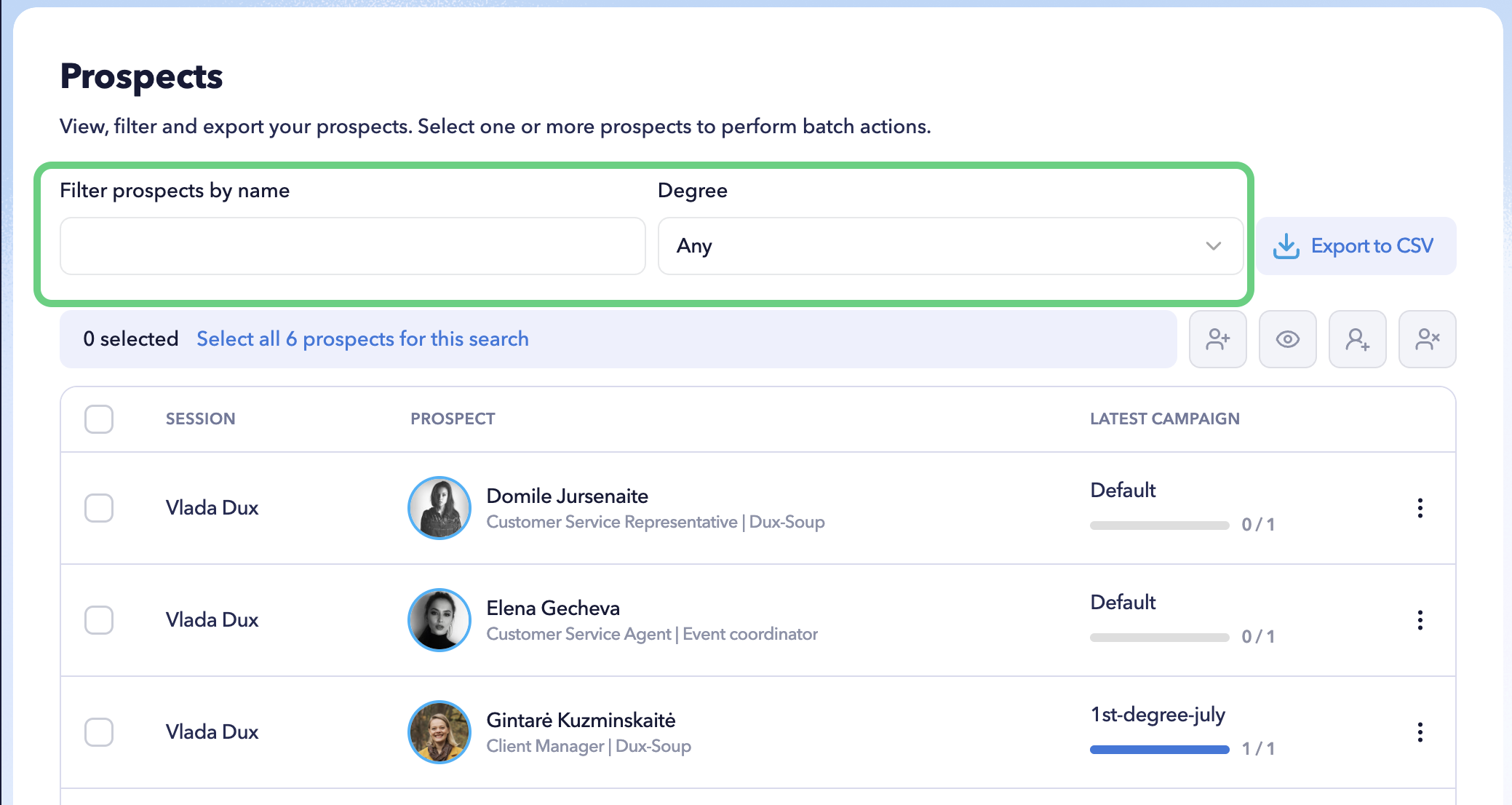
For each prospect, you can see:
- Session – the team member or client session the prospect belongs to.
- Prospect – the prospect’s name, job title, and company.
- Latest campaign – the most recent campaign associated with the prospect and their campaign progress.
This makes it possible to identify both who the prospect is and which session is managing them without switching between LinkedIn accounts.
Manage an individual prospect
Click the three-dot menu next to a prospect to access the available actions.
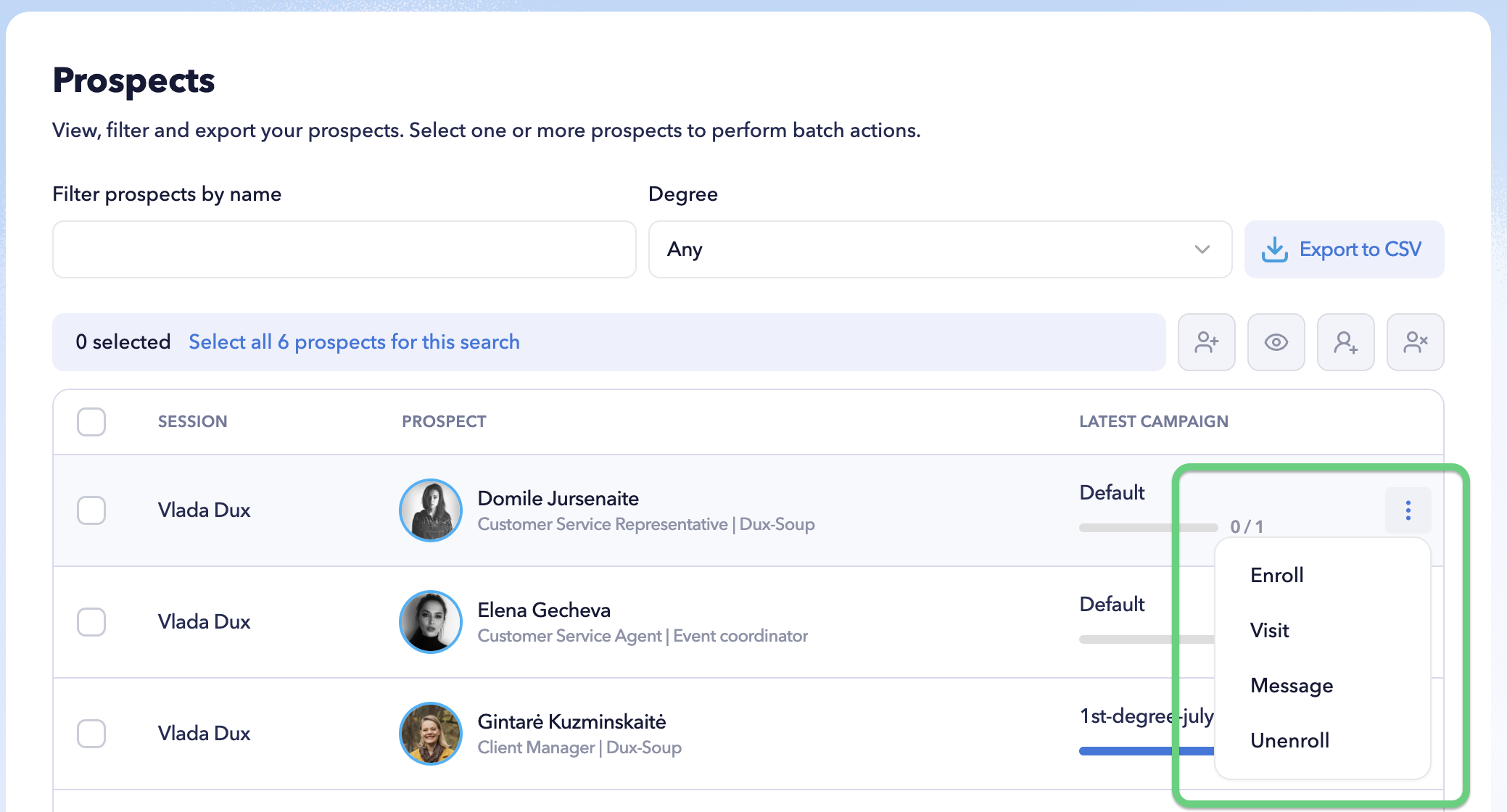
Depending on the prospect and their current campaign status, you can:
- Enroll the prospect in a campaign.
- Visit their LinkedIn profile.
- Message the prospect.
- Unenroll them from their current campaign.
Click a prospect row to open their conversation and prospect controls.
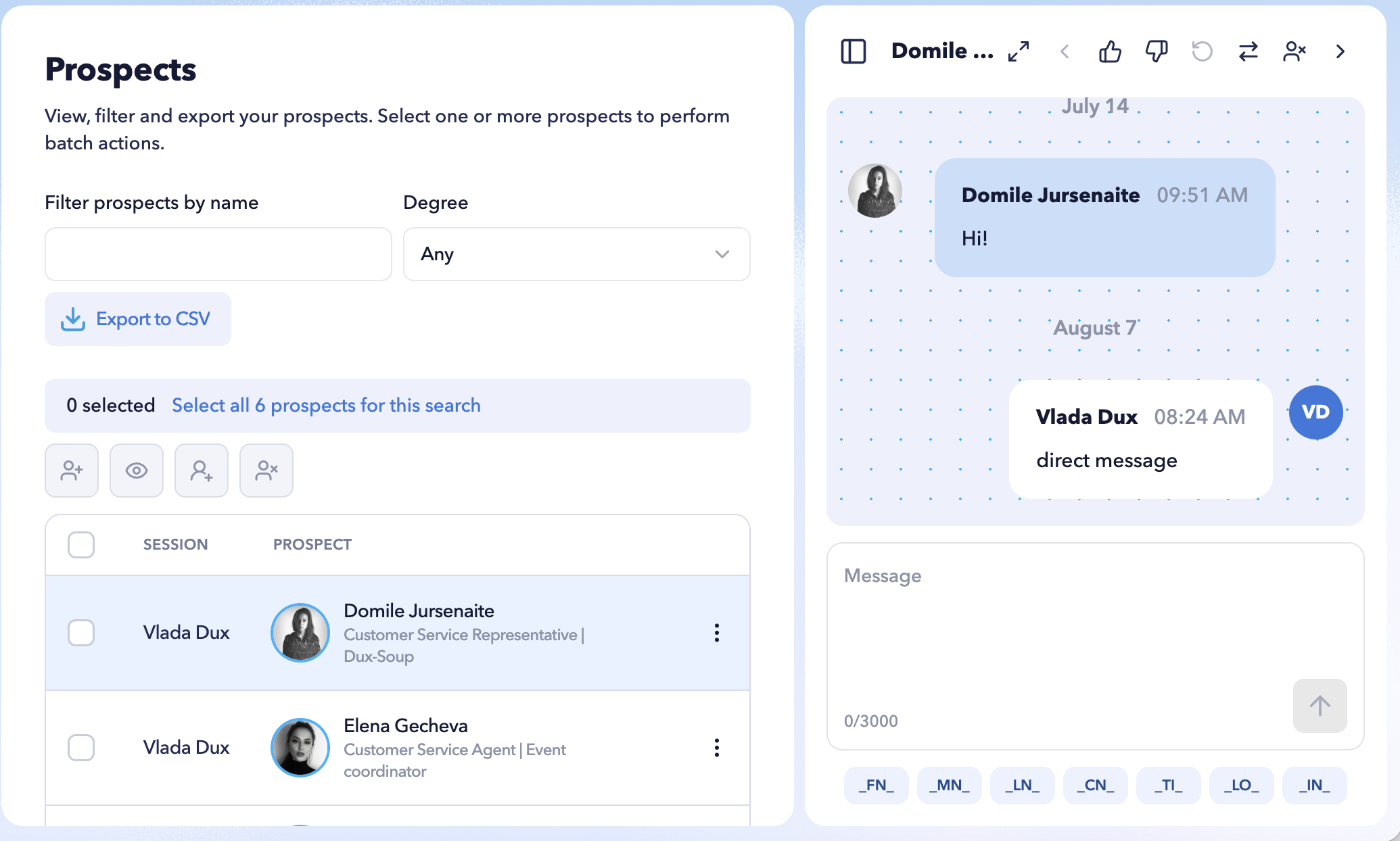
From this panel, you can review the LinkedIn conversation, send a manual message, and manage the prospect directly from the Admin Dashboard.
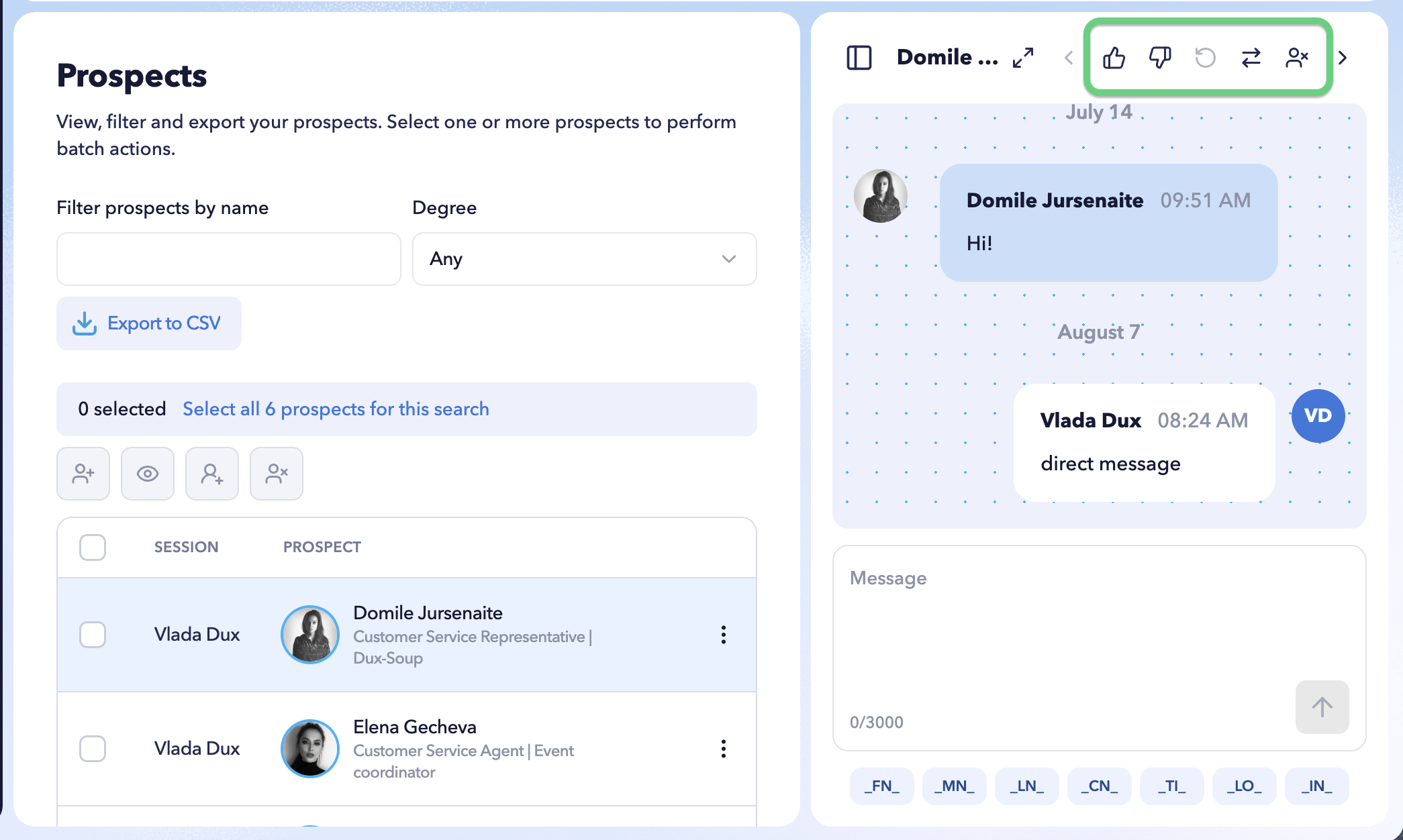
The available prospect controls include:
- Qualify – mark the prospect as qualified.
- Disqualify – mark the prospect as not qualified.
- Continue – continue the prospect’s current campaign after they have responded.
- Switch – move the prospect to another drip campaign.
- Unenroll – remove the prospect from their current campaign.
You can also write and send a manual LinkedIn message from the conversation panel using message placeholders where required.
Learn more: See Manage campaign prospects for more information about prospect actions and campaign management.
Manage multiple prospects
You can also select multiple prospects to perform actions in bulk.
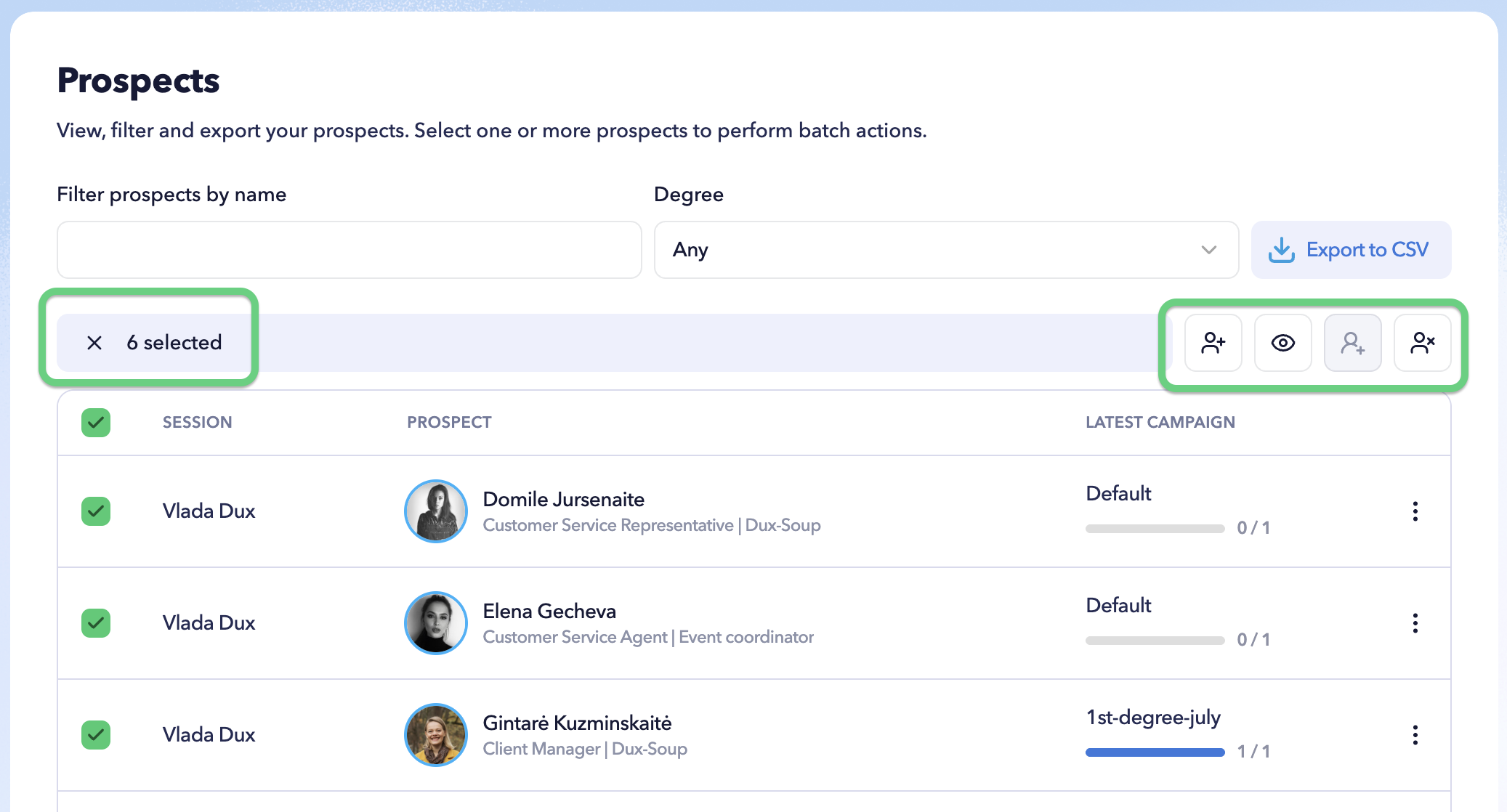
Select the checkbox next to individual prospects, or use Select all to select all prospects matching your current search and filters.
The bulk action controls allow you to perform supported prospect actions across the selected profiles.
Because prospects can belong to different sessions, always check your Dashboard filters and selected profiles before applying a bulk action.
Export prospects to CSV
Click Export to CSV to download prospect data from the Prospects tab.
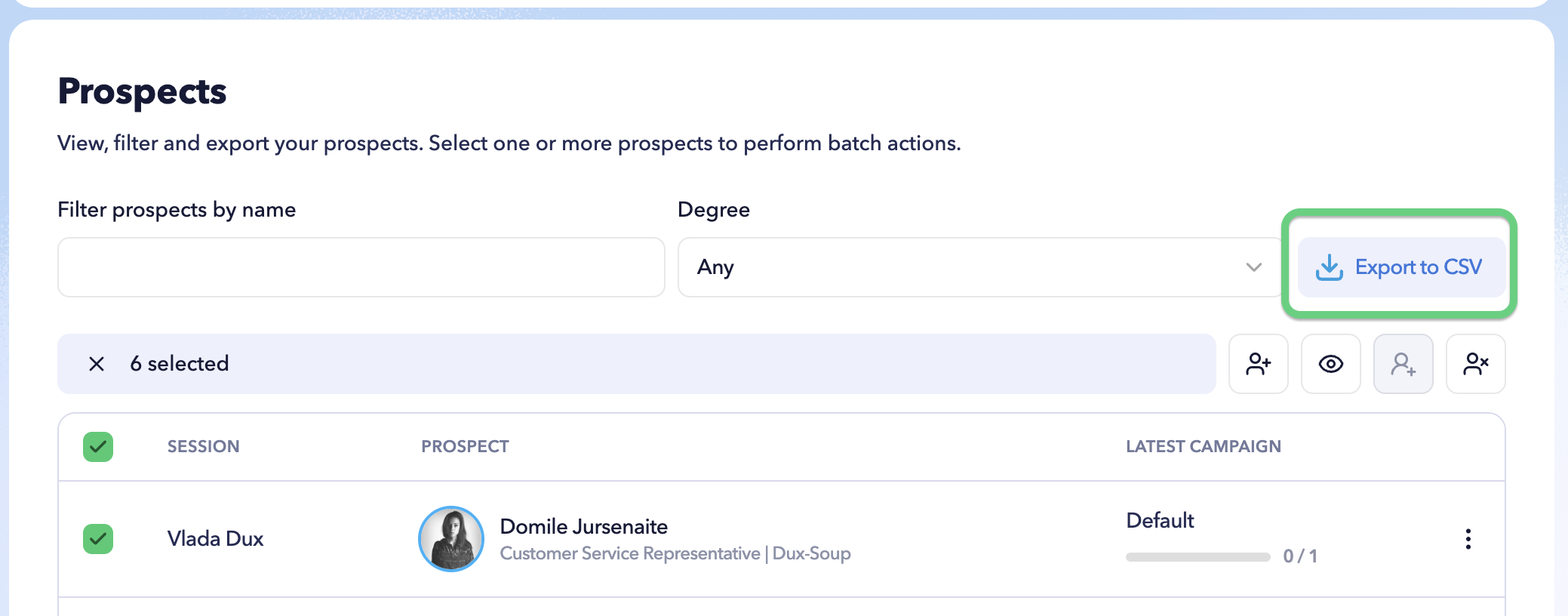
The exported data reflects the prospects available based on your current Dashboard selection, allowing administrators to export prospect information across the sessions and campaigns they are reviewing.
Dashboard filters
Filters in the top panel control the data displayed across the admin Dashboard.
You can select:
- One session
- Multiple sessions
- All sessions
You can also select campaigns associated with those sessions and choose the reporting period.
