
Monitor performance and KPIs across sessions
The KPIs tab in the STACKED Admin Dashboard gives administrators a consolidated view of LinkedIn automation and prospecting performance across multiple sessions.
Use the dashboard filters to review performance for a single session, compare selected sessions, or see combined results across all sessions.
Review performance across sessions
To access the Prospects tab:
- 1 Open the desktop app.
- 2 Click Dashboard in the sidebar.
- 3 Select the KPIs tab.
- 1 Open your Profile .
- 2 Click the Dashboard icon in the sidebar.
- 3 Select the KPIs tab.
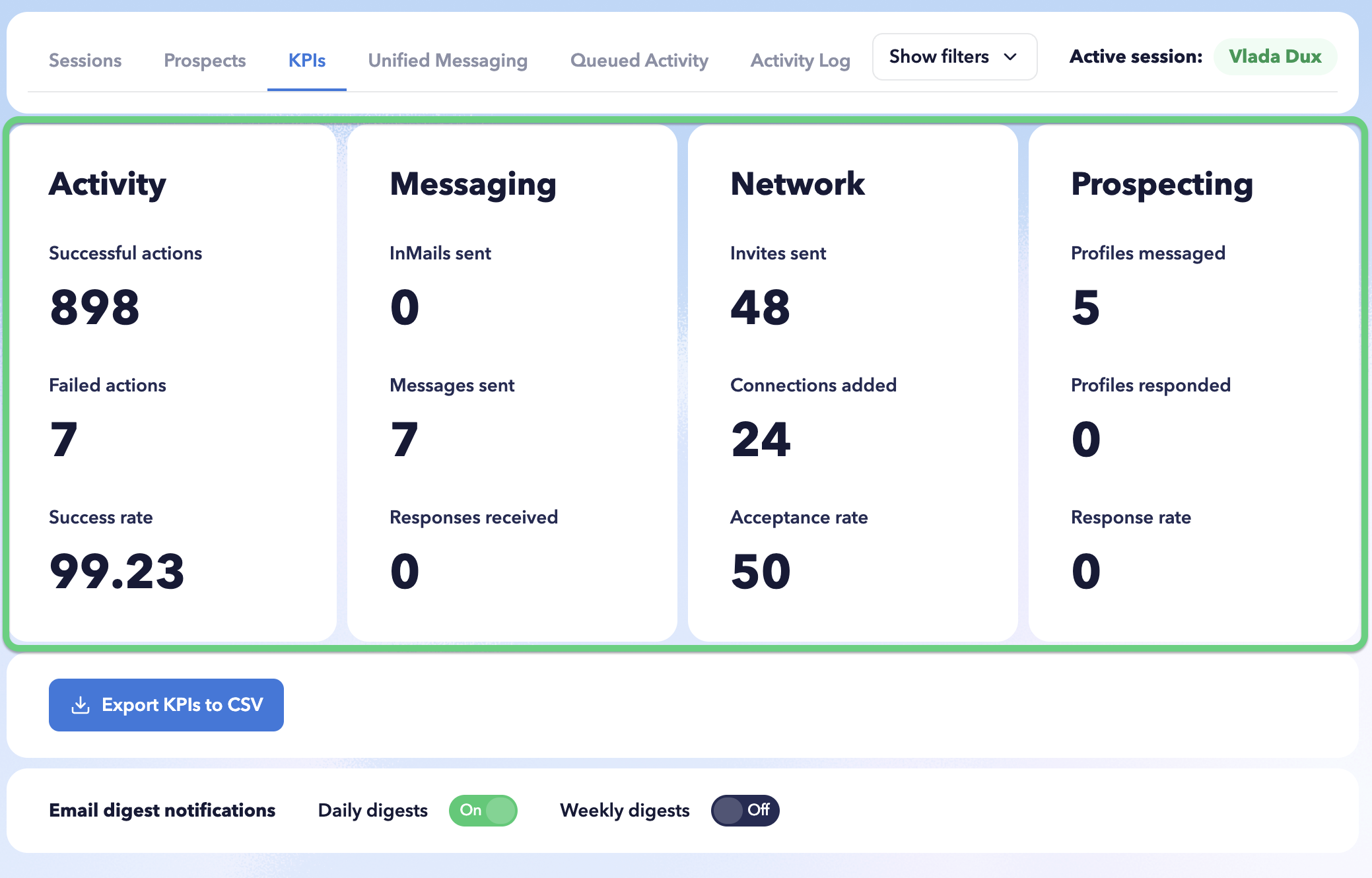
Open the KPIs tab to view performance metrics grouped into four areas:
- Activity
- Messaging
- Network
- Prospecting
The figures displayed are based on the sessions, campaigns, and reporting period selected in the dashboard filters.
For a detailed explanation of each KPI and how the metrics are calculated, see the Monitor campaign performance and its KPIs section.
Export KPI data
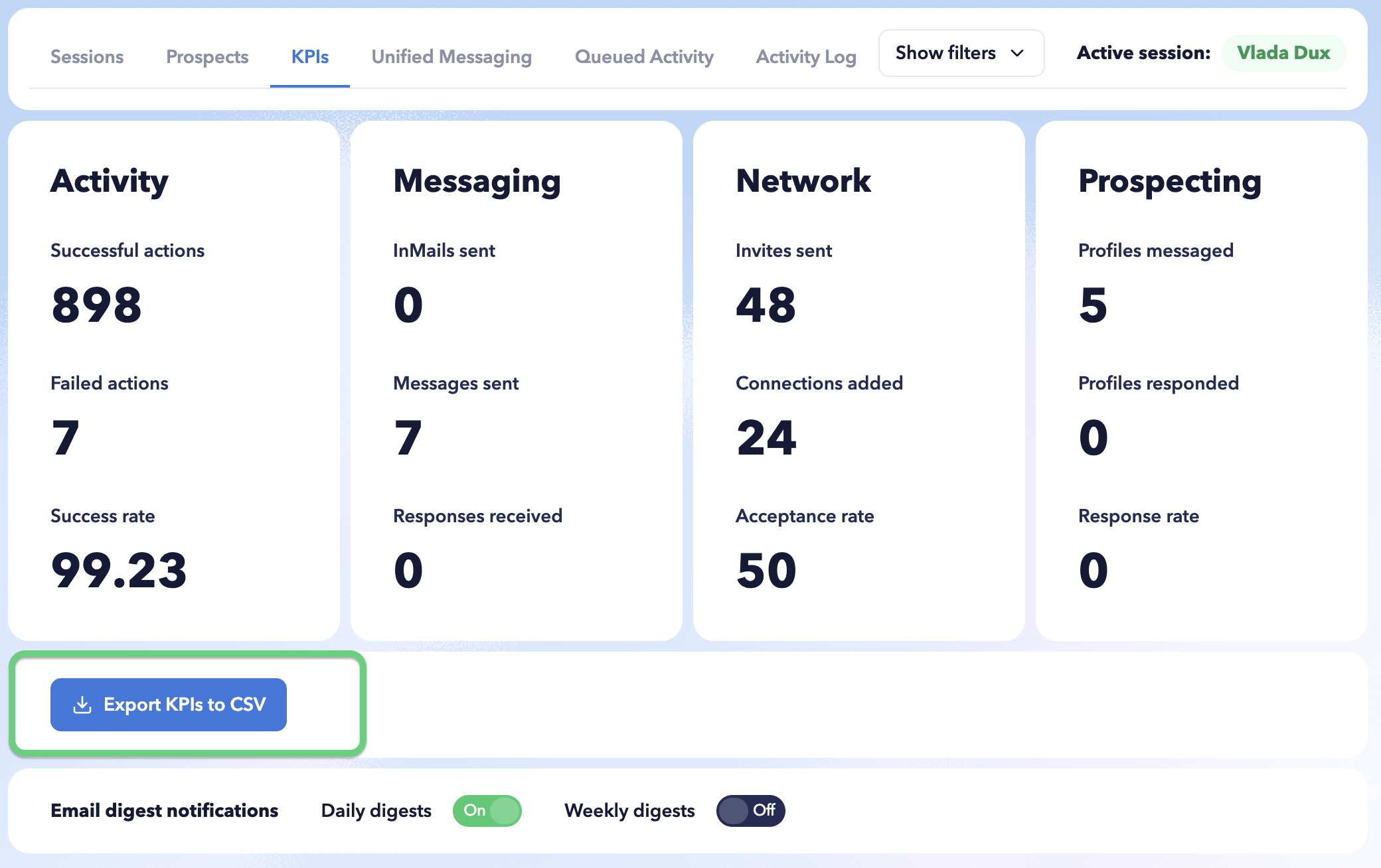
Click Export KPIs to CSV to download the KPI data for further analysis or reporting.
The exported data reflects the filters currently applied to the Admin Dashboard, so check your selected sessions, campaigns, and reporting period before exporting.
Email digest notifications
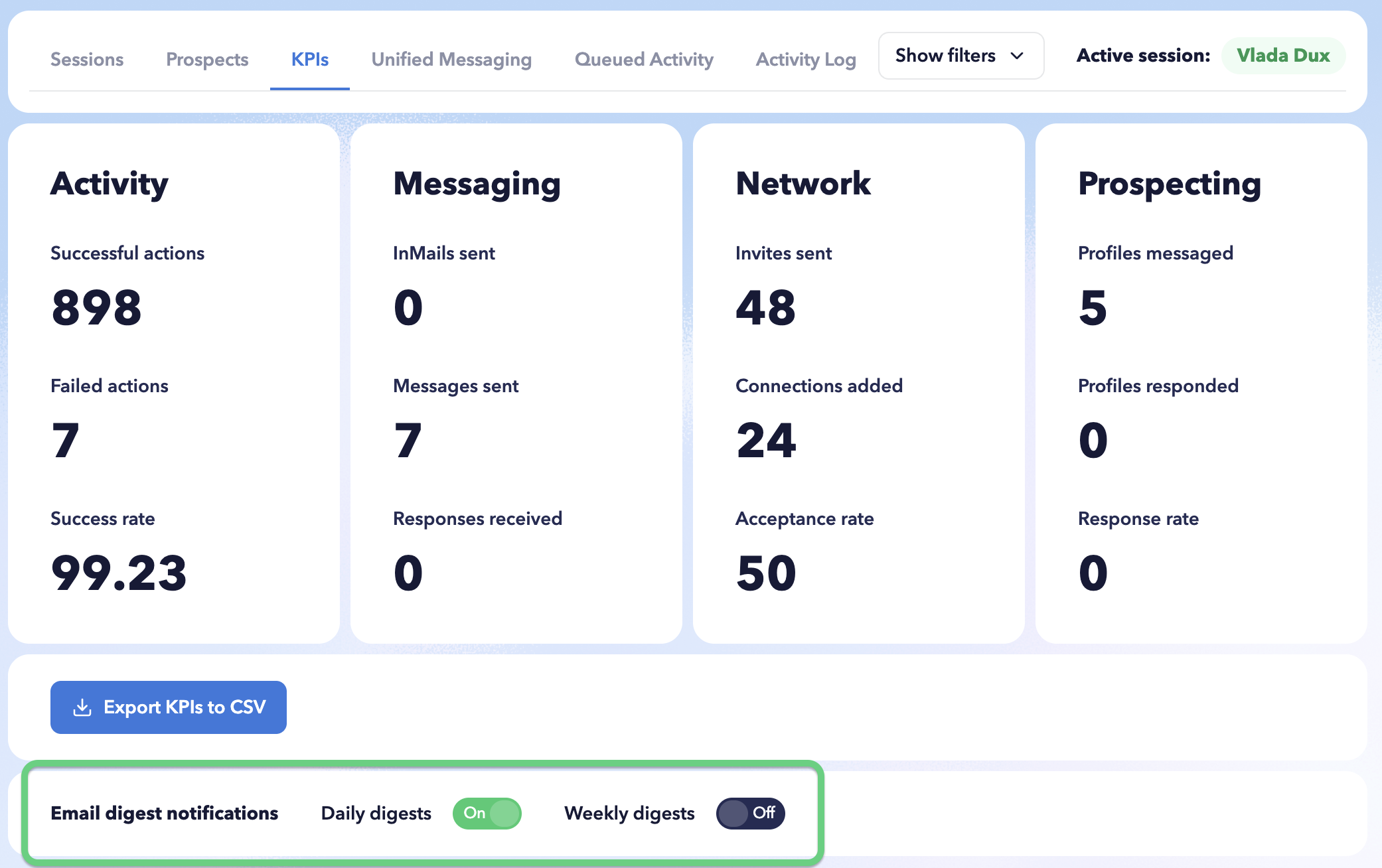
At the bottom of the KPIs page, administrators can manage email digest notifications.
You can enable or disable:
- Daily digests
- Weekly digests
These provide a convenient way to receive regular performance summaries without opening the Admin Dashboard.
Dashboard filters
Filters in the top panel control the data displayed across the Admin Dashboard.
You can select:
- One session
- Multiple sessions
- All sessions
You can also select campaigns associated with those sessions and choose the reporting period.
