
Prospects: view, filter, export, and automate
Dux-Soup Prospects are available within the Dux-Dash for all Cloud and Turbo users.
Prospects are automatically created when you manually view LinkedIn profiles or when a drip campaign action runs for the first time.

Prospect Filters
At the top of the Prospects page, you will find a filter panel with the following options:
- Campaign name
- Prospect name
- Prospect connection degree
- Date the profile was last viewed

Below the filter panel, the prospect list is displayed based on the selected filters and sorted by the last viewed timestamp.
For each prospect, you can view:
- Name
- Job title
- Company name
You can also open the profile on LinkedIn:

Campaign Progress
Each prospect added to a drip campaign displays a campaign progress bar.
The progress percentage shows how much of the campaign sequence the prospect has completed:
- 100% - the prospect has completed the full campaign sequence.
- 0% - the prospect has not received the first campaign action yet.
The progress percentage is dynamic and updates based on the number of completed actions compared to the total number of actions available in the campaign.

Progress bar color meanings
Green: The prospect is currently active in an automated campaign flow and has not replied.
If the green progress bar contains a star, the prospect has been qualified.
Orange: The prospect has replied and requires follow-up action.
Red: The prospect has been qualified out.
Messages
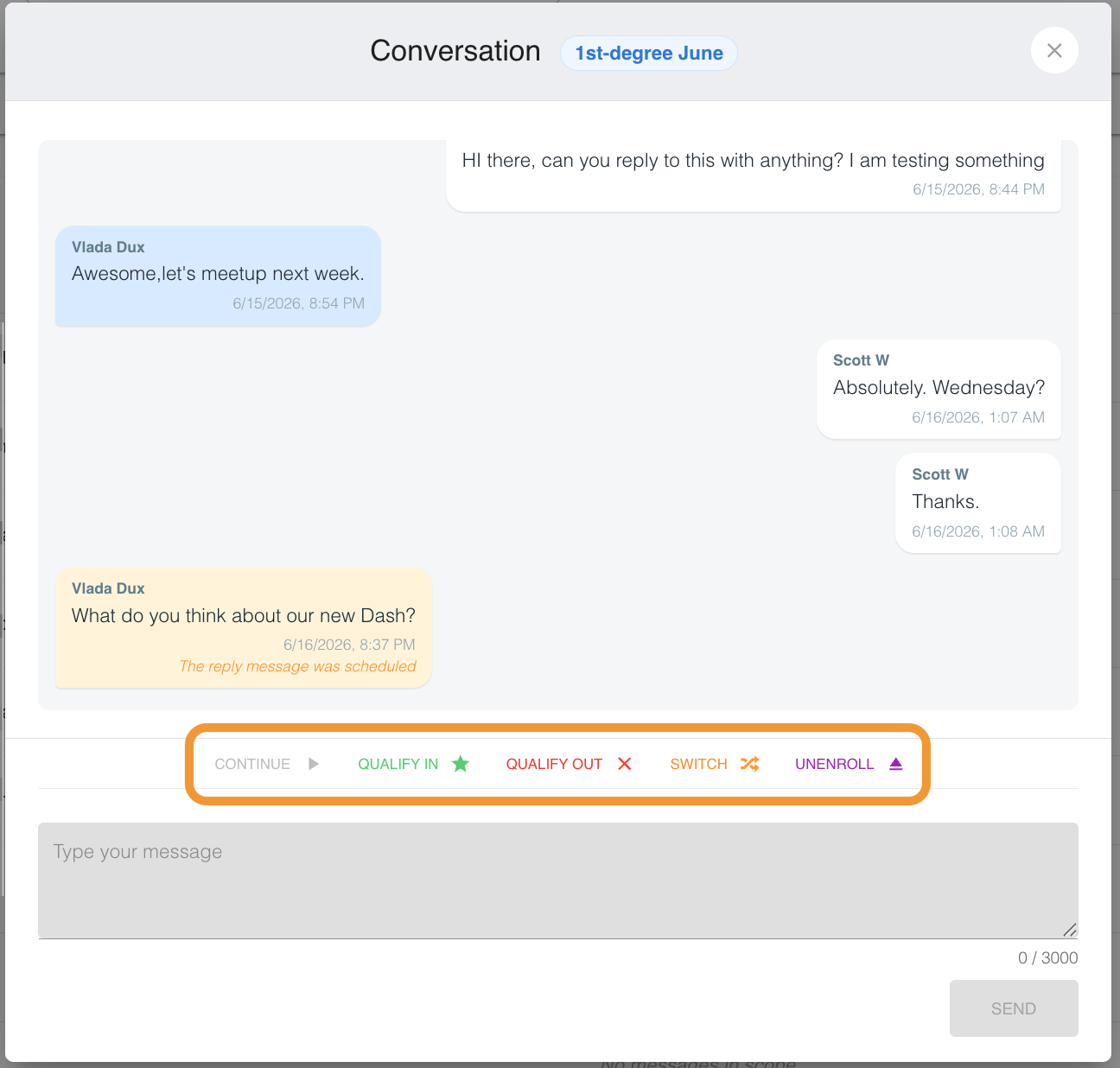
You can view LinkedIn messages, reply to prospects, and access Dux-Soup prospect management options through the message bubble.
Within the message bubble, you can
Export prospect data
At the top of the page, on the right-hand side, you can export selected contacts as a CSV file.

The exported data includes:
| Profile ID | Company page URL |
| Date last viewed | Company website URL |
| Profile URL (Regular / Sales Navigator / Recruiter) | Personal website URL |
| Profile image URL | |
| Connection degree | Phone number |
| First name | |
| Last name | Location |
| Number of connections | Industry |
| Summary | Dux-Soup tags |
| Title | Conversation history* |
| Current company name and start year |
|
Additional actions
At the bottom of the Prospects page, on the left-hand side, you will find additional options:
- Enroll selected profiles into a campaign.
- Schedule a profile visit on LinkedIn
- Unenroll selected profiles from a campaign.

Note that to process the Visit action scheduled from the Prospects page, the Default Campaign must be enabled in the Drip Campaigns setup.
*Learn more about the LinkedIn conversation export option here.