
Connect STACKED to your AI assistant via MCP
The Model Context Protocol (MCP) is available for all STACKED users.
You can connect STACKED to your AI chat using STACKED MCP.
How to connect in Claude
- In Claude, go to Settings → Connectors
- Click the "+" button next to Connectors, then choose Add custom connector

- Give it a name (e.g., "STACKED") and paste in the server URL:
https://app.dux-soup.com/mcp
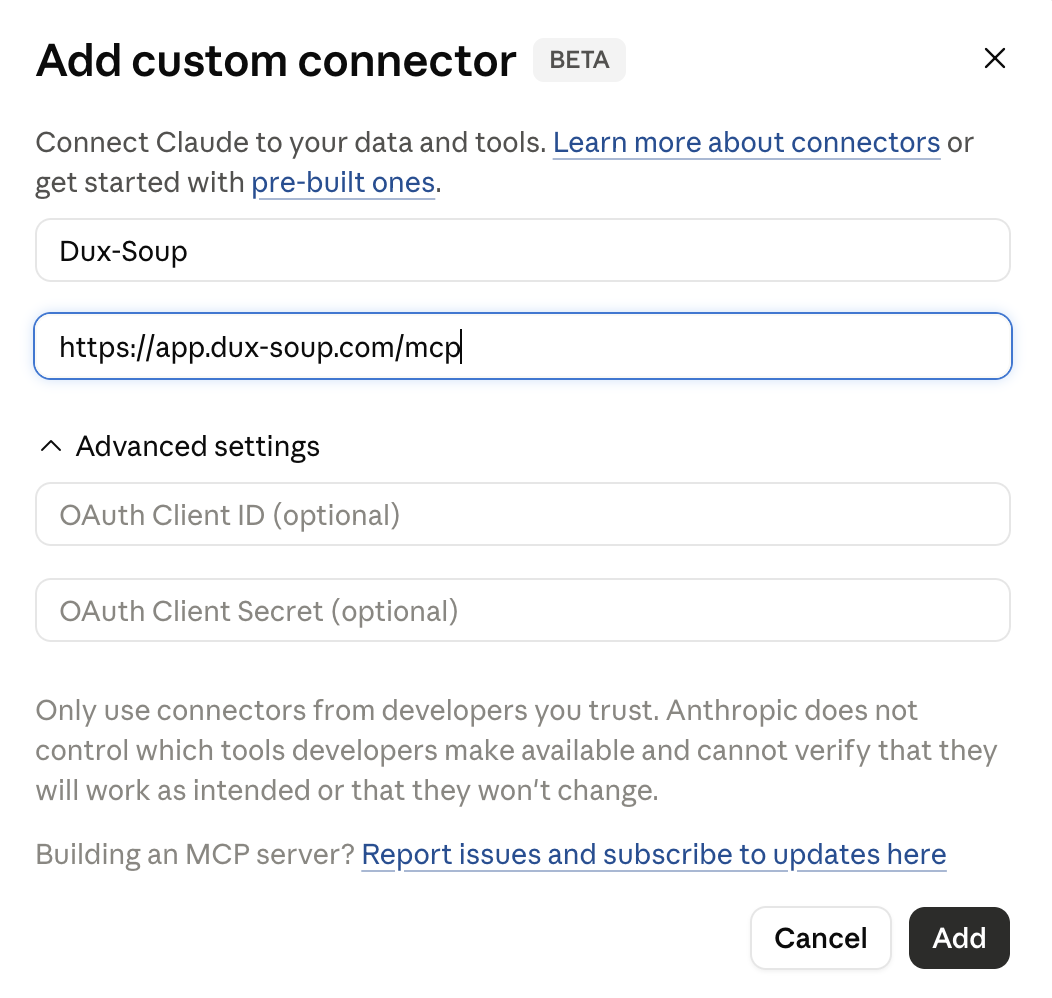
- Click Add, then click to connect it - you'll be sent to a Google sign-in screen
- Sign in with the Google account linked to your STACKED account
- Start a new chat and try a simple prompt, e.g. "List my campaigns." The first time Claude actually uses a STACKED tool, it will ask your permission - approve it to continue. You won't see this prompt again after that.
Note: Because this is a custom (not yet directory-listed) connector, Claude may show a warning that it hasn't been verified by Anthropic. This is expected for any custom MCP connector and not a sign of a problem.
"Account mismatch" on claude.ai
The browser used for sign-in is signed in to claude.ai with a different account than your Claude app. Click Sign out and switch account, sign in with the account you use in the Claude app, and start the connection again.

How to connect in Claude Code
Add the server:
claude mcp add --transport http stacked https://app.dux-soup.com/mcp
In a regular terminal window (not from inside a Claude Code session), sign in:
claude mcp login stacked
Your browser opens to a Google sign-in screen. Sign in with the Google account linked to your paid STACKED account.
How to connect in ChatGPT
- Open ChatGPT in your web browser.
- Go to Settings → Plugins → MCP.
If you don't see the MCP section, enable Developer Mode in Settings → Advanced, then return to Plugins → Add.
- Click Add.
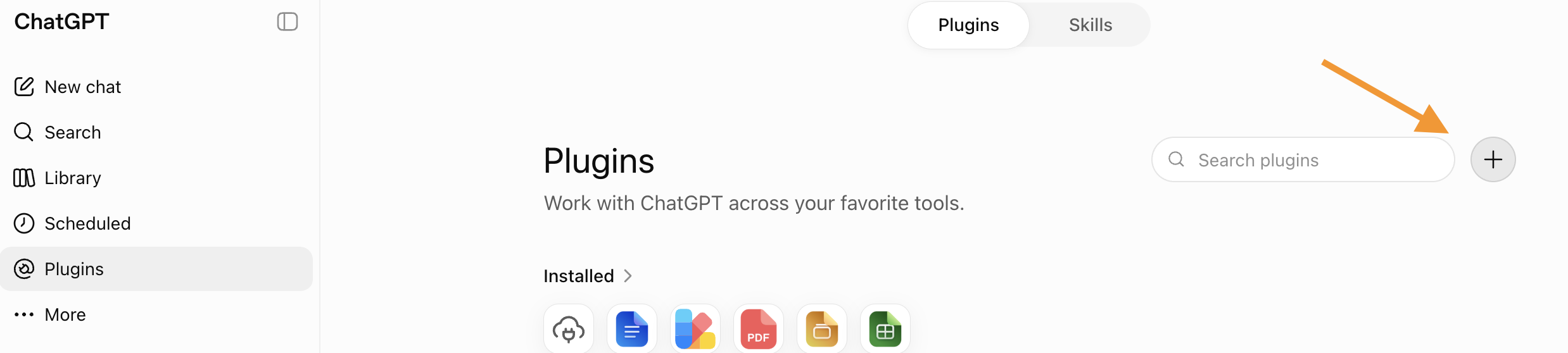
- Give the server a name (for example, Dux-Soup) and enter the server URL:
https://app.dux-soup.com/mcp
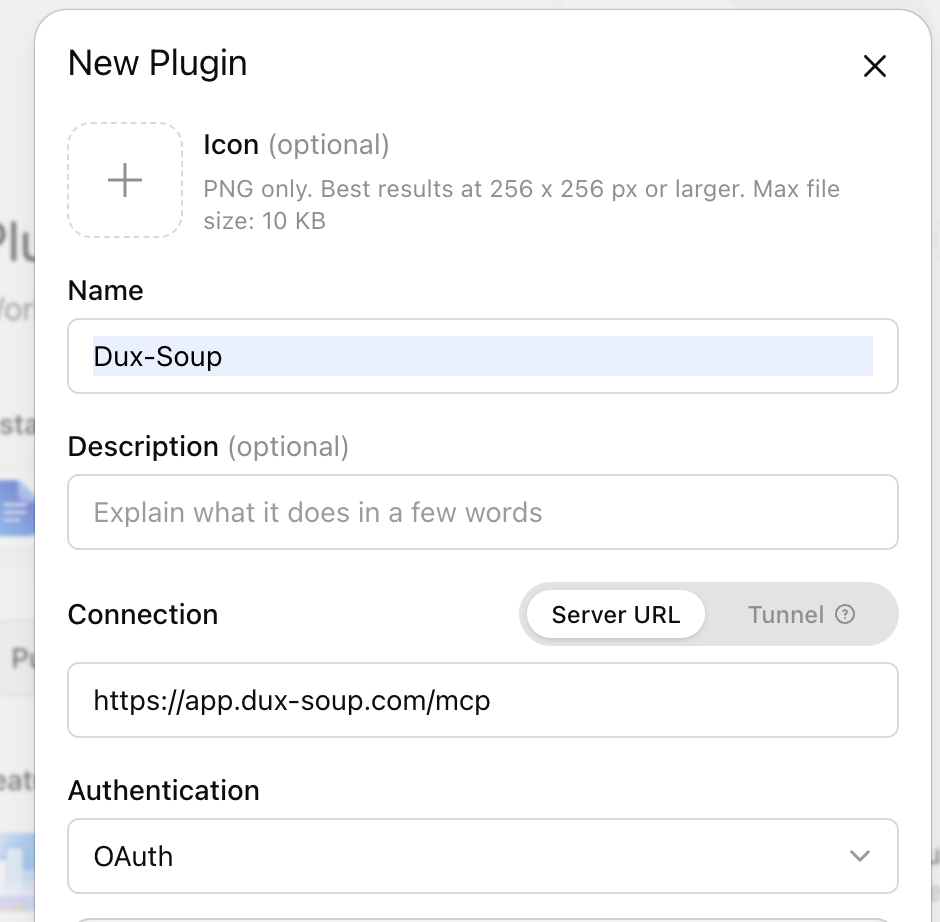
- Click Add. ChatGPT will automatically discover the server configuration and begin the OAuth sign-in process.
- Sign in with the Google account associated with your STACKED subscription.
- Start a new chat and enable the STACKED MCP server if prompted.
Note: Custom MCP servers are currently an experimental feature in ChatGPT. At the time of writing, they are available through the ChatGPT web app only, and may require Developer Mode to be enabled. Availability varies by account type and region.
STACKED MCP server supports OAuth 2.0 and Dynamic Client Registration, so no additional configuration or API keys are required.