
Manage drip campaigns and lead generation funnels
The Sessions tab in the STACKED Admin Dashboard is where you can easily manage individual team members’ and clients’ drip campaign templates, along with their lead generation funnels.
To access the Sessions tab:
- 1 Open the desktop app.
- 2 Click Dashboard in the sidebar.
- 3 Select the Sessions tab.
- 1 Open your Profile .
- 2 Click the Dashboard icon in the sidebar.
Manage drip campaigns
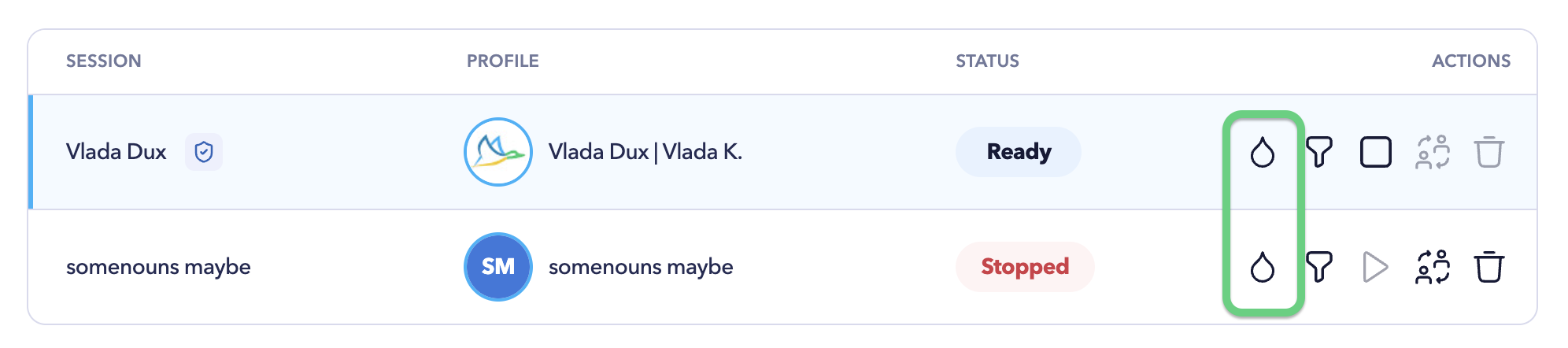
Click the droplet icon to open the selected session’s Drip Campaigns.
From here, administrators can view the campaigns associated with that LinkedIn session and create, edit, enable, disable, or delete campaigns on the user’s behalf.
You can also search campaigns by name or filter them by status.
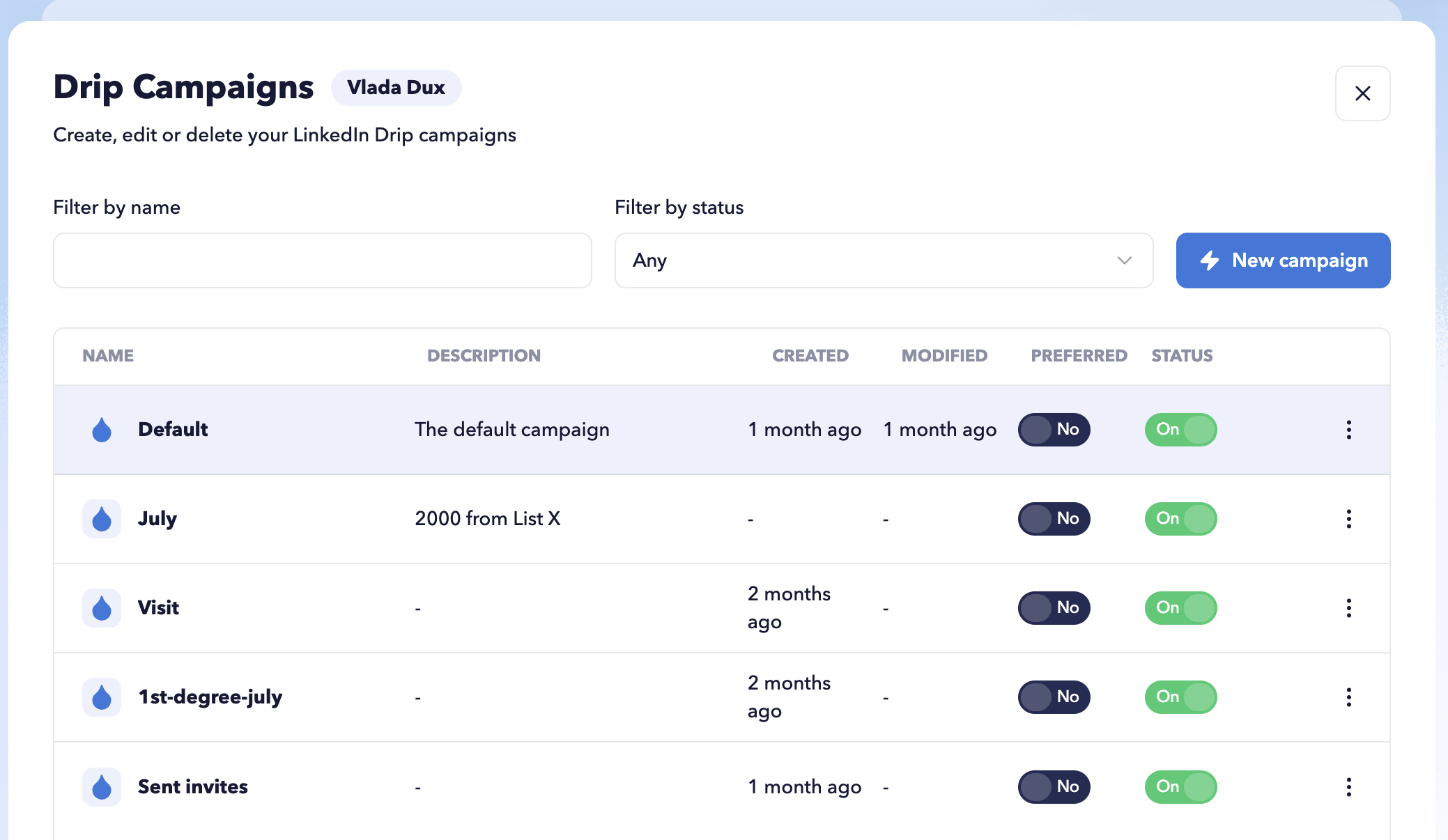
You don’t need to create separate campaign templates for administrators. Campaigns created here use the same Drip Campaign editor available to individual users.
Learn more: See Create your first drip campaign for instructions on creating and configuring a campaign.
View the lead generation Funnel
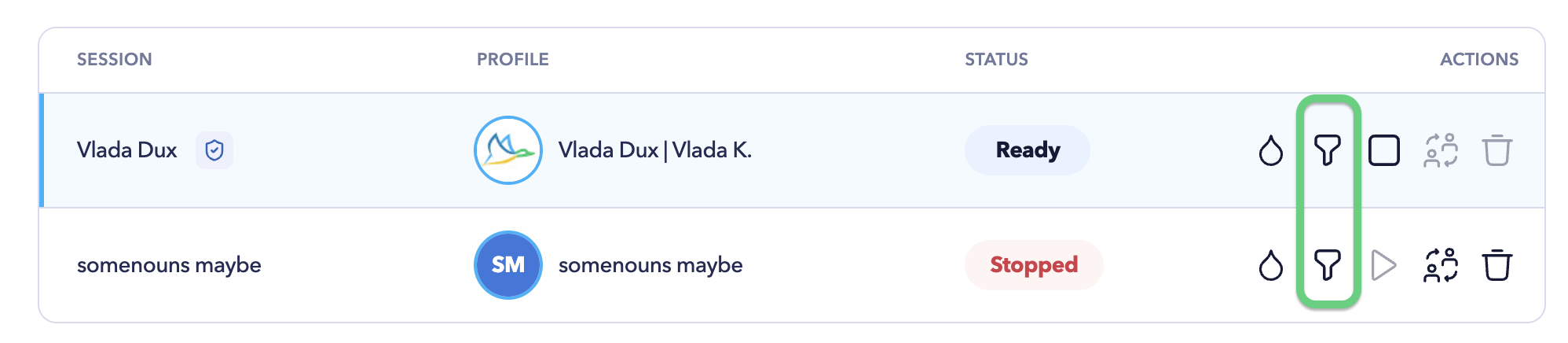
Click the Funnel icon to open the selected session’s lead generation Funnel.
The Funnel provides a visual overview of how prospects are progressing through the session’s drip campaigns, including:
- Enrolled
- Invited
- Accepted
- Follow-ups
- Responded
- Qualified
You can use the Dashboard campaign and date filters before opening the Funnel to focus on the campaign activity you want to review.
From the Funnel, you can also enrol prospects from a LinkedIn Search URL, clipboard, or file, and copy prospects between campaigns.
Learn more: See Monitor campaign performance for a detailed explanation of the Funnel, campaign performance, and prospect stages.
Dashboard filters
Filters in the top panel control the data displayed across the admin Dashboard.
You can select:
- One session
- Multiple sessions
- All sessions
You can also select campaigns associated with those sessions and choose the reporting period.
