
Dux-Soup Agency Dashboard
The Cloud Agency Dashboard allows you to monitor and manage all your LinkedIn campaigns and managed client sessions in one place.
You can access the Dashboard from the left-hand menu under Agency Dashboard.
Jump to:
Filters
At the top of the Agency Dashboard, you’ll see filters that control what is displayed:

- Sessions filter – View all sessions or select specific ones.
- Campaign filter – View all campaigns or narrow down to specific ones your agency is running.
- Time Range filter – Choose a timeframe (last 24 hours, 7 days, 4 weeks, 3 months, or custom).
- The filters at the top affect all data panels (KPIs, Unified Inbox, Queued Activity, etc.) - the entire dashboard will adjust to reflect the selected filter settings.
- Disabled campaigns are marked with a sleep icon (💤).
KPIs
The KPIs panel highlights the lead generation performance across your managed client sessions for the selected timeframe. These metrics provide a quick overview of activity, messaging performance, network growth, and prospect engagement.
Metrics include:
|
Activity
|
Messaging
|
|
Network
|
Prospecting
|
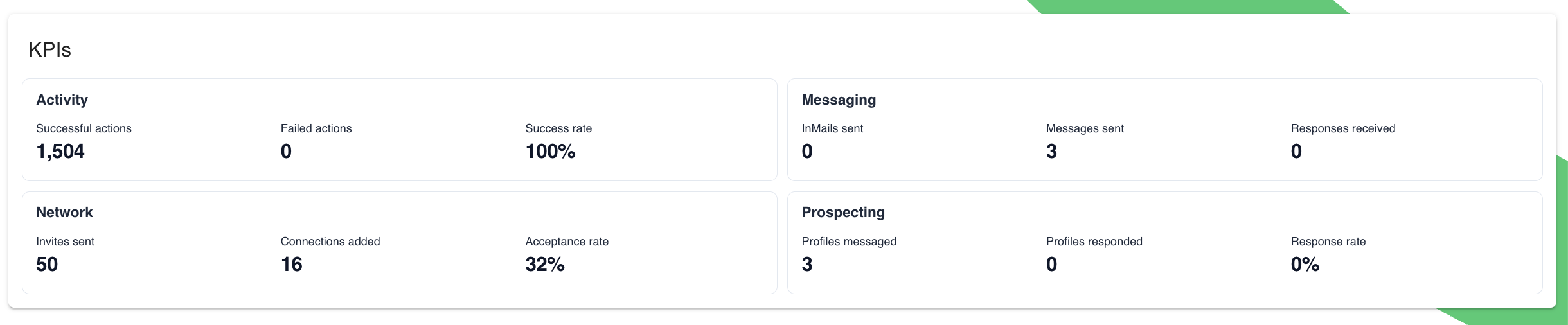
If you select 24h, 7d, 4w, or 3m, Dux-Soup automatically compares the chosen period against the previous one.
Sessions
Sessions are at the heart of running your agency operations. Each session corresponds to a LinkedIn account connected to your Dux-Soup Cloud Agency Dashboard.
From the Sessions panel, you can:
- Add sessions (connect LinkedIn accounts)

- See the LinkedIn profile linked to each session
- View each session’s timezone
- View session status: ready (i.e., active) or stopped.
- Open the session’s LinkedIn profile URL
- Access and modify Drip Campaign settings (waterdrop icon)

Once you click the drip campaign icon, the campaign editor for that specific session will open, allowing you to edit campaigns, clone existing ones, or create new ones.
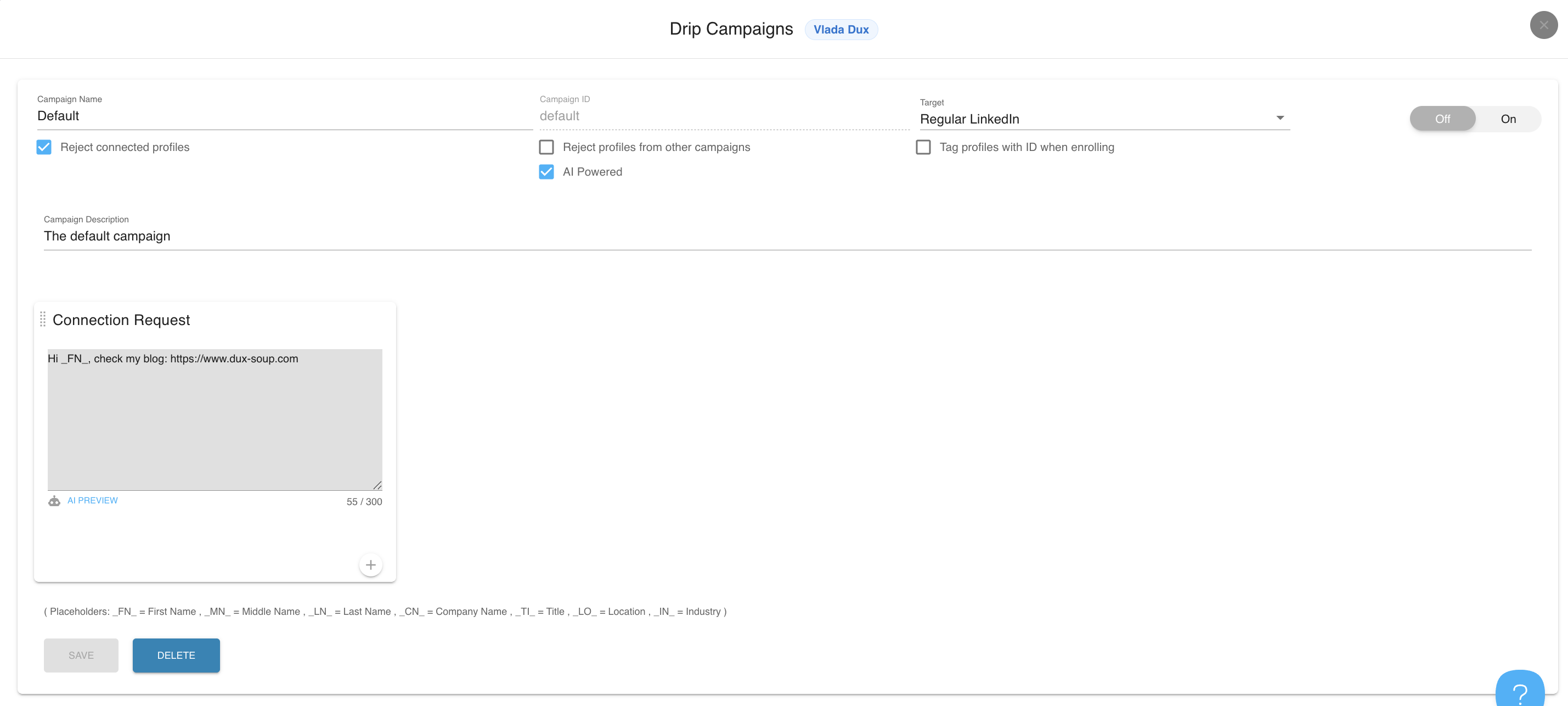
Learn more about how to set up drip campaigns by clicking here.
- Switch the active session

Use the switch option when enrolling profiles into campaigns - it loads the LinkedIn session into your local browser.
- View funnel performance per session

Once you click the funnel icon, the funnel view for that specific session will open, allowing you to review the performance of all campaigns or only selected ones (based on the filters previously applied) through each stage.

You can also enroll profiles from a search URL, clipboard, or file.
- Stop the session (disables Dux-Soup automation) or Start the session (restarts the automation).

- Remove the session - permanently removes the session from the Dashboard.

This action cannot be undone. It will stop all automation for that account and remove it from billing.
Extension requirement: Some buttons in the Sessions panel (e.g., Switch or Start buttons) require the Dux-Soup browser extension to be installed. You can install the Dux-Soup extension here.
Prospects
Prospects are automatically created when:
- You visit a profile on LinkedIn
- A drip campaign runs an action on a profile for the first time
Within the Prospect panel, you can:
- Search contacts.
- Filter prospects by connection degree.
- View the prospect’s name, title, and company name.
- View the last campaign progress bar.
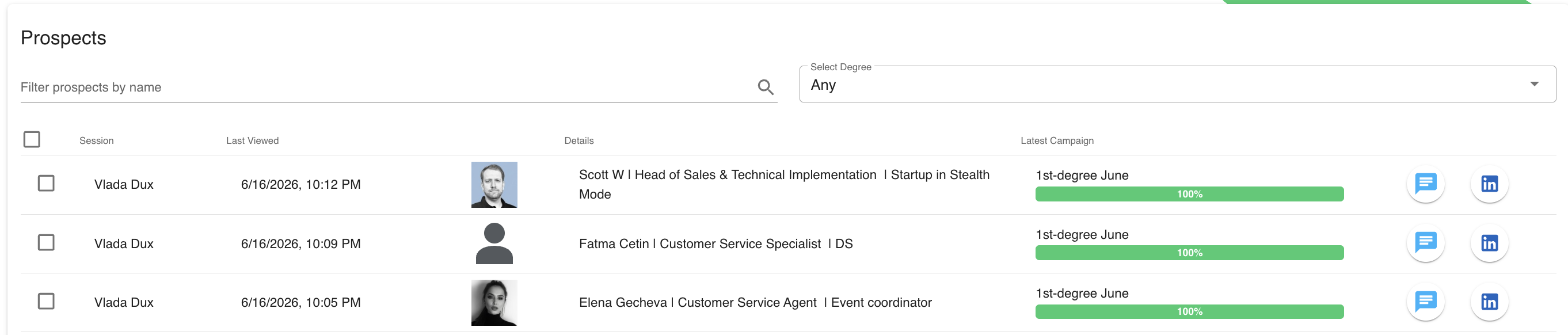
Progress bar color meanings
Green: Prospect is currently in an automated campaign flow with no reply received.
If the green bar contains a star, it indicates the prospect has been qualified.
Orange: Prospect has replied and requires action.
Red: Prospect has been qualified out.
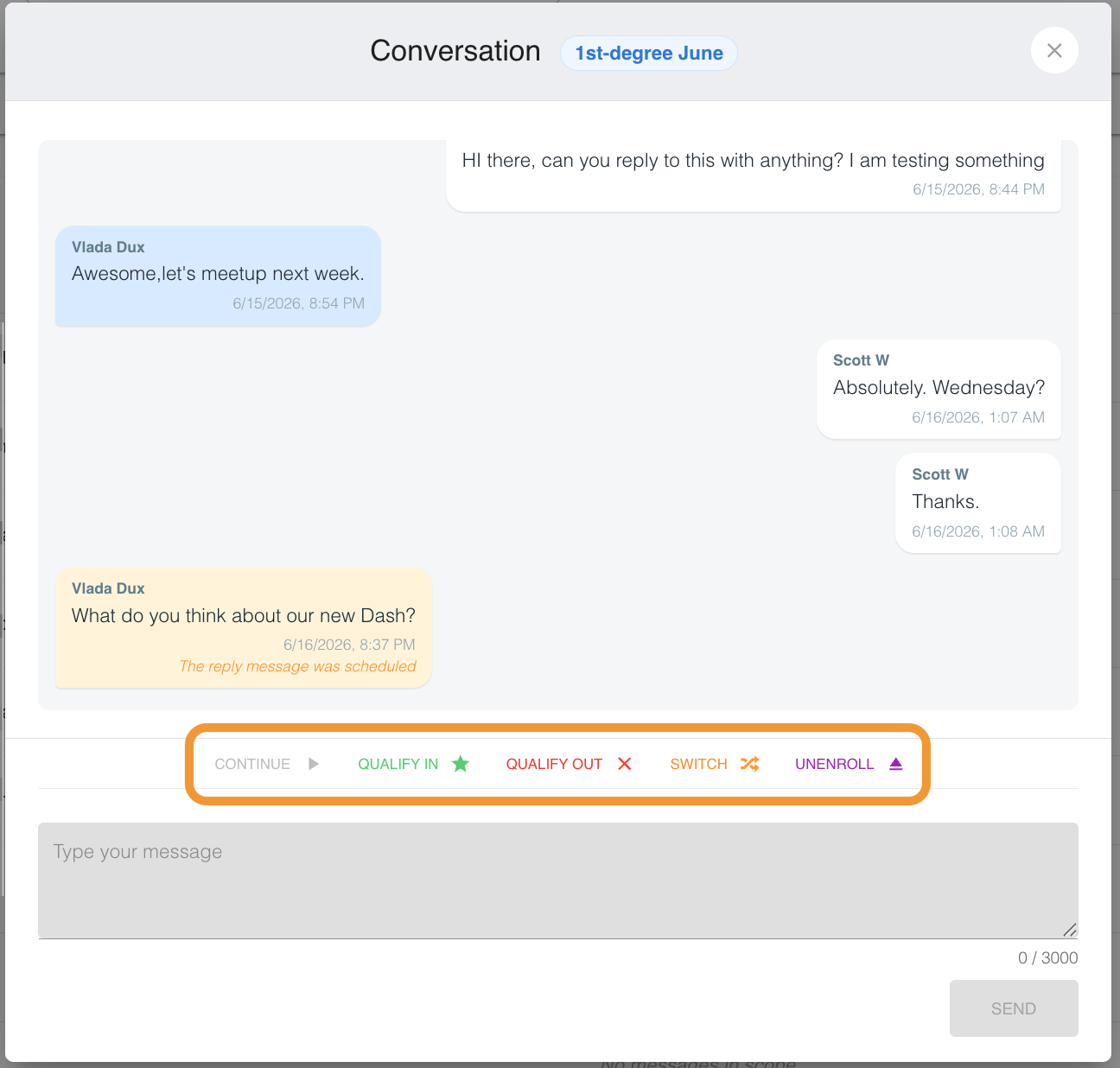
You can also view LinkedIn messages, reply to prospects, and access Dux-Soup prospect control options through the message bubble. Within a message bubble, you can:
Unified Messaging
Unified Messaging combines LinkedIn messages from all selected team members into a single view. You can view messages across multiple sessions, with each message thread combining standard LinkedIn and Sales Navigator Inbox messages in one place.
Features include:
- View the prospect’s name, last campaign, last message, and timestamp, and open their profiles on LinkedIn.
- Use the arrow icon to jump to messages, or click the message bubble. As in Prospects, you can view LinkedIn messages, reply to prospects, and access Dux-Soup prospect control options.

The north-east arrow indicates the last message was sent by you.
The south-west arrow indicates the last message was a reply from the prospect.
Queued Activity
This section shows upcoming scheduled actions for selected sessions and campaigns.
You can:
- Filter queued activity by campaign name or prospect name/URL.
- Filter by action type (visit, connection request, endorse, follow, follow-up, InMail).
- Remove selected actions if needed.

Only one action per LinkedIn profile is displayed in the queue for a specific campaign. This action is subsequent to the previous one.
Activity Log
The Activity Log records all past Dux-Soup actions.
Features include:
- Filter past activity by action type or status (success, fail, retry).
- Search by name.
- Open LinkedIn profiles directly.
- Rerun past actions, adding them back to the Queued Activity list.

Export
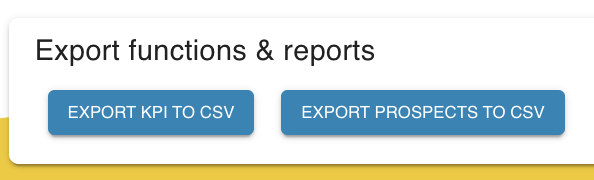
The Export panel provides data export functions:
- Export KPIs to CSV – Download performance metrics.
- Export Prospects to CSV – Download contact data and LinkedIn conversations. Learn more about the contact data here.
More info on the data you can download using Prospects.
Switch to the Old Dashboard
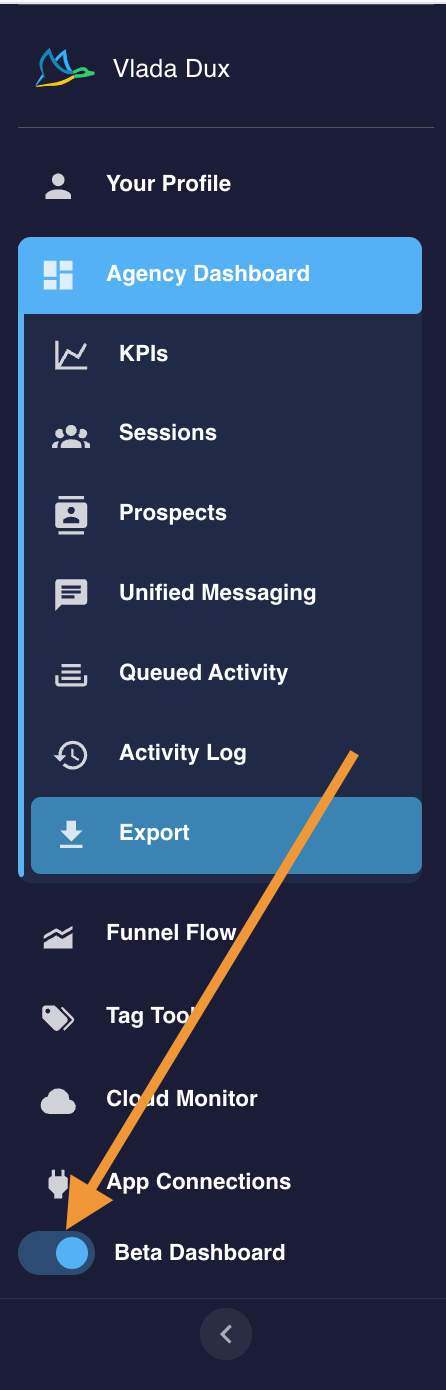
You can find a toggle at the bottom left of the Cloud Agency Dashboard menu to switch to the old (Beta) dashboard.
The Cloud Agency Dashboard gives agency admins full control over multiple client LinkedIn accounts in one centralised platform - complete with campaign management, performance tracking, inbox management, and export capabilities.
If you are missing any functionality in the new version, please email our support team at info@dux-soup.com, we’re happy to help!