
How to install the Microsoft Teams connector
You can access the Microsoft Teams integration with all STACKED plans.
This guide explains how to install and connect Microsoft Teams to STACKED.
Step 1: Add the STACKED app to your Organisation (admin only)
This step must be completed by a Microsoft Teams admin.
- Navigate to the STACKED Dashboard and open the App Connections page.
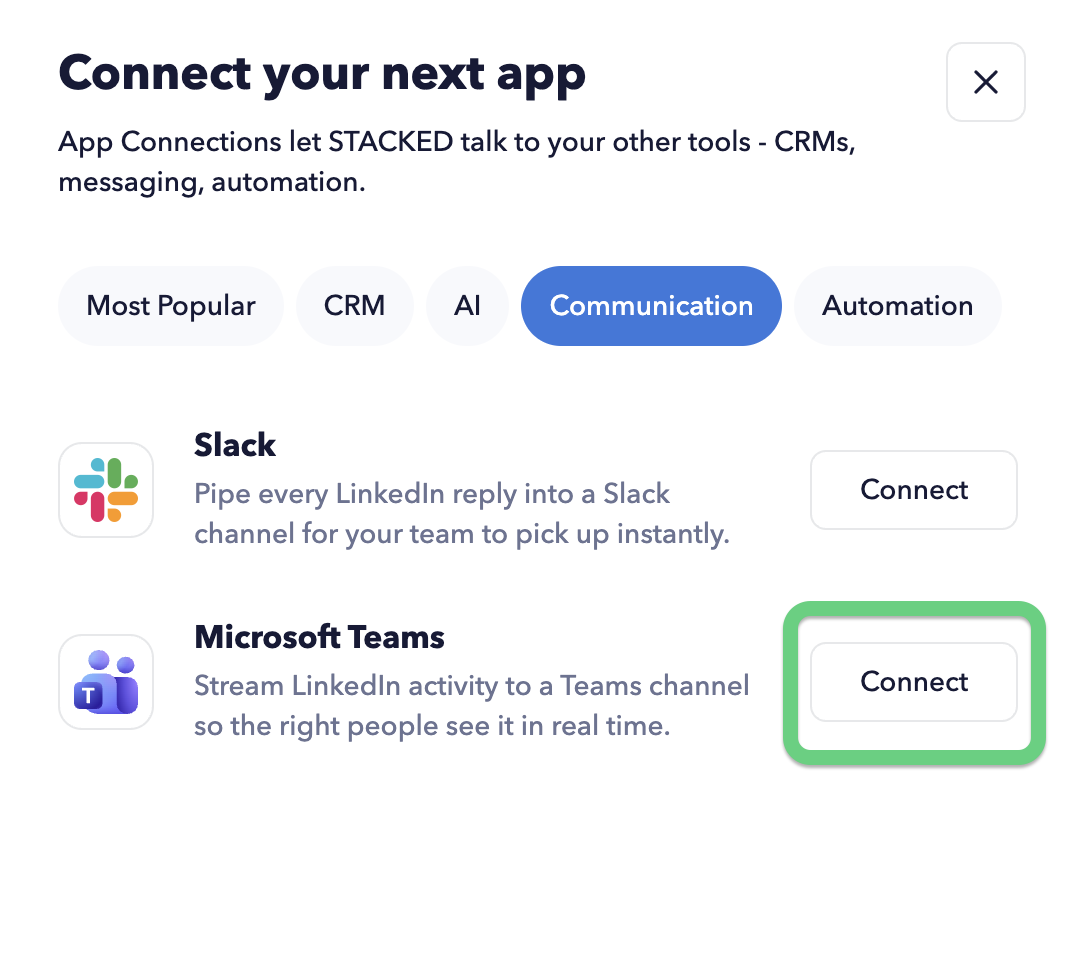
- Click the +Add Connection button and select Teams from the options.
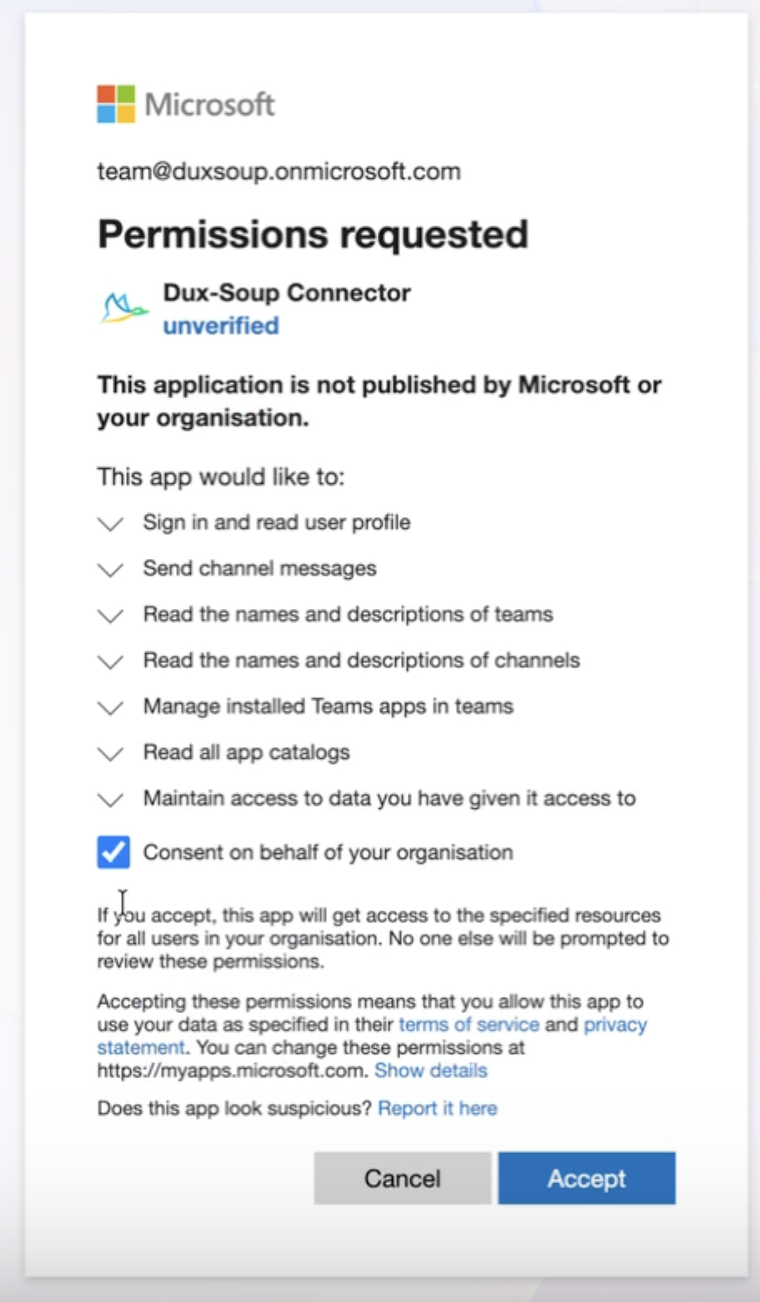
- Select your admin account and grant permissions.
- Go to admin.teams.microsoft.com
- Navigate to Policy packages → Teams apps → Manage apps
- Click Actions on the right-hand side
- Select Upload new app

- Upload this file: https://download.dux-soup.com/latest/Dux-Soup-Connector-for-Teams.zip.
-
Confirm the app appears in the Managed apps list.
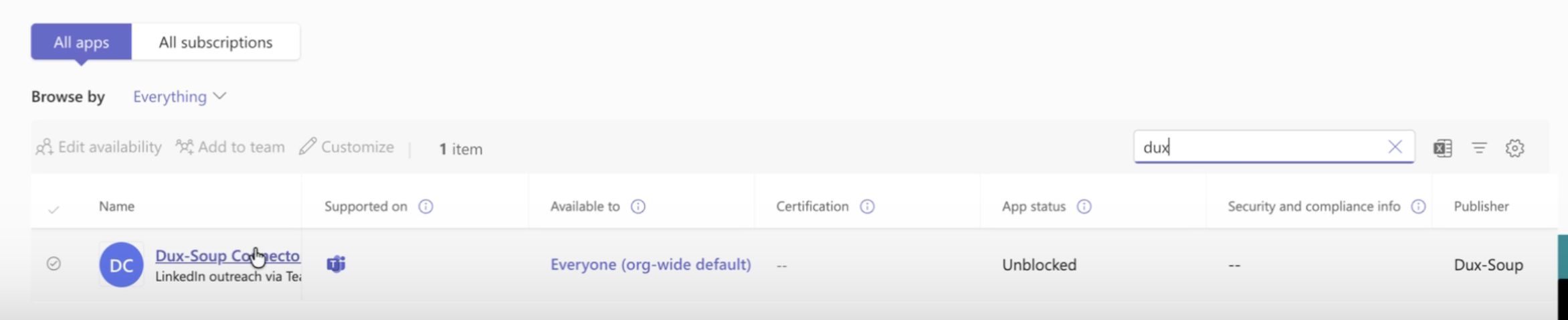
Once uploaded, the Dux-Soup Connector becomes available to all Teams users in the organisation. The connector will appear on your STACKED App Connections page.
Step 2: Log out of the Teams admin dashboard
After the app has been successfully uploaded, you can log out of the Microsoft Teams admin dashboard.
Step 3: Connect Microsoft Teams in STACKED Dashboard (non-admin)
This step can be completed by any STACKED user - admin rights are not required.
- Once the admin installs the Dux-Soup connector (Step 1), navigate to the STACKED Dashboard and open the App Connections page.
- Click the +Add Connection button and select Teams from the options.
- Enter your Teams login details to complete installation.
- The connector will appear on your STACKED App Connections page.