Pipedrive CRM integration
You can access Pipedrive CRM integration via the App Connections page.
STACKED offers a two-way integration with Pipedrive, allowing you to automatically record LinkedIn profiles and activities - such as new connections and incoming messages - into your CRM, while also enabling you to trigger LinkedIn actions directly from Pipedrive.
Contact Filters and LinkedIn Activity Sync in Pipedrive
Once you install the Pipedrive connector, you can enable these options:
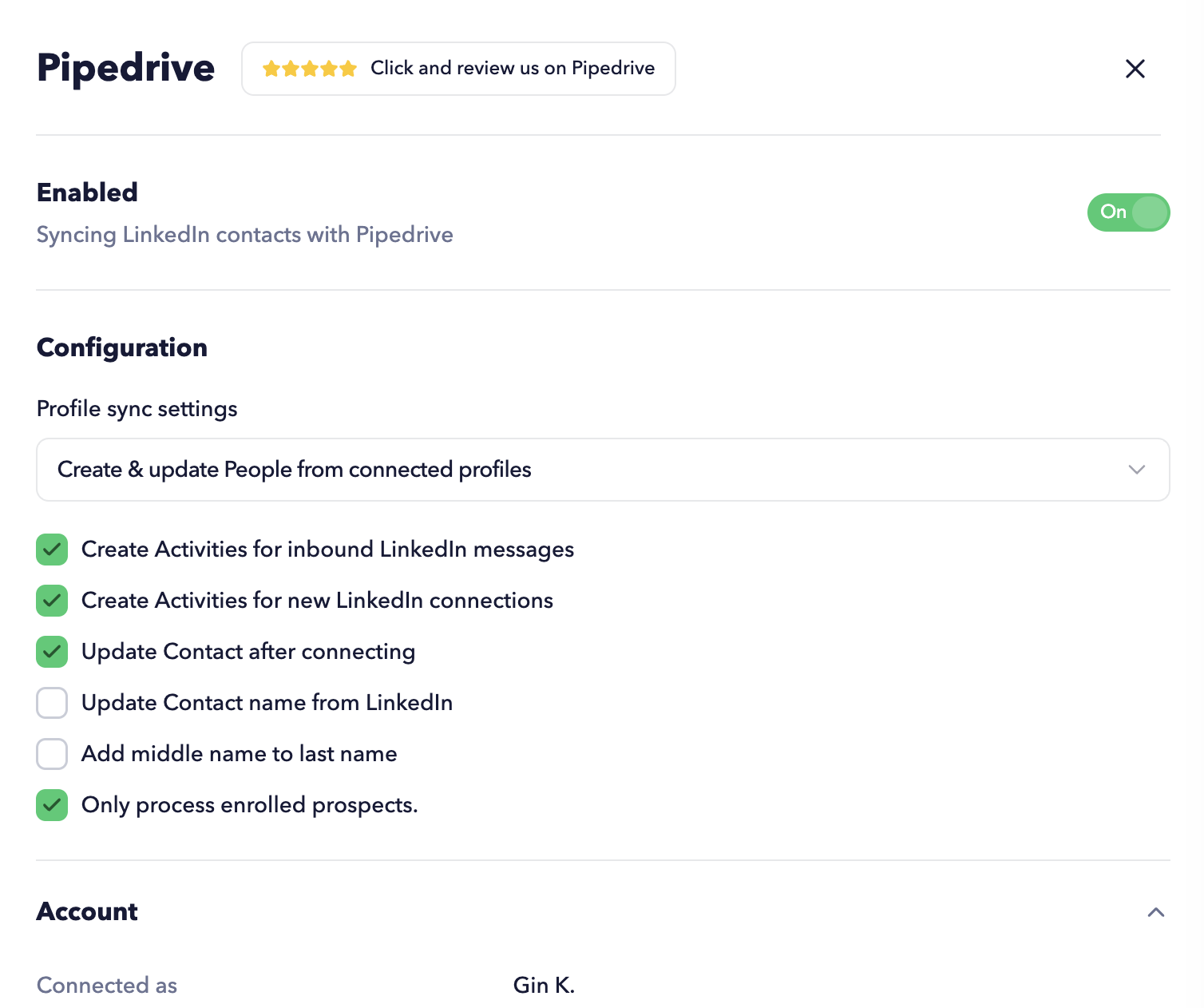
Create Activities for inbound LinkedIn messages - transfer messages to your Pipedrive CRM.
Create Activities for new LinkedIn connections - transfer data to your CRM once a connection is made.
Update Contact after connecting - STACKED updates contacts with relevant information once they become your 1st-degree connections.
STACKED schedules profile visits when you activate 'Update Contact after connecting'. Ensure the Default campaign is enabled on the Drip Campaigns page so the visit action can run and update the Contact in your CRM.
Update Contact name from LinkedIn - STACKED will update the existing contacts with the name that is shown on LinkedIn.
Add middle name to last name - moves LinkedIn middle names into the last name in Pipedrive, which is especially useful for Dutch and French name prefixes such as “de” and “van”.
Only process enrolled prospects - STACKED will record only profiles that were enrolled in Drip Campaigns.
You can also select one of these filters:
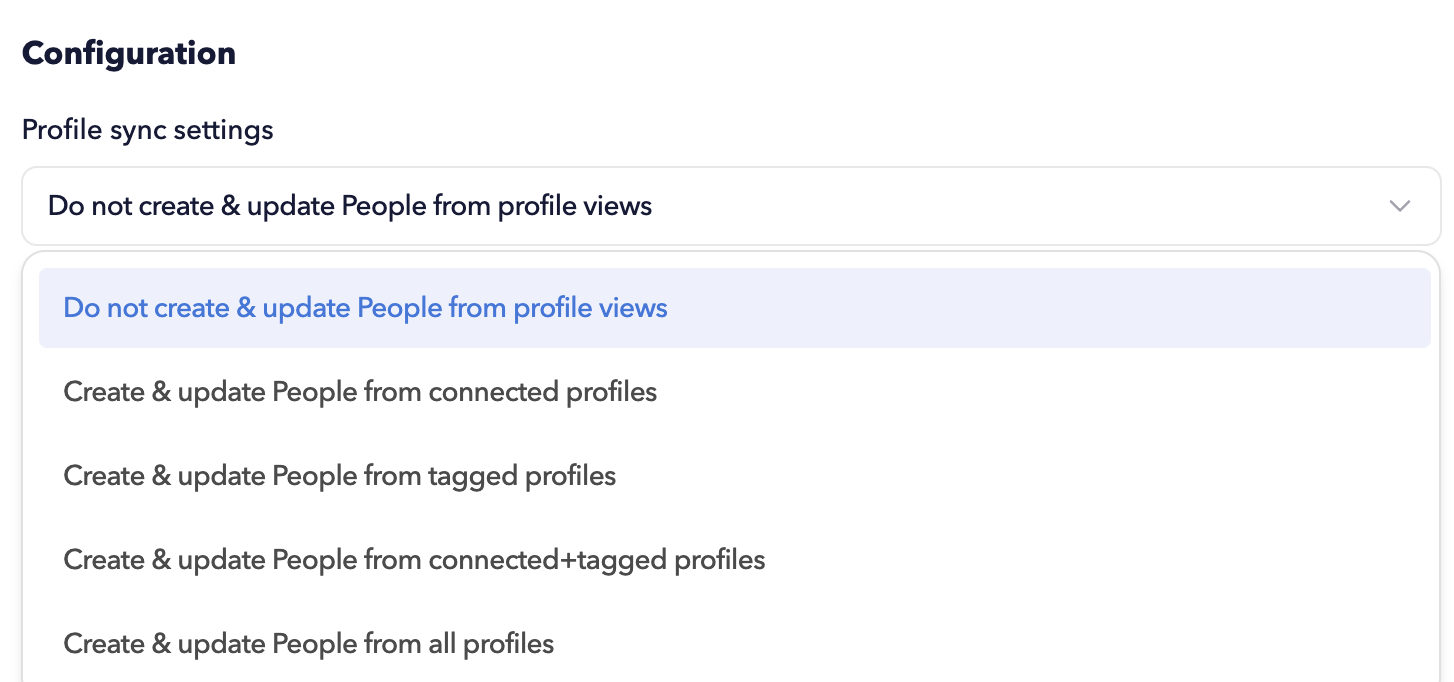
Do not create & update People from profile views
STACKED will not create or update contacts in your CRM when you are visiting profiles on LinkedIn.
Create & update People from connected profiles
STACKED will create or update Pipedrive contacts only from your 1st-degree LinkedIn connections.
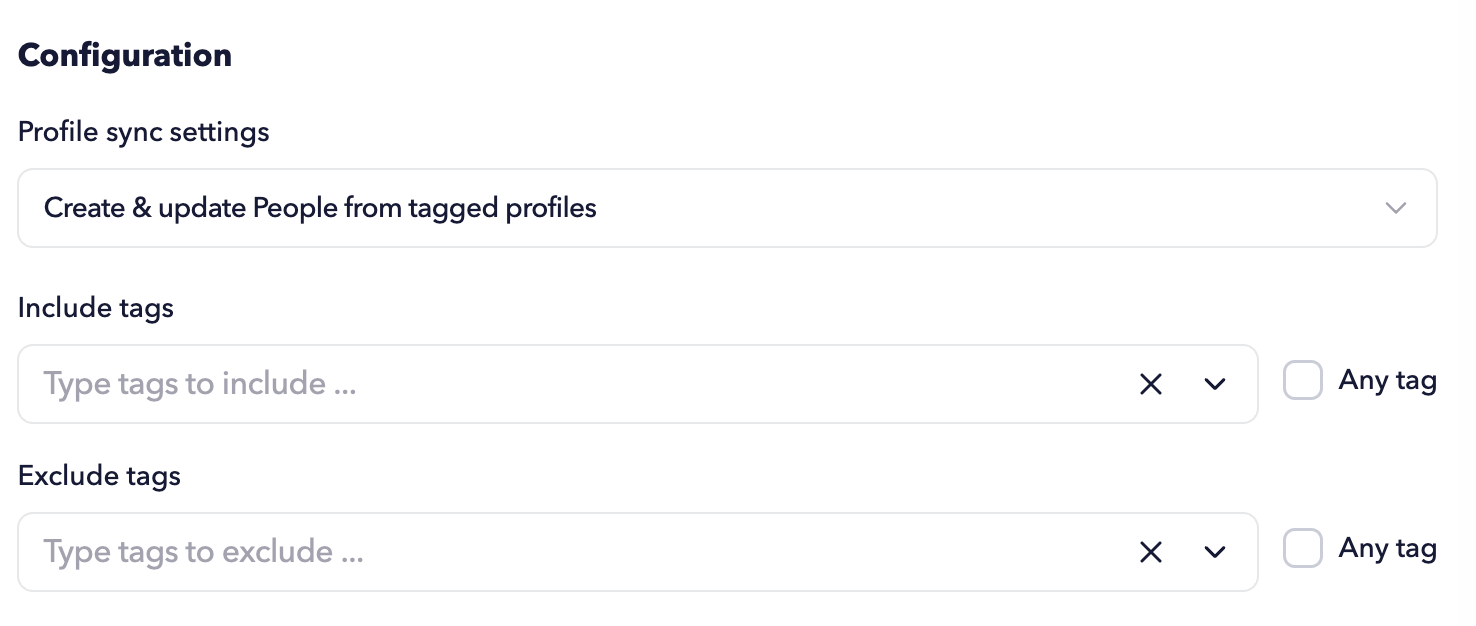
Create & update People from tagged profiles
Choose which tagged LinkedIn profiles STACKED should send to your CRM as new or updated contacts.
- Use Include tags to specify which tagged profiles should be added or updated in your CRM.
- Use Exclude tags to prevent specific tagged profiles from being processed.
- You can also enable the Any tag option to include or exclude all tagged profiles.
Create & update Contacts from connected + tagged profiles
Choose which of your 1st-degree LinkedIn connections STACKED should add or update in your CRM based on tags.
- Use Include tags to select which tagged connected profiles should be synced.
- Use Exclude tags to skip specific tagged connections.
- You can also enable the Any tag option to include or exclude all tagged 1st-degree connections.
Create & update Contacts from all profile views
STACKED will create or update contacts in your CRM from all profile visits on LinkedIn.
- As long as a LinkedIn prospect matches the filter criteria, they will be recorded or updated in your CRM. This applies to manual visits, visits triggered by drip campaign actions, and auto-visits.
- STACKED will record the Organisation LinkedIn URL with the numeric value (company ID).
- To prevent duplicates, company URLs must match exactly (checked with and without a trailing '/'). Additionally, we verify the company name if no URL match is found. Ensuring exact matches for URLs and names will prevent the creation of duplicates.
Viewing LinkedIn Messages in Pipedrive
New connection and new message events are added to People Notes by default, and, if enabled in the CRM Connector settings, they are also recorded on the Pipedrive Activity page.
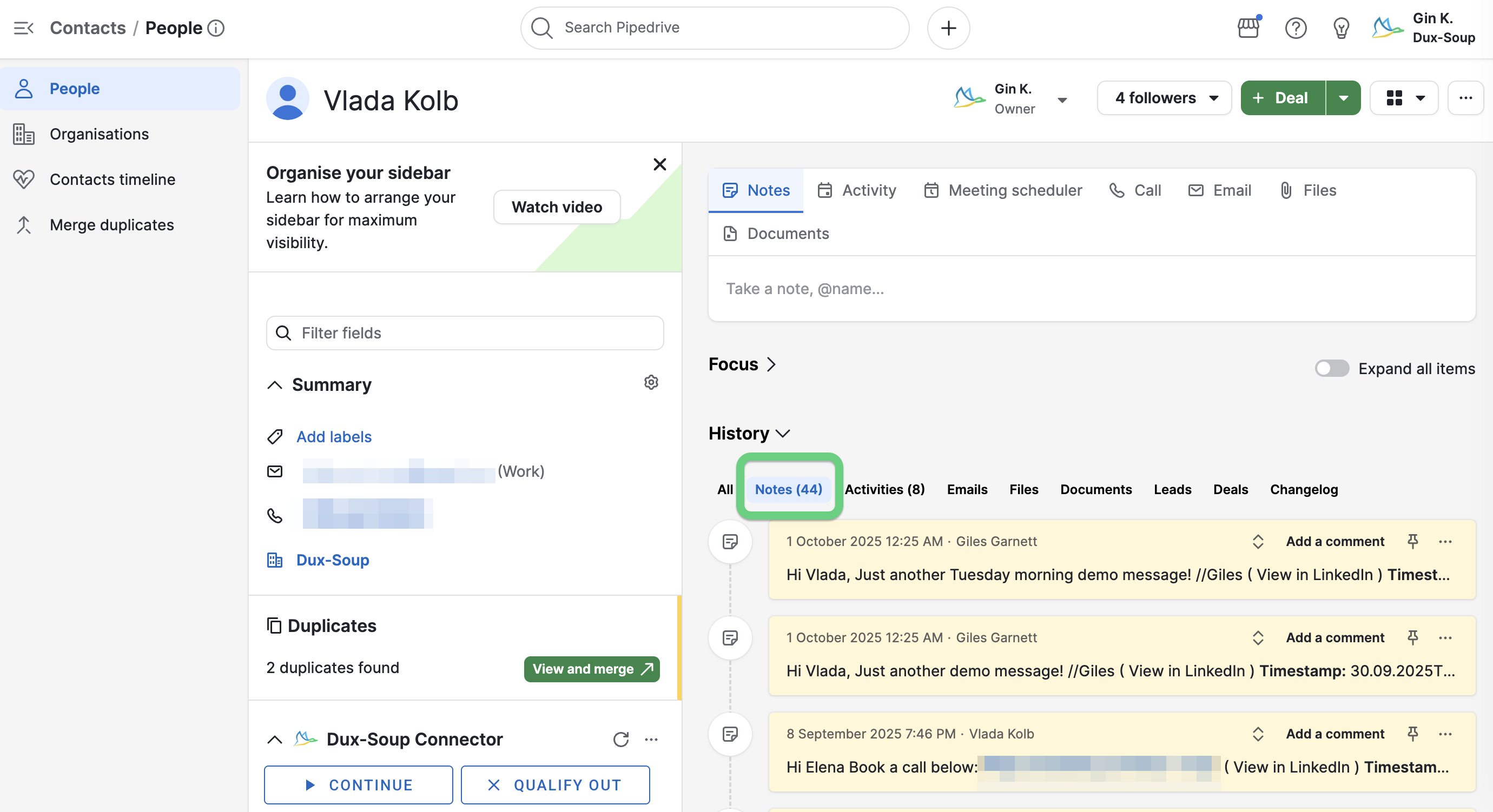
New connection events are not recorded if your Connector is configured to record only connected profiles, as an activity cannot exist without a corresponding contact record. Additionally, STACKED does not backdate connection events once a contact record has been created.
However, new messages will appear in the contact’s Notes once the record exists, and the full LinkedIn conversation will be available for viewing.
Trigger LinkedIn Actions from Pipedrive
The Dux-Soup Connector inside your Pipedrive account allows you to trigger LinkedIn automation actions directly from a contact’s profile.
Using the Dux-Soup Connector panel located on the left-hand side of a contact record, you can schedule different STACKED actions for that person.
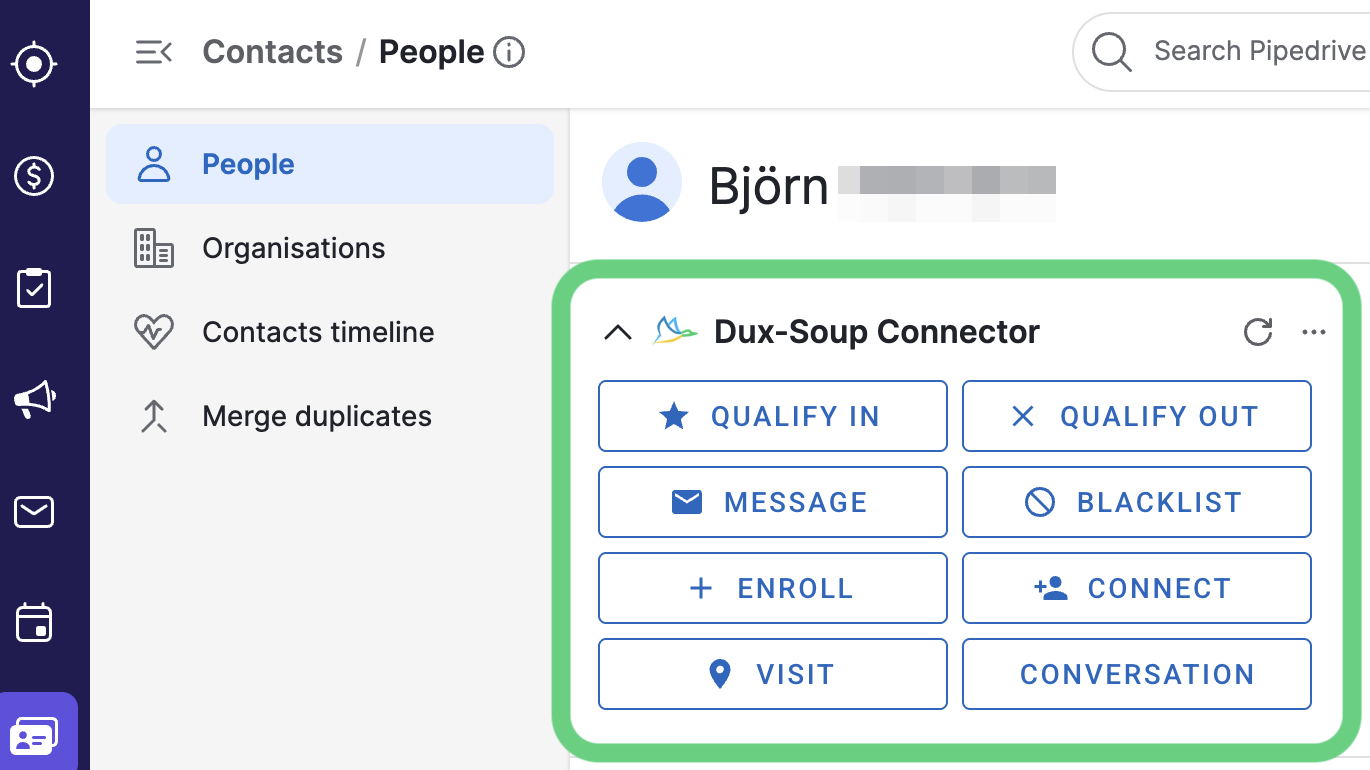
The following actions are available:
- Qualify In / Qualify Out
- Message – send a LinkedIn message to the contact.
- Enroll / Unenroll – add or remove the contact from a drip campaign.
- Connect – send a LinkedIn connection request.
- Visit – visit the contact’s LinkedIn profile automatically.
- Blacklist – prevent the contact from receiving any future automation actions.
- Conversation - opens the LinkedIn conversation associated with that contact, allowing you to review or continue communication.
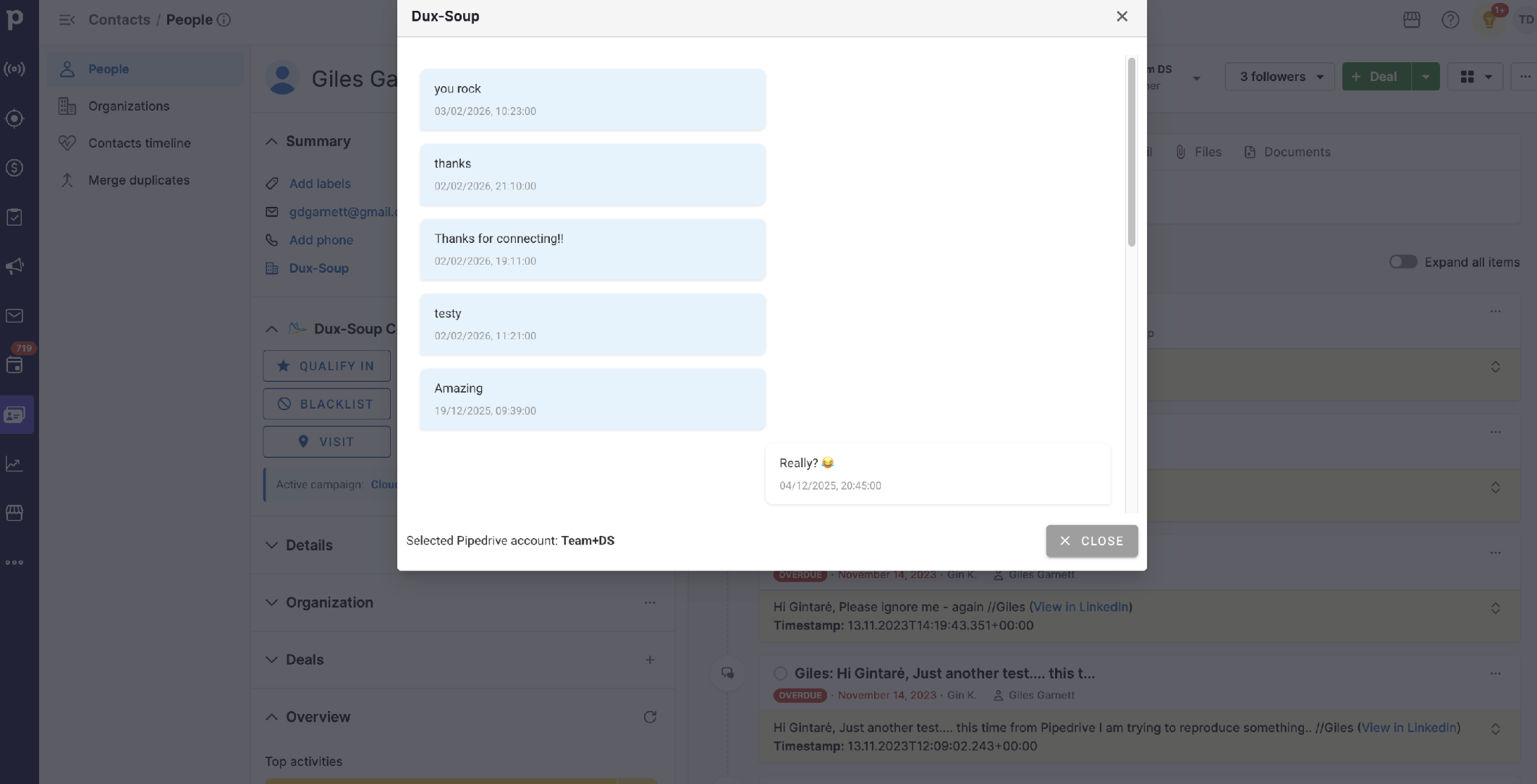
At the bottom of the panel, an Active Campaign indicator displays the most recent STACKED campaign associated with the profile.
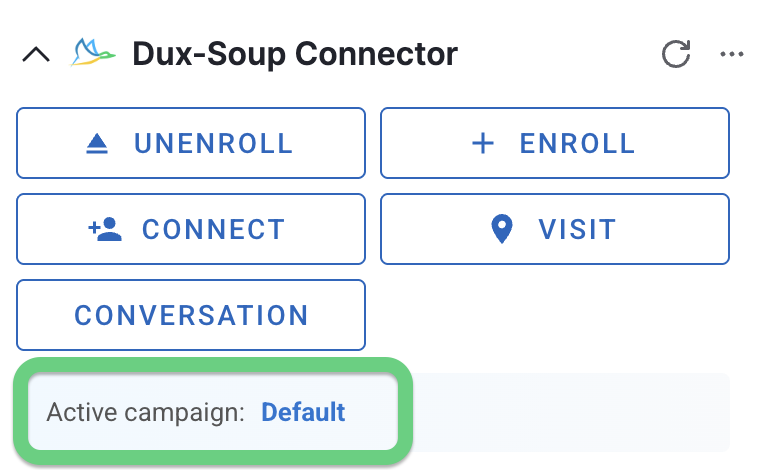
All Pipedrive users can access the Dux-Soup Connector panel, regardless of whether they have STACKED open.
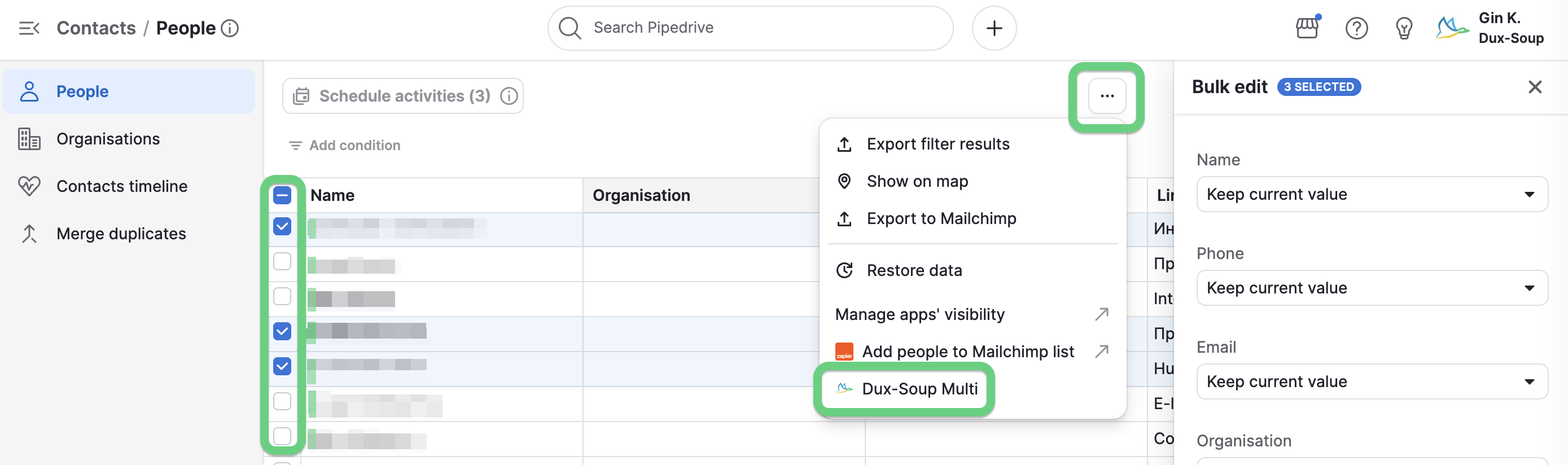
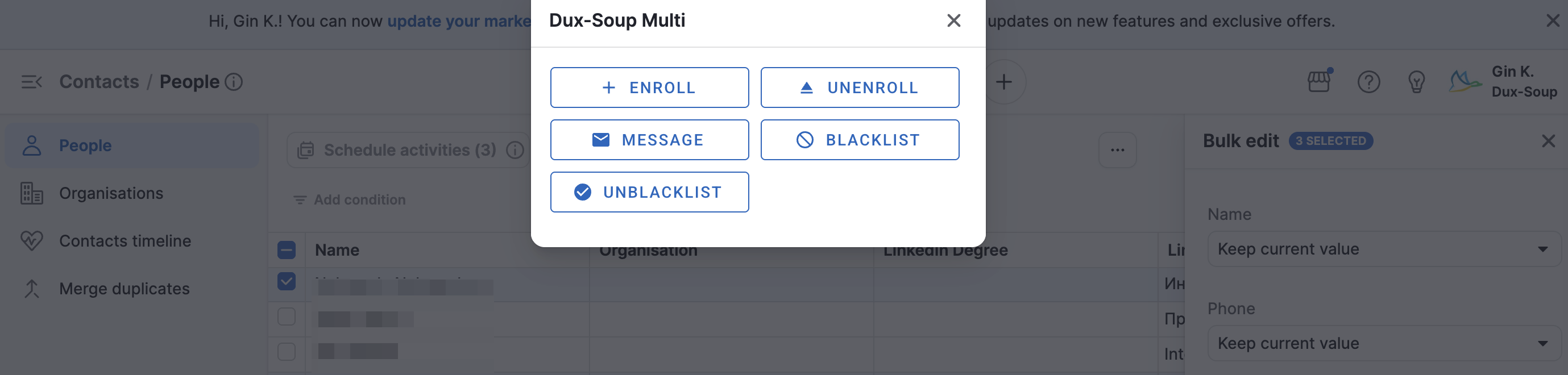
Enroll, Message, and Blacklist actions are also available for multiple Pipedrive contacts at once from the People list.
To use this feature:
- Select the contacts using the checkboxes on the left-hand side of the People list.
- Click the three dots (⋯) menu on the right-hand side.
- Select Dux-Soup Multi.
A pop-up window will appear showing the available actions that can be applied to all selected contacts.
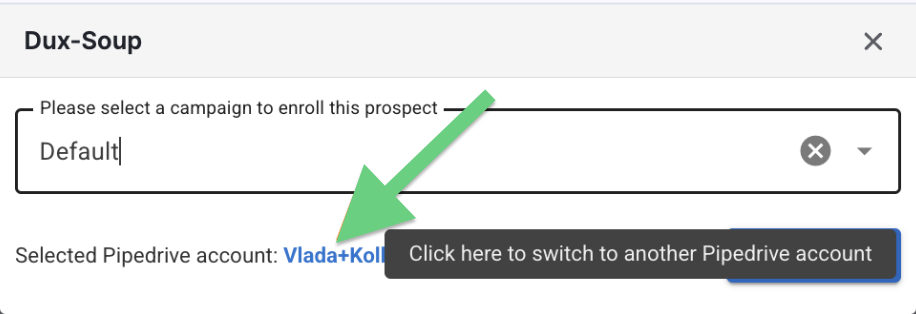
When scheduling an action, you can choose a different STACKED account to perform the action. This option is available both from an individual contact profile page and from the People list when performing bulk actions.